demobook

Image Generation & Editing Tools for Graphic Design & Vector Art

141 clips
  1. 4:300:28Image remixing and text generation in IdeogramThe demo shows Ideogram generating legible text within images and using its 'remix' and 'upscale' tools to modify existing visuals.Ideogram · intermediate · Graphic Design & Vector Art
  2. 7:591:14Enhance skin texture with Freepik Skin EnhancerThe video shows the 'Skin Enhancer' tool within Freepik being applied to a retouched photo to restore realistic skin pores and texture using the 'Faithful' setting.Freepik · beginner · Graphic Design & Vector Art
  3. 12:382:03Recover out-of-focus images using Freepik AI and MagnificThe user demonstrates taking a completely blurry, out-of-focus photo and using Freepik's 'Cream' model with a restoration prompt followed by a Magnific upscale to recreate facial details.Freepik · beginner · Graphic Design & Vector Art
  4. 13:450:49Generate character poses with Freepik AssistantThe creator demonstrates using the Freepik Assistant tool to upload a character image and automatically generate multiple different poses without manual prompting.Freepik · beginner · Graphic Design & Vector Art
  5. 8:100:58Generate realistic images with RecraftThe user selects a realistic model and aspect ratio in Recraft, enters a prompt for a knight in New York, and exports the resulting image.Recraft · intermediate · Graphic Design & Vector Art
  6. 29:034:45Automating Multi-Angle Prompts with Array and List NodesThe demonstration shows how to use an 'Array' node to split a single block of text (separated by asterisks) into individual camera angle prompts and then mapping them to a 'List' node for batch processing.Figma · intermediate · Graphic Design & Vector Art
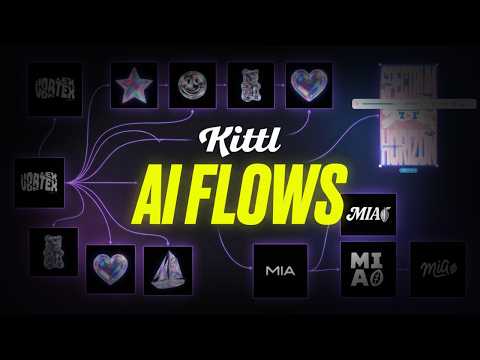
  7. 0:210:17Building node-based AI workflows in Figma WeaveThe video demonstrates the Figma Weave interface where a user connects various AI model nodes and image processing blocks to create a repeatable design machine.Figma · intermediate · Graphic Design & Vector Art
  8. 7:130:25Artistic image generation with Recraft (Reave)The creator demonstrates the 'Reave' (Recraft) model's ability to generate images with an 80s film aesthetic and high typography quality.Recraft · intermediate · Graphic Design & Vector Art
  9. 10:460:20Graphic design generation with Ideogram (Idog) V3The user demonstrates Ideogram V3's performance on a complex prompt, focusing on its smooth aesthetic and typography.Ideogram · intermediate · Graphic Design & Vector Art
  10. 3:330:50Crop and resize images in PhotopeaThe instructor demonstrates how to use the crop tool to manually resize an image or apply fixed aspect ratios like 1:1.Photopea · intermediate · Graphic Design & Vector Art
  11. 6:593:33Selection tools: Lasso, Magic Wand, and Magnetic SelectA walkthrough of various selection methods in Photopea, including freehand lasso, polygonal selection, and the AI-powered quick selection tool.Photopea · intermediate · Graphic Design & Vector Art
  12. 13:200:58Clone parts of an imageShows how to use the Clone tool to sample an area (like a cat's eye) and paint a duplicate of it elsewhere.Photopea · intermediate · Graphic Design & Vector Art
  13. 14:181:21Remove blemishes with Healing BrushesDemonstrates the Spot Healing Brush and Healing Brush to remove unwanted objects or blemishes by blending them with surrounding pixels.Photopea · intermediate · Graphic Design & Vector Art
  14. 15:390:55Blur, Sharpen, and Smudge toolsShows how to apply local edits to soften details, enhance edges, or smudge pixels like wet paint.Photopea · intermediate · Graphic Design & Vector Art
  15. 16:410:47Dodge, Burn, and Sponge for exposure and saturationDemonstrates lightening specific areas with Dodge, darkening with Burn, and adjusting color intensity with the Sponge tool.Photopea · intermediate · Graphic Design & Vector Art
  16. 24:531:15Apply non-destructive Adjustment LayersDemonstrates using Color Balance and Brightness adjustment layers to modify the whole image or a specific selection.Photopea · intermediate · Graphic Design & Vector Art
  17. 42:090:39Generate images with AI modelsA walkthrough of using the Kittl AI panel to select models like Flux or Ideogram and generate images based on text prompts.Kittl · Flux · intermediate · Graphic Design & Vector Art
  18. 44:050:54Restyle images using AIDemonstrates the 'Image Restyle' tool to take an existing photo and transform it into a classical art style while retaining the original composition.Kittl · intermediate · Graphic Design & Vector Art
  19. 1:30:090:16Remove image backgrounds with AIA quick demonstration of the one-click background removal tool on a portrait photo.Kittl · intermediate · Graphic Design & Vector Art
  20. 1:30:341:15Expand photos with AI ReframeDemonstrates using the Reframe tool to generative-fill the sides of a photo to change its aspect ratio for a marketing post.Kittl · intermediate · Graphic Design & Vector Art
  21. 1:32:340:51Vectorize images for color editingShows how to take a flat PNG image and use the Vectorizer to turn it into editable color paths.Kittl · intermediate · Graphic Design & Vector Art
  22. 1:35:052:48Generate product mockupsWalkthrough of placing a design on various apparel and poster mockups, including changing the garment color.Kittl · intermediate · Graphic Design & Vector Art
  23. 1:42:180:41Erase and Fill with AIDemonstrates using the eraser tool with 'Erase and Fill' enabled to remove objects from a photo using content-aware fill.Kittl · intermediate · Graphic Design & Vector Art
  24. 11:290:40Upscaling with Imagen 3 (Nano Banana Pro) on FreepikThe video demonstrates using the Google Imagen 3 model (referred to as Nano Banana Pro) on the Freepik aggregator to upres images using specific text prompts for realism.Freepik · Nano Banana · beginner · Graphic Design & Vector Art
  25. 1:500:36Generating vector icons with Kittl AIThe user demonstrates using the Kittl AI vector style generator to create a custom cross icon from a text prompt and then recoloring it.Kittl · intermediate · Graphic Design & Vector Art
  26. 6:440:58Creating t-shirt graphics with Kittl AI Vector ArtThe user generates a complex 'heaven and hell' scene using Kittl AI's vector art style, specifically choosing it for its scalability and print-readiness.Kittl · intermediate · Graphic Design & Vector Art
  27. 7:450:56Vectorizing images in KittlThe demonstration shows how to take a non-vector AI generation, remove the background, and use the 'vectorize' tool to limit the color palette for screen printing.Kittl · intermediate · Graphic Design & Vector Art
  28. 3:230:53Generate AI images with Kittl AIThe user demonstrates using Kittl AI (incorporating models like Flux Pro and Ideogram) to generate a vintage-style raccoon graphic from a text prompt.Kittl · Flux · intermediate · Graphic Design & Vector Art
  29. 5:530:42Create product mockups in KittlThe demonstration shows how to use the built-in mockup generator to place a design on a specific t-shirt model and customize the garment color.Kittl · intermediate · Graphic Design & Vector Art
  30. 1:562:33Generate photorealistic images with GPT-2 via FreepikThe host demonstrates using the GPT-2 model inside the Freepik interface to generate a 1990s shopping mall image, adjusting parameters like aspect ratio and fidelity.Freepik · beginner · Graphic Design & Vector Art
  31. 1:020:18Generate new images with IdeogramThe user copies the generated prompt and pastes it into Ideogram to create a new set of AI-generated images based on the original image's description.Ideogram · intermediate · Graphic Design & Vector Art
  32. 8:280:56Generate AI art with Spark AIThe video shows the built-in Spark AI tool within Studio being used to generate images from a text prompt ('cute puppy sleeping').Creative Fabrica Studio · beginner · Graphic Design & Vector Art
  33. 14:501:04Create seamless patternsThe demonstration shows how to use the 'Repeat' tool in Studio to turn any graphic or element into a tiled seamless pattern automatically.Creative Fabrica Studio · beginner · Graphic Design & Vector Art
  34. 22:031:26Export designs with transparent backgroundsThe creator shows how to use the download menu to export a PNG while specifically enabling the 'remove background' toggle for print-on-demand use.Creative Fabrica Studio · beginner · Graphic Design & Vector Art
  35. 7:341:48Extracting camera angles using LLM nodesThe user demonstrates resizing a 3D model view and using a ChatGPT node to describe the specific camera angle in text for use in further image generation.Figma · intermediate · Graphic Design & Vector Art
  36. 11:501:34Swapping objects in a pre-built AI workflowThe video shows the efficiency of the node system by swapping the 'glass' prompt for a 'banana' prompt to generate a new object in the exact same camera angle using the existing pipeline.Figma · intermediate · Graphic Design & Vector Art
  37. 0:431:51Transform illustration styles with Kittl RemixThe user demonstrates how to use the Kittl editor to select an existing fox illustration and apply a 'washed cartoon graphic' style preset to generate a new version of the artwork.Kittl · intermediate · Graphic Design & Vector Art
  38. 2:340:17Apply crochet style to graphics in KittlA demonstration of applying a 'crochet' AI style preset to an illustration of a lemon on a scooter using the Kittl Remix tool.Kittl · intermediate · Graphic Design & Vector Art
  39. 4:110:23Apply photo remix styles in KittlThe video shows the application of the 'ethereal blur' photo preset to an image within the Kittl AI image board.Kittl · intermediate · Graphic Design & Vector Art
  40. 13:492:32Design a YouTube thumbnail with Weavy AIRory Flynn shows how he uses Weavy AI's compositor node and layers to isolate characters, remove backgrounds, and adjust camera angles to create a consistent aesthetic for a podcast thumbnail.Figma · intermediate · Graphic Design & Vector Art
  41. 3:500:22Create realistic visuals with Ideogram AIThe demonstration shows pasting a prompt into Ideogram AI and generating high-detail 16:9 images for the video project.Ideogram · intermediate · Graphic Design & Vector Art
  42. 6:554:14Building a multi-model image composition in WeaveThe demonstration shows how to drag and drop nodes for different AI models (like Ideogram v3 and Imagen 4) and use a 'compositor' node to layer a generated car over a generated background.Figma · Imagen · intermediate · Graphic Design & Vector Art
  43. 5:161:28Creative workflow in Freepik AI SuiteThe creator demonstrates using Freepik's interface to pin models, use the image editor for inpainting, and apply Magnific upscaling to storyboard frames.Freepik · beginner · Graphic Design & Vector Art
  44. 0:070:34Bulk vectorize images with Vectorizer.comThe creator demonstrates uploading 20 images simultaneously to Vectorizer.com to convert them from raster to vector format without an account.Vectorizer.io · beginner · Graphic Design & Vector Art
  45. 0:531:07Compare Vectorizer.com vs Vectorizer.ai resultsA side-by-side comparison in Adobe Illustrator showing the vector paths and edge smoothness of a fox design processed by both tools.Adobe Illustrator · advanced · Graphic Design & Vector Art
  46. 2:020:37Analyzing vector detail on text and floral designsThe video shows a close-up inspection of jagged edges on text and floral elements when using the free Vectorizer.com tool compared to the smoother curves of Vectorizer.ai.Vectorizer.io · beginner · Graphic Design & Vector Art
  47. 0:302:03Remove background and vectorize art with Vectorizer AIThe user demonstrates uploading a pixelated AI image to Vectorizer AI, reducing the color palette, and using the color selection tool to disable the background color for a transparent result.Vectorizer.AI · beginner · Graphic Design & Vector Art
  48. 3:301:34Removing complex backgrounds from detailed graphicsThe creator shows how to handle a complex skeleton graphic by reducing the color count to two and disabling the specific background shade to clean up intricate gaps in Vectorizer AI.Vectorizer.AI · beginner · Graphic Design & Vector Art
  49. 5:160:27Batch disabling multiple background colorsA quick demonstration of selecting and disabling multiple dark/black background shades in Vectorizer AI to isolate a graphic for immediate use.Vectorizer.AI · beginner · Graphic Design & Vector Art
  50. 3:110:58Generate AI images with IdeogramThe user pastes the extracted prompt into Ideogram, selects a 16:9 aspect ratio, and generates four variations of a new AI image based on the original description.Ideogram · intermediate · Graphic Design & Vector Art
  51. 4:192:17Convert AI images to editable vectors in KittlThe video shows the process of taking an AI-generated logo, removing the background, and using the 'Vectorize' tool to create a fully scalable vector with editable nodes.Kittl · intermediate · Graphic Design & Vector Art
  52. 11:090:31Create consistent illustration sets with AIUsing the 'Nana Banana' model within Kittl, the user demonstrates generating a sailboat illustration that matches the specific 3D holographic style of existing brand assets.Kittl · Nano Banana · intermediate · Graphic Design & Vector Art
  53. 12:081:14Upscale images to 4K using Kittl RemixThe presenter uses the 'Remix Image' feature with the Nano Banana Pro 4K model to enhance the resolution and crispness of a generated graphic.Kittl · Nano Banana · intermediate · Graphic Design & Vector Art
  54. 17:581:24Generate custom AI mockup environmentsThe user attaches a Smartboard to a standard mockup and uses a prompt to place the product in a specific 'golden hour' interior setting on a wooden coffee table.Kittl · intermediate · Graphic Design & Vector Art
  55. 3:110:40Using Nano Banana 2 in Freepik aggregatorThe presenter shows how to select Nano Banana 2 and Nano Banana Pro simultaneously in the Freepik image generator to compare model outputs side-by-side.Freepik · Nano Banana · beginner · Graphic Design & Vector Art
  56. 0:260:49Generate complex scenes and brand visuals with Recraft V4The video demonstrates Recraft V4's ability to interpret complex prompts for character gestures, textures, and lighting to create photorealistic campaign scenes and vector assets.Recraft · intermediate · Graphic Design & Vector Art
  57. 1:150:12Explore visual directions with Exploration ModeThe demo shows the new Exploration Mode in Recraft, which allows users to generate and compare multiple visual styles and directions from a single text prompt.Recraft · intermediate · Graphic Design & Vector Art
  58. 10:171:50Generate design variations with AI Image BoardThe user demonstrates using the AI Image Board with Nano Banana and ChatGPT models to automatically convert a pickleball design into a golf-themed version.Kittl · Nano Banana · intermediate · Graphic Design & Vector Art
  59. 13:321:19Style transfer using multiple artboard referencesThe user selects two different artboards to prompt the AI to recreate the design of the first in the visual style of the second.Kittl · intermediate · Graphic Design & Vector Art
  60. 17:301:26Generate custom mockups with Nano Banana AIThe user shows how to use a reference photo and AI prompting to generate a realistic image of a person wearing a specific custom shirt design.Kittl · Nano Banana · intermediate · Graphic Design & Vector Art
  61. 0:270:29Upscale images with Magnific AI inside FreepikThe user demonstrates selecting an AI-generated portrait in Freepik and applying the Magnific Precision upscaler to enhance the image quality.Freepik · beginner · Graphic Design & Vector Art
  62. 3:550:45Remove objects with Photopea Magic ReplaceThe creator demonstrates how to select an object (blueberries) and use the 'Remove' function in Photopea to seamlessly erase them from a photo.Photopea · intermediate · Graphic Design & Vector Art
  63. 5:050:41Replace objects with Photopea Magic ReplaceThe video shows the process of selecting blueberries and using a text prompt to replace them with raspberries using Photopea's AI tool.Photopea · intermediate · Graphic Design & Vector Art
  64. 6:071:55Large scale object replacement with featheringThe creator demonstrates replacing a large subject (a chocolate cake) with a strawberry cake, using the 'feather' setting to ensure a seamless blend with the background.Photopea · intermediate · Graphic Design & Vector Art
  65. 8:180:32Creative AI generation in PhotopeaA demonstration of using a creative prompt ('robot head') to completely transform an object on a plate using Photopea's generative AI capabilities.Photopea · intermediate · Graphic Design & Vector Art
  66. 10:091:13Generate product mockups in AI HubA walkthrough of the AI Hub showing how to upload a product image and select a design style to generate a t-shirt mockup.Kittl · intermediate · Graphic Design & Vector Art
  67. 59:572:02Recreate AI graphics with specific modelsThe instructor shows how to use the 'Recreate' feature to generate a new image using the exact prompt and model (like Flux or Recraft) from an existing graphic.Kittl · Flux · intermediate · Graphic Design & Vector Art
  68. 1:04:534:16Apply designs to product mockupsDemonstration of selecting a design and applying it to various coffee bag mockups while using the 'match artboard color' feature.Kittl · intermediate · Graphic Design & Vector Art
  69. 1:09:162:01Generate custom AI scenery for productsUsing the AI Image Board to generate a realistic coffee shop background for a product mockup using ChatGPT-based prompting.Kittl · intermediate · Graphic Design & Vector Art
  70. 1:13:521:27Apply and blend texturesShowing how to apply textures to a design, change blending modes (like Color Burn or Multiply), and mask textures to specific elements.Kittl · intermediate · Graphic Design & Vector Art
  71. 1:22:185:24Build AI prompts with styles and buildersDemonstration of using the Prompt Builder to select perspectives and lighting, combined with Kittl's built-in styles like 'Medieval Woodcut'.Kittl · intermediate · Graphic Design & Vector Art
  72. 2:400:31Edit images and create mockups with Higgsfield AI in FigmaThe demo shows the Higgsfield AI plugin inside Figma being used to remove backgrounds, swap product images, and generate design mockups.Figma · intermediate · Graphic Design & Vector Art
  73. 9:121:38Build a consistent character workflowThe creator demonstrates a complex node setup that uses profile pictures and detailed prompts to maintain character consistency across multiple generated scenes and videos.Figma · intermediate · Graphic Design & Vector Art
  74. 1:080:12Generate editorial product mockupsThe demonstration shows how to generate professional commercial photos and product mockups by setting an image node to Recraft V4.Recraft · intermediate · Graphic Design & Vector Art
  75. 0:400:34Vectorizing a low-resolution screenshot with Vectorizer.AIThe user demonstrates dragging a pixelated phone screenshot into Vectorizer.AI, cropping it, and processing it to create clean vector lines.Vectorizer.AI · beginner · Graphic Design & Vector Art
  76. 1:140:46Removing image backgrounds in Vectorizer.AIThe presenter shows how to use the color palette tool to select specific colors or the background and make them transparent within the software.Vectorizer.AI · beginner · Graphic Design & Vector Art
  77. 2:001:08Changing image color palettes in Vectorizer.AIThe user demonstrates selecting specific colors from the vectorized image and replacing them with new colors like royal blue to preview different design options.Vectorizer.AI · beginner · Graphic Design & Vector Art
  78. 3:440:50Exporting vector files from Vectorizer.AIThe video shows the export process, selecting file formats like EPS, SVG, or PDF and adjusting line fit tolerance before downloading.Vectorizer.AI · beginner · Graphic Design & Vector Art
  79. 4:341:10Processing complex colorful logos for DTF printingThe presenter demonstrates processing a multi-colored logo, adjusting the color count in the palette to maintain detail, and removing the background for DTF printing.Vectorizer.AI · beginner · Graphic Design & Vector Art
  80. 2:411:04Vectorize graphics using RecraftThe video shows the process of importing a design into Recraft, using the 'vectorize' tool to create crisp edges, and editing individual color elements within the resulting vector file.Recraft · intermediate · Graphic Design & Vector Art
  81. 1:251:20Generate images with Recraft V4 ProThe user demonstrates how to select the V4 Pro model, set aspect ratios, and enter a manual prompt to generate high-quality editorial images directly on the canvas.Recraft · intermediate · Graphic Design & Vector Art
  82. 2:580:14Reference-based editing with external modelsThe video shows switching to an external model (Nano Banana 2) to perform image-to-image editing by attaching reference images and describing changes.Recraft · Nano Banana · intermediate · Graphic Design & Vector Art
  83. 3:121:11Visual discovery using Exploration ModeThe user demonstrates Exploration Mode in Recraft, showing how a single prompt generates eight diverse concept drafts and how to refine them using the similarity slider.Recraft · intermediate · Graphic Design & Vector Art
  84. 6:210:41Create custom styles for brand consistencyThe walkthrough shows how to upload reference images to create and save a custom style that can be applied to future generations in Recraft.Recraft · intermediate · Graphic Design & Vector Art
  85. 7:020:22Generate and apply mockupsThe user demonstrates the 'Mockup-ize' tool to transform images into editable surfaces for placing logos and designs.Recraft · intermediate · Graphic Design & Vector Art
  86. 0:012:01Generate AI content with Photopea Magic ReplaceThe creator demonstrates using the Magic Replace tool in Photopea to generate a bowl of pasta on a plate by making a selection and entering a text prompt. The demo shows adjusting model settings like Stable Diffusion and Realistic Vision before rendering the final image.Photopea · Stable Diffusion · intermediate · Graphic Design & Vector Art
  87. 0:180:45Generate photorealistic images with Recraft V4.1 ProThe user selects the Recraft V4.1 Pro model and enters a short prompt to generate a realistic lifestyle image with natural skin textures and soft lighting.Recraft · intermediate · Graphic Design & Vector Art
  88. 1:030:42Create 3D style scenes in Recraft StudioThe video demonstrates using Recraft V4.1 Pro to render a 3D scene, highlighting improved material reactions to light and cleaner gradients on glossy surfaces.Recraft · intermediate · Graphic Design & Vector Art
  89. 0:261:10Create a custom brand style in RecraftThe user demonstrates how to upload reference images to Recraft, adjust style weights, and generate a test image to save a custom 'Modern Cowboy' aesthetic.Recraft · intermediate · Graphic Design & Vector Art
  90. 1:421:38Generate product packaging images with text promptsUsing the custom style, the demonstrator generates various beef jerky pouch designs in Recraft by entering detailed descriptive prompts.Recraft · intermediate · Graphic Design & Vector Art
  91. 4:342:44Create and expand illustrations in RecraftThe user selects a vintage botanical style to generate a cinematic illustration and uses the 'expand canvas' feature to extend the artwork for packaging use.Recraft · intermediate · Graphic Design & Vector Art
  92. 7:200:46Create a product mockup in RecraftThe demonstrator uses the 'make mockup' tool to overlay the previously generated illustration and logo onto a product pouch image.Recraft · intermediate · Graphic Design & Vector Art
  93. 8:063:17Refine mockups with masking and blend modesThe video walks through using Recraft's masking tools (brush, wand, lasso) and AI blend modes to realistically integrate a design onto a physical product surface.Recraft · intermediate · Graphic Design & Vector Art
  94. 12:060:55Change mockup environments with Nano BananaThe user demonstrates rasterizing a mockup and using it as a reference for the Nano Banana model to place the product in new scenes like a cabin window or campfire.Recraft · Nano Banana · intermediate · Graphic Design & Vector Art
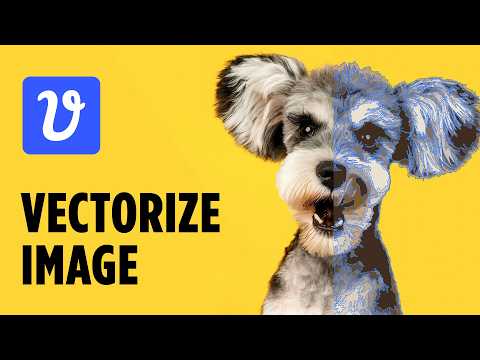
  95. 0:080:30Convert raster image to vector with Vectorizer AIThe user uploads a JPEG of a dog to the Vectorizer AI web interface, crops the image, and processes it into an outlined vector graphic.Vectorizer.AI · beginner · Graphic Design & Vector Art
  96. 0:421:07Adjust color palette settings in Vectorizer AIThe user demonstrates how to reduce the complexity of a vectorization by limiting the color count from 50 down to 7 using the tool's palette settings.Vectorizer.AI · beginner · Graphic Design & Vector Art
  97. 1:490:40Compare results and export SVG in Vectorizer AIThe user shows the split-view comparison between the original photo and the vector result before selecting the SVG format for download.Vectorizer.AI · beginner · Graphic Design & Vector Art
  98. 0:110:48Generate 3D assets using Recraft built-in stylesThe video shows how to select a 3D style like 'clean plastic' or 'isometric icon' from the Recraft styles menu and generate a set of consistent assets with a custom color palette.Recraft · intermediate · Graphic Design & Vector Art
  99. 1:060:30Create a custom 3D style from a reference imageThe user demonstrates uploading a reference image to Recraft, saving it as a custom style, and then using that style to generate consistent 3D characters.Recraft · intermediate · Graphic Design & Vector Art
  100. 1:400:28Transform images to 3D with NanoBanana ProThe tutorial shows how to upload an image and use the NanoBanana Pro model within Recraft to convert it into a 3D style using a specific transformation prompt.Recraft · Nano Banana · intermediate · Graphic Design & Vector Art