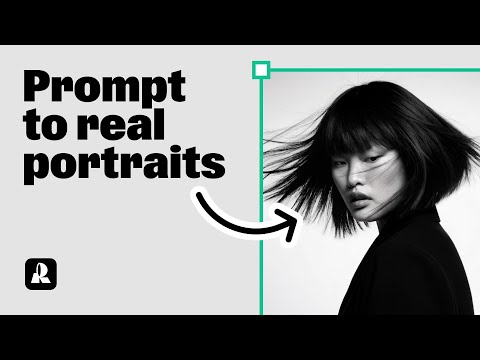
Generate a portrait with Hardflash style in Recraft
 Recraft
Demo summary
The user demonstrates how to select the 'Hardflash' curated style in Recraft V3 and enter a detailed prompt to generate a photorealistic portrait.
Step-by-step
- Open a blank canvas
- Click Image on the left panel
- Select the Recraft V3 model option
- Navigate to Curated Styles
- Scroll to the Photorealism section and select Hardflash
- Click Apply
- Enter a prompt describing the subject, hair, clothes, accessories, background, and lighting
- Click Recraft
Tips
- Include specific details about hair, clothes, and accessories in your prompt to improve the result
- Specify the background and lighting conditions for a more controlled output
All demos from “Create stunning photorealistic portraits with AI | Recraft Tutorial”
- 0:190:32Generate a portrait with Hardflash style in RecraftCurrentThe user demonstrates how to select the 'Hardflash' curated style in Recraft V3 and enter a detailed prompt to generate a photorealistic portrait.Recraft· AI Realistic Image Generator
- 1:020:28Advanced prompting for specific aesthetics in RecraftThe video shows how to refine a prompt with specific clothing details, expressions, and an East Asian aesthetic to generate a high-quality portrait.Recraft· Text to Image
- 1:300:26Using Natural Light style for expressive portraitsThe user switches to the 'Natural Light' style in Recraft to generate portraits with clear emotions and detailed accessories.Recraft· AI Style Transfer
- 1:560:21Comparing different styles with the same promptThe demonstration shows how to copy a generated image and switch styles (e.g., to Studio or Hardflash) to see how the style choice transforms the same prompt.Recraft· AI Style Transfer
- 2:231:16Creating a custom AI style from a reference imageThe user walks through creating a custom style by uploading a reference image, setting 'style level prompts' for consistent rules, and choosing between Style Essentials or Composition.Recraft· AI Style Transfer
- 3:390:24Applying a saved custom style to new promptsThe tutorial shows how to access a saved custom style from the 'My Styles' tab and apply it to a new prompt to maintain a consistent look.Recraft· AI Style Transfer
- Watch “Create stunning photorealistic portraits with AI | Recraft Tutorial” →
AI Realistic Image Generator
 0:180:45Generate photorealistic images with Recraft V4.1 ProThe user selects the Recraft V4.1 Pro model and enters a short prompt to generate a realistic lifestyle image with natural skin textures and soft lighting.Recraft
 8:100:58Generate realistic images with RecraftThe user selects a realistic model and aspect ratio in Recraft, enters a prompt for a knight in New York, and exports the resulting image.Joaquín Barberá - Inteligencia Artificial
- 0:190:32Generate a portrait with Hardflash style in RecraftCurrentThe user demonstrates how to select the 'Hardflash' curated style in Recraft V3 and enter a detailed prompt to generate a photorealistic portrait.Recraft