Recraft: Comparing different styles with the same prompt
 Recraft
Demo summary
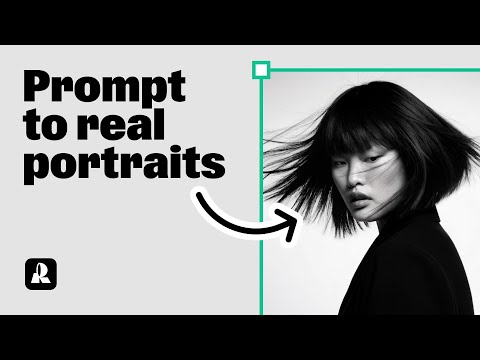
The demonstration shows how to copy a generated image and switch styles (e.g., to Studio or Hardflash) to see how the style choice transforms the same prompt.
Step-by-step
- Copy the generated image
- Place the copy next to the original on the canvas
- Click on the copied image
- Switch the style in the settings panel
Options
- Switch to Studio style
- Switch to Hardflash style
- Switch to Natural Light style
Tips
- Keep the exact same prompt when switching styles to see how the style choice alone transforms the look
All demos from “Create stunning photorealistic portraits with AI | Recraft Tutorial”
- 0:190:32Generate a portrait with Hardflash style in RecraftThe user demonstrates how to select the 'Hardflash' curated style in Recraft V3 and enter a detailed prompt to generate a photorealistic portrait.Recraft· AI Realistic Image Generator
- 1:020:28Advanced prompting for specific aesthetics in RecraftThe video shows how to refine a prompt with specific clothing details, expressions, and an East Asian aesthetic to generate a high-quality portrait.Recraft· Text to Image
- 1:300:26Using Natural Light style for expressive portraitsThe user switches to the 'Natural Light' style in Recraft to generate portraits with clear emotions and detailed accessories.Recraft· AI Style Transfer
- 1:560:21Comparing different styles with the same promptCurrentThe demonstration shows how to copy a generated image and switch styles (e.g., to Studio or Hardflash) to see how the style choice transforms the same prompt.Recraft· AI Style Transfer
- 2:231:16Creating a custom AI style from a reference imageThe user walks through creating a custom style by uploading a reference image, setting 'style level prompts' for consistent rules, and choosing between Style Essentials or Composition.Recraft· AI Style Transfer
- 3:390:24Applying a saved custom style to new promptsThe tutorial shows how to access a saved custom style from the 'My Styles' tab and apply it to a new prompt to maintain a consistent look.Recraft· AI Style Transfer
- Watch “Create stunning photorealistic portraits with AI | Recraft Tutorial” →
AI Style Transfer
 6:210:41Create custom styles for brand consistencyThe walkthrough shows how to upload reference images to create and save a custom style that can be applied to future generations in Recraft.Recraft
 8:440:33Apply pixel art style to AI generationsGary demonstrates selecting the 'Pixel Art' style from the Recraft library to transform a simple prompt into a stylized image without complex prompt engineering.Recraft
- 18:151:21Style referencing with image attachmentsThe user demonstrates dragging and dropping an external image into the prompt panel to use as a style reference for generating a consistent food photography shot.Recraft
- 44:074:25Build a custom AI styleThe user walks through creating a custom style by uploading reference images, setting style-level prompts, and adjusting weights for texture and composition.Recraft
 1:060:30Create a custom 3D style from a reference imageThe user demonstrates uploading a reference image to Recraft, saving it as a custom style, and then using that style to generate consistent 3D characters.Recraft
- 1:400:28Transform images to 3D with NanoBanana ProThe tutorial shows how to upload an image and use the NanoBanana Pro model within Recraft to convert it into a 3D style using a specific transformation prompt.Recraft
 0:261:10Create a custom brand style in RecraftThe user demonstrates how to upload reference images to Recraft, adjust style weights, and generate a test image to save a custom 'Modern Cowboy' aesthetic.Recraft
 1:180:32Create a custom AI style in RecraftThe user uploads a reference image and uses prompt engineering with the note 'glossy skin' to create and save a reusable custom style named 'spectrum'.Recraft
- 1:300:26Using Natural Light style for expressive portraitsThe user switches to the 'Natural Light' style in Recraft to generate portraits with clear emotions and detailed accessories.Recraft
- 1:560:21Comparing different styles with the same promptCurrentThe demonstration shows how to copy a generated image and switch styles (e.g., to Studio or Hardflash) to see how the style choice transforms the same prompt.Recraft
- 2:231:16Creating a custom AI style from a reference imageThe user walks through creating a custom style by uploading a reference image, setting 'style level prompts' for consistent rules, and choosing between Style Essentials or Composition.Recraft
- 3:390:24Applying a saved custom style to new promptsThe tutorial shows how to access a saved custom style from the 'My Styles' tab and apply it to a new prompt to maintain a consistent look.Recraft