Vectorizer.AI: Compare results and export SVG in Vectorizer AI
 Vectorizer.AI
Demo summary
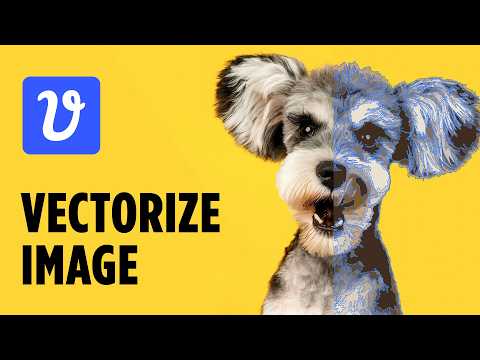
The user shows the split-view comparison between the original photo and the vector result before selecting the SVG format for download.
Step-by-step
- Click the check mark to confirm the vectorization
- Select the split view icon at the top left to compare the original photo with the vector result
- Click Download
- Select SVG from the file format options
- Click the final Download button
Options
- Export as an EPS file instead of SVG
Watch out for
- This is not a free tool; a subscription or payment is required to download the file
Tips
- Use the split view to verify the quality of the result against the original photograph
- Choose SVG as it is a more standard vector graphic file type compared to EPS
All demos from “Raster to Vector in Seconds | Vectorizer AI Tutorial”
- 0:080:30Convert raster image to vector with Vectorizer AIThe user uploads a JPEG of a dog to the Vectorizer AI web interface, crops the image, and processes it into an outlined vector graphic.Vectorizer.AI· Image to Vector
- 0:421:07Adjust color palette settings in Vectorizer AIThe user demonstrates how to reduce the complexity of a vectorization by limiting the color count from 50 down to 7 using the tool's palette settings.Vectorizer.AI· Image to Vector
- 1:490:40Compare results and export SVG in Vectorizer AICurrentThe user shows the split-view comparison between the original photo and the vector result before selecting the SVG format for download.Vectorizer.AI· Image to Vector
- Watch “Raster to Vector in Seconds | Vectorizer AI Tutorial” →
Image to Vector
- 0:080:30Convert raster image to vector with Vectorizer AIThe user uploads a JPEG of a dog to the Vectorizer AI web interface, crops the image, and processes it into an outlined vector graphic.CryeStudio Design Tutorials
- 0:421:07Adjust color palette settings in Vectorizer AIThe user demonstrates how to reduce the complexity of a vectorization by limiting the color count from 50 down to 7 using the tool's palette settings.CryeStudio Design Tutorials
- 1:490:40Compare results and export SVG in Vectorizer AICurrentThe user shows the split-view comparison between the original photo and the vector result before selecting the SVG format for download.CryeStudio Design Tutorials
 0:400:34Vectorizing a low-resolution screenshot with Vectorizer.AIThe user demonstrates dragging a pixelated phone screenshot into Vectorizer.AI, cropping it, and processing it to create clean vector lines.Color Gamut Consulting
- 2:001:08Changing image color palettes in Vectorizer.AIThe user demonstrates selecting specific colors from the vectorized image and replacing them with new colors like royal blue to preview different design options.Color Gamut Consulting
- 3:440:50Exporting vector files from Vectorizer.AIThe video shows the export process, selecting file formats like EPS, SVG, or PDF and adjusting line fit tolerance before downloading.Color Gamut Consulting
 0:302:03Remove background and vectorize art with Vectorizer AIThe user demonstrates uploading a pixelated AI image to Vectorizer AI, reducing the color palette, and using the color selection tool to disable the background color for a transparent result.Philip Anders