Exporting vector files from Vectorizer.AI

 Vectorizer.AI
Demo summary
The video shows the export process, selecting file formats like EPS, SVG, or PDF and adjusting line fit tolerance before downloading.
Step-by-step
- Click Download to open the export menu
- Select a file format from the available options (SVG, EPS, PDF, DXF, or PNG)
- Adjust the line fit tolerance if the image requires more detail
- Click the final Download button to save the file
- Import the file into a vector editing program like Illustrator or CorelDRAW
Options
- Export as SVG
- Export as EPS
- Export as PDF
- Export as DXF (for laser cutters/CAD)
- Export as PNG
- Adjust line fit tolerance settings
Watch out for
- A paid subscription ($10/month) is required to proceed past the download step
Tips
- Use the EPS format for standard vector work
- Charge customers a one-time artwork fee to offset the subscription cost
- Stick with the default settings unless the image has high levels of detail requiring a tolerance adjustment
Highlights
“I think it's totally worth it. You charge a customer a $15 artwork charge one time and it's paid for itself.”
All demos from “Pixelated to Perfect: Vectorizing Images for T-Shirts with Vectorizer.AI! 👕”
- 0:400:34Vectorizing a low-resolution screenshot with Vectorizer.AIThe user demonstrates dragging a pixelated phone screenshot into Vectorizer.AI, cropping it, and processing it to create clean vector lines.Vectorizer.AI· Image to Vector
- 1:140:46Removing image backgrounds in Vectorizer.AIThe presenter shows how to use the color palette tool to select specific colors or the background and make them transparent within the software.Vectorizer.AI· AI Background Remover
- 2:001:08Changing image color palettes in Vectorizer.AIThe user demonstrates selecting specific colors from the vectorized image and replacing them with new colors like royal blue to preview different design options.Vectorizer.AI· Image to Vector
- 3:440:50Exporting vector files from Vectorizer.AICurrentThe video shows the export process, selecting file formats like EPS, SVG, or PDF and adjusting line fit tolerance before downloading.Vectorizer.AI· Image to Vector
- 4:341:10Processing complex colorful logos for DTF printingThe presenter demonstrates processing a multi-colored logo, adjusting the color count in the palette to maintain detail, and removing the background for DTF printing.Vectorizer.AI· AI Background Remover
- Watch “Pixelated to Perfect: Vectorizing Images for T-Shirts with Vectorizer.AI! 👕” →
Image to Vector
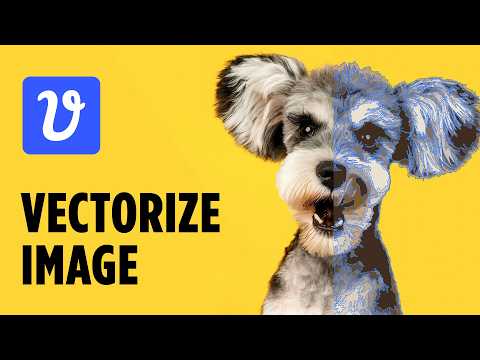 0:080:30Convert raster image to vector with Vectorizer AIThe user uploads a JPEG of a dog to the Vectorizer AI web interface, crops the image, and processes it into an outlined vector graphic.CryeStudio Design Tutorials
- 0:421:07Adjust color palette settings in Vectorizer AIThe user demonstrates how to reduce the complexity of a vectorization by limiting the color count from 50 down to 7 using the tool's palette settings.CryeStudio Design Tutorials
- 1:490:40Compare results and export SVG in Vectorizer AIThe user shows the split-view comparison between the original photo and the vector result before selecting the SVG format for download.CryeStudio Design Tutorials
- 0:400:34Vectorizing a low-resolution screenshot with Vectorizer.AIThe user demonstrates dragging a pixelated phone screenshot into Vectorizer.AI, cropping it, and processing it to create clean vector lines.Color Gamut Consulting
- 2:001:08Changing image color palettes in Vectorizer.AIThe user demonstrates selecting specific colors from the vectorized image and replacing them with new colors like royal blue to preview different design options.Color Gamut Consulting
- 3:440:50Exporting vector files from Vectorizer.AICurrentThe video shows the export process, selecting file formats like EPS, SVG, or PDF and adjusting line fit tolerance before downloading.Color Gamut Consulting
 0:302:03Remove background and vectorize art with Vectorizer AIThe user demonstrates uploading a pixelated AI image to Vectorizer AI, reducing the color palette, and using the color selection tool to disable the background color for a transparent result.Philip Anders