Generate photorealistic images with Recraft V4.1 Pro

 Recraft
Demo summary
The user selects the Recraft V4.1 Pro model and enters a short prompt to generate a realistic lifestyle image with natural skin textures and soft lighting.
Step-by-step
- Open a clean canvas in the Studio
- Go to the bottom prompt panel
- Open the model selection menu
- Select Recraft V4.1 Pro
- Type a simple prompt for a realistic lifestyle image
- Click Generate
Tips
- Avoid complex or long prompt paragraphs; the model handles short prompts effectively
- Use simple ideas to achieve results that look photographed rather than generated
Highlights
“You don't need a huge prompt paragraph to get something strong. A simple idea can already give you a result you can actually use.”
All demos from “Recraft V4.1 explained”
- 0:180:45Generate photorealistic images with Recraft V4.1 ProCurrentThe user selects the Recraft V4.1 Pro model and enters a short prompt to generate a realistic lifestyle image with natural skin textures and soft lighting.Recraft· AI Realistic Image Generator
- 1:030:42Create 3D style scenes in Recraft StudioThe video demonstrates using Recraft V4.1 Pro to render a 3D scene, highlighting improved material reactions to light and cleaner gradients on glossy surfaces.Recraft· AI Image Generator
- Watch “Recraft V4.1 explained” →
AI Realistic Image Generator
- 0:180:45Generate photorealistic images with Recraft V4.1 ProCurrentThe user selects the Recraft V4.1 Pro model and enters a short prompt to generate a realistic lifestyle image with natural skin textures and soft lighting.Recraft
 8:100:58Generate realistic images with RecraftThe user selects a realistic model and aspect ratio in Recraft, enters a prompt for a knight in New York, and exports the resulting image.Joaquín Barberá - Inteligencia Artificial
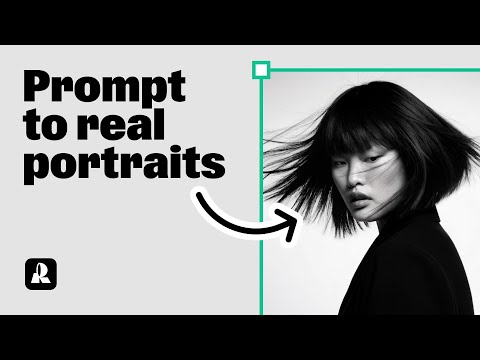 0:190:32Generate a portrait with Hardflash style in RecraftThe user demonstrates how to select the 'Hardflash' curated style in Recraft V3 and enter a detailed prompt to generate a photorealistic portrait.Recraft