Recraft: Using Natural Light style for expressive portraits
 Recraft
Demo summary
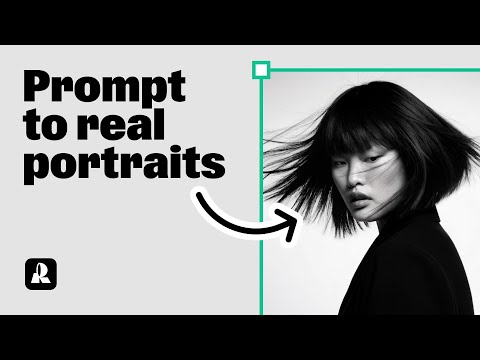
The user switches to the 'Natural Light' style in Recraft to generate portraits with clear emotions and detailed accessories.
Step-by-step
- Select the Photo Realism section
- Choose the Natural Light style
- Enter a prompt for an expressive portrait including hairstyle and accessory details
- Click Recraft
Tips
- Add specific details about jewelry and hairstyles to enhance the portrait's realism
- Use the Natural Light style specifically when aiming for clear emotional expressions
Highlights
“the result works nicely. The emotion is clear and the hairstyle and jewelry details are all there.”
All demos from “Create stunning photorealistic portraits with AI | Recraft Tutorial”
- 0:190:32Generate a portrait with Hardflash style in RecraftThe user demonstrates how to select the 'Hardflash' curated style in Recraft V3 and enter a detailed prompt to generate a photorealistic portrait.Recraft· AI Realistic Image Generator
- 1:020:28Advanced prompting for specific aesthetics in RecraftThe video shows how to refine a prompt with specific clothing details, expressions, and an East Asian aesthetic to generate a high-quality portrait.Recraft· Text to Image
- 1:300:26Using Natural Light style for expressive portraitsCurrentThe user switches to the 'Natural Light' style in Recraft to generate portraits with clear emotions and detailed accessories.Recraft· AI Style Transfer
- 1:560:21Comparing different styles with the same promptThe demonstration shows how to copy a generated image and switch styles (e.g., to Studio or Hardflash) to see how the style choice transforms the same prompt.Recraft· AI Style Transfer
- 2:231:16Creating a custom AI style from a reference imageThe user walks through creating a custom style by uploading a reference image, setting 'style level prompts' for consistent rules, and choosing between Style Essentials or Composition.Recraft· AI Style Transfer
- 3:390:24Applying a saved custom style to new promptsThe tutorial shows how to access a saved custom style from the 'My Styles' tab and apply it to a new prompt to maintain a consistent look.Recraft· AI Style Transfer
- Watch “Create stunning photorealistic portraits with AI | Recraft Tutorial” →
AI Style Transfer
 6:210:41Create custom styles for brand consistencyThe walkthrough shows how to upload reference images to create and save a custom style that can be applied to future generations in Recraft.Recraft
 8:440:33Apply pixel art style to AI generationsGary demonstrates selecting the 'Pixel Art' style from the Recraft library to transform a simple prompt into a stylized image without complex prompt engineering.Recraft
- 18:151:21Style referencing with image attachmentsThe user demonstrates dragging and dropping an external image into the prompt panel to use as a style reference for generating a consistent food photography shot.Recraft
- 44:074:25Build a custom AI styleThe user walks through creating a custom style by uploading reference images, setting style-level prompts, and adjusting weights for texture and composition.Recraft
 1:060:30Create a custom 3D style from a reference imageThe user demonstrates uploading a reference image to Recraft, saving it as a custom style, and then using that style to generate consistent 3D characters.Recraft
- 1:400:28Transform images to 3D with NanoBanana ProThe tutorial shows how to upload an image and use the NanoBanana Pro model within Recraft to convert it into a 3D style using a specific transformation prompt.Recraft
 0:261:10Create a custom brand style in RecraftThe user demonstrates how to upload reference images to Recraft, adjust style weights, and generate a test image to save a custom 'Modern Cowboy' aesthetic.Recraft
 1:180:32Create a custom AI style in RecraftThe user uploads a reference image and uses prompt engineering with the note 'glossy skin' to create and save a reusable custom style named 'spectrum'.Recraft
- 1:300:26Using Natural Light style for expressive portraitsCurrentThe user switches to the 'Natural Light' style in Recraft to generate portraits with clear emotions and detailed accessories.Recraft
- 1:560:21Comparing different styles with the same promptThe demonstration shows how to copy a generated image and switch styles (e.g., to Studio or Hardflash) to see how the style choice transforms the same prompt.Recraft
- 2:231:16Creating a custom AI style from a reference imageThe user walks through creating a custom style by uploading a reference image, setting 'style level prompts' for consistent rules, and choosing between Style Essentials or Composition.Recraft
- 3:390:24Applying a saved custom style to new promptsThe tutorial shows how to access a saved custom style from the 'My Styles' tab and apply it to a new prompt to maintain a consistent look.Recraft