demobook

AI Photo Editor

120 clips across 50 tools — filter and play.

120 clips
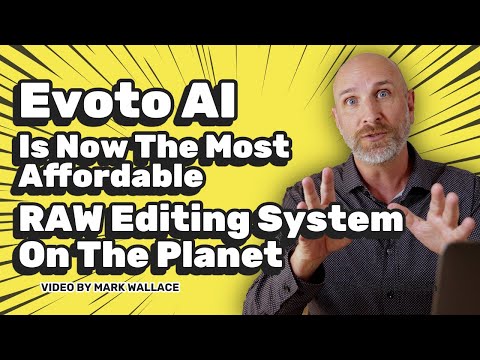
  1. 1:100:12Batch edit photos with Evoto AIThe interface shows Evoto AI applying consistent edits across a large gallery of photos simultaneously.Evoto · intermediate · Professional Photography
  2. 15:371:08Isolate and change specific colors with HSLDemonstrates using the Hue, Saturation, and Brightness (HSL) tool to manipulate specific color channels like orange within a scene.CapCut · beginner · Social Media & Content Creation
  3. 2:440:46Edit iPhone photos in Adobe LightroomA step-by-step demonstration of editing a photo in the Lightroom mobile app, including adjusting highlights, shadows, saturation, and adding a vignette.Adobe Lightroom · intermediate · Professional Photography
  4. 9:180:44Changing image camera angles with Qwen Image EditA demonstration of the Qwen image editor on Hugging Face, showing how to use sliders to change the camera perspective and vertical angle of a static car image while maintaining consistency.Hugging Face · Qwen Image · advanced · Developer / API
  5. 3:100:40Apply Focus and Bokeh blur effectsDemonstrates using the Focus Blur for tilt-shift effects and the Bokeh Blur combined with object masking to create shallow depth of field.Adobe Firefly · beginner
  6. 11:030:30Modify facial expressions with Face EditorThe creator uses the Face Editor tool to change a character's expression to a wink and adjust the mouth opening intensity using sliders.OpenArt · intermediate
  7. 0:521:46Manage and sync folders in Luminar NeoThe creator demonstrates how Luminar Neo maps physical computer folders to its catalog, showing how renaming or moving folders on the hard drive is instantly mirrored in the software.Luminar Neo · intermediate · Professional Photography
  8. 16:560:36Edit photos using AI AssistantA demonstration of the AI Assistant where the user types natural language prompts like 'make this photo look like a vintage Fujifilm camera' to generate edit versions.Luminar Neo · intermediate · Professional Photography
  9. 3:570:20Image editing and upscaling in LTX StudioThe video walks through using the tool tab to upscale images, use generative fill to add elements, and the object removal tool to clean up AI-generated frames.LTX Studio · LTX Video · intermediate · Advertising & Marketing Creative
  10. 5:270:35Batch retouching with Sync SettingsA demonstration of applying a retouching profile to 20 different images simultaneously using Evoto's sync settings feature.Evoto · intermediate · Professional Photography
  11. 7:160:36Removing clothing creases with AIThe creator demonstrates Evoto's clothing adjustment sliders to remove wrinkles and baggy creases from a waistcoat and sleeves.Evoto · intermediate · Professional Photography
  12. 6:593:33Selection tools: Lasso, Magic Wand, and Magnetic SelectA walkthrough of various selection methods in Photopea, including freehand lasso, polygonal selection, and the AI-powered quick selection tool.Photopea · intermediate · Graphic Design & Vector Art
  13. 13:200:58Clone parts of an imageShows how to use the Clone tool to sample an area (like a cat's eye) and paint a duplicate of it elsewhere.Photopea · intermediate · Graphic Design & Vector Art
  14. 15:390:55Blur, Sharpen, and Smudge toolsShows how to apply local edits to soften details, enhance edges, or smudge pixels like wet paint.Photopea · intermediate · Graphic Design & Vector Art
  15. 16:410:47Dodge, Burn, and Sponge for exposure and saturationDemonstrates lightening specific areas with Dodge, darkening with Burn, and adjusting color intensity with the Sponge tool.Photopea · intermediate · Graphic Design & Vector Art
  16. 24:531:15Apply non-destructive Adjustment LayersDemonstrates using Color Balance and Brightness adjustment layers to modify the whole image or a specific selection.Photopea · intermediate · Graphic Design & Vector Art
  17. 10:390:36Batch edit multiple photos simultaneouslyThe Batch Mode demo shows selecting multiple photos to simultaneously remove backgrounds, add shadows, and resize them in one workflow.PhotoRoom · beginner · Ecommerce & Product Photography
  18. 3:270:05Dodge and burn with Luminar NeoThe video briefly demonstrates the ease of using the dodge and burn tool in Luminar Neo to increase visual contrast in landscape photos.Luminar Neo · intermediate · Professional Photography
  19. 16:411:46Editing AI images with the Imagine Art EditorA demonstration of the built-in image editor, showing how to apply filters, effects, and shapes directly to generated artwork without leaving the platform.Imagine.art · intermediate
  20. 1:261:38Generate and edit AI thumbnails with Vheer AIThe user demonstrates generating a YouTube thumbnail using the Nano Banana 2 model within Vheer AI and then applies filters and brightness adjustments using the built-in editor.Vheer · Nano Banana · beginner
  21. 8:530:32Clothing De-wrinkle ToolThe creator shows a single-slider adjustment that automatically detects and removes wrinkles from a subject's clothing.Evoto · intermediate · Professional Photography
  22. 9:251:01Stray Hair Removal and Hair StylingDemonstration of the stray hair slider to remove flyaways and the use of other tools to add hair shine or change hair color.Evoto · intermediate · Professional Photography
  23. 0:470:33Arrange and scale layers for compositionThe user demonstrates how to drag layers between tabs, use the Crop tool to expand the artboard, and convert layers to Smart Objects for scaling and flipping.Photoshop · advanced
  24. 1:201:31Melt faces using the Liquify toolThe tutorial shows how to use the Liquify filter in Photoshop to stretch facial features like eyes and mouths to create a melting effect, followed by masking to blend two faces together.Photoshop · advanced
  25. 4:220:46Sky replacement and landscape enhancementThe video shows the Sky AI tool in Luminar Neo replacing a sky and adjusting horizon position, reflection, and scene relighting, followed by the Golden Hour and Dehaze sliders.Luminar Neo · intermediate · Professional Photography
  26. 6:070:16Enhancing water color with Water Enhancer AIThe user demonstrates Water Enhancer AI in Luminar Neo, which automatically masks and changes the color of water bodies in a photo.Luminar Neo · intermediate · Professional Photography
  27. 7:460:24Drawing neon effects with Neon and GlowThe user demonstrates drawing custom neon light highlights over a subject using the Neon and Glow tool in Luminar Neo.Luminar Neo · intermediate · Professional Photography
  28. 9:400:22Adding depth of field with Portrait Bokeh AIThe video shows Portrait Bokeh AI in Luminar Neo creating a blurred background effect using 3D mapping on a portrait.Luminar Neo · intermediate · Professional Photography
  29. 15:110:15Focus stacking in Luminar NeoThe user demonstrates the Focus Stacking extension in Luminar Neo, merging multiple images with different focus points into one sharp photo.Luminar Neo · intermediate · Professional Photography
  30. 4:210:15Mask subjects using Weavy's Mask ExtractorA demonstration of the Mask Extractor node in Weavy, showing how to click on a subject to automatically generate a mask for layer separation.Weavy · advanced
  31. 0:090:20Create a project and import images in EvotoThe user demonstrates how to create a new project, title it, and import images by dragging and dropping or using the browse button in Evoto.Evoto · intermediate · Professional Photography
  32. 1:140:37Manual color and exposure adjustments in EvotoThe demonstrator adjusts Hue, color temperature, exposure, and basic sliders like highlights and shadows to refine an image manually.Evoto · intermediate · Professional Photography
  33. 2:330:35Create and save custom presets in EvotoThe video shows how to save current adjustments as a named preset and organize them into groups for future use.Evoto · intermediate · Professional Photography
  34. 3:210:31Exporting photos with custom settings in EvotoThe demonstrator walks through the export menu, selecting file formats, quality, color space, and adding watermarks before final export.Evoto · intermediate · Professional Photography
  35. 2:520:24Generative AI editing with GenSwap and GenEraseThe demo shows Luminar Neo's generative AI tools being used to swap elements in a photo and remove distracting objects from the frame.Luminar Neo · intermediate · Professional Photography
  36. 3:250:18Color Masking with the Color PickerThe video shows how to use the Color Picker tool in Luminar Neo to select a specific color range and adjust its influence using a slider.Luminar Neo · intermediate · Professional Photography
  37. 4:271:31Creating virtual copies and applying creative editsThe demo shows how to create virtual copies to test different edits, such as adding fog, vignetting, and converting a photo to black and white using the Structure and Enhance tools.Luminar Neo · intermediate · Professional Photography
  38. 19:052:09Batch edit YouTube thumbnailsThe user demonstrates using the model to redesign multiple thumbnails on a YouTube channel screenshot while attempting to maintain text consistency.Google AI Studio · Nano Banana · intermediate · Developer / API
  39. 19:310:45Removing clothing wrinkles with Evoto AIThe demo highlights the 'wrinkle' slider in Evoto AI, which automatically detects and removes wrinkles from a model's clothing on screen.Evoto · intermediate · Professional Photography
  40. 19:501:24Cloth De-wrinkler ToolA demonstration of the new cloth de-wrinkler tool in Aftershoot, using a slider to remove wrinkles from a leather dress while maintaining the material's texture.AfterShoot · intermediate · Professional Photography
  41. 4:270:34URL-based image transformationsThe demo shows adding parameters like 'w-500', grayscale, and background blur directly to the image URL to transform the asset in real-time.ImageKit · intermediate · Developer / API
  42. 5:010:35Adding text and gradients with Layers APIThe presenter demonstrates using the Layers API to programmatically add gradients and dynamic text overlays on top of a base image via URL parameters.ImageKit · intermediate · Developer / API
  43. 10:223:05Bulk edit multiple photos in InsMindThe video demonstrates uploading four photos at once to perform bulk background removal, AI enhancement, and resizing simultaneously.insMind · beginner · Ecommerce & Product Photography
  44. 2:200:30Recolor specific image elements using AI EaseThe tool is shown identifying specific parts of an uploaded image and applying a new color shade naturally to those areas.AI Ease · beginner · Social Media & Content Creation
  45. 4:102:36Blending exposures with layers and linear gradientsThe video shows how to duplicate layers in Luminar Neo to process the sky and foreground separately, using a linear gradient mask for a smooth transition.Luminar Neo · intermediate · Professional Photography
  46. 9:203:21Sculpting light and contrast using Curves and Brush masksA demonstration of using the Curves tool to create an S-curve for contrast and then painting the effect into specific areas like mountains and water using a soft brush.Luminar Neo · intermediate · Professional Photography
  47. 29:343:50Color grading with LUTs and Blue Channel CurvesA demonstration of color grading using the Mood tool (LUTs) and the Blue channel in Curves to inject yellow highlights into the image.Luminar Neo · intermediate · Professional Photography
  48. 1:090:42Edit images and remove backgrounds in MixboardThe creator shows how to change the color of a specific object (a sofa) within an image using text commands and demonstrates the background removal tool.Mixboard · beginner
  49. 8:003:26Localized exposure adjustments using maskingThe creator shows how to use a brush mask to apply a second instance of the Develop tool to specific areas of a waterfall and rocks.Luminar Neo · intermediate · Professional Photography
  50. 12:423:32Adding and removing detail with Structure AIDemonstration of using Structure AI with positive values to sharpen rocks and negative values to soften distracting foliage via brush masking.Luminar Neo · intermediate · Professional Photography
  51. 20:482:31Changing water color with Water Enhancer AIA demonstration of the Water Enhancer AI tool to shift murky green water toward a turquoise hue while refining the mask to exclude the waterfall.Luminar Neo · intermediate · Professional Photography
  52. 25:551:26Fine-tuning colors with HSL slidersThe creator demonstrates using the HSL (Hue, Saturation, Luminance) panel to darken green leaves specifically so the waterfall stands out more.Luminar Neo · intermediate · Professional Photography
  53. 28:511:17Applying a Radial Gradient mask for color popA demonstration of using the Radial Gradient tool to apply a saturation boost in a localized, tapered circle around the main subject.Luminar Neo · intermediate · Professional Photography
  54. 31:132:05Blending edits using Layer OpacityThe creator shows how to add the original photo as a new layer and adjust its opacity to pull back an over-processed edit for a more natural look.Luminar Neo · intermediate · Professional Photography
  55. 55:591:19Change camera angle of a generated imageThe demonstration shows the 'Angles' feature, which allows the user to tilt and reposition a virtual camera to view a generated scene from a new perspective.Higgsfield
  56. 10:571:17Image Editing and Aspect Ratio AdjustmentThe creator shows how to drop an existing asset into a node to change its aspect ratio and use follow-up nodes to adjust camera distance and background blur.Higgsfield
  57. 5:010:35Extract and edit text from images with Grab TextThe video shows Canva scanning an image to extract static text into editable text boxes using the Grab Text feature.Canva · beginner
  58. 2:410:28Add punch with Mystical tool and maskingThe user applies the Mystical tool with a custom bottom-up mask to add visual 'punch' and smoothness to the lower section of the image.Luminar Neo · intermediate · Professional Photography
  59. 0:230:30Create placement guidelines with Pixlr Express brush toolThe user demonstrates how to add a new layer and use color-coded brush strokes in Pixlr Express to define the placement and scale of future AI-generated elements.Pixlr · Nano Banana · beginner
  60. 1:581:45Basic RAW development and croppingThe creator demonstrates adjusting exposure, highlights, shadows, and sharpening on a RAW file, followed by using the crop tool to level the horizon.Luminar Neo · intermediate · Professional Photography
  61. 18:101:58Using Layers and Blending ModesThe creator shows how to add a new layer (light leak) over a photo, adjust its opacity, change blending modes, and apply a Gaussian blur to the specific layer.Luminar Neo · intermediate · Professional Photography
  62. 20:131:26Synchronizing edit settings across photosThe demo shows how to copy and paste edit settings from one portrait to another to maintain a consistent look across a series of shots.Luminar Neo · intermediate · Professional Photography
  63. 9:461:45Add artificial depth of field with CinefocusThe video demonstrates the Cinefocus tool, showing how to adjust focus distance, aperture size, and depth maps to create a background blur effect in post-production.DaVinci Resolve · advanced
  64. 6:170:36Apply AI background blur in FotorThe video demonstrates adjusting the blur radius slider to create a depth-of-field effect on a portrait.Fotor · beginner
  65. 4:300:33Apply background blur effectsDemonstration of the blur background tool to create a professional depth-of-field effect while keeping the product sharp.Claid · beginner · Ecommerce & Product Photography
  66. 3:301:15Batch move images to folders in OpenArtThe user demonstrates multi-selecting images using Shift and Control keys and moving them into the 'candid shots' folder using the 'add to folder' tool.OpenArt · intermediate
  67. 4:371:57RAW landscape editing with tonality controlsThe video shows a step-by-step RAW edit of a Nepal landscape using Evoto's white balance, exposure, highlights, and shadow sliders to recover detail.Evoto · intermediate · Professional Photography
  68. 6:422:04Applying linear gradient masks in EvotoMark uses a custom linear gradient mask and the subtractive brush tool in Evoto to selectively adjust the exposure and color temperature of a sky.Evoto · intermediate · Professional Photography
  69. 10:544:17Advanced HSL and vignette adjustmentsMark performs a detailed edit of a Prague cityscape using HSL (Hue, Saturation, Luminance) sliders to pop specific colors and adds a lens vignette.Evoto · intermediate · Professional Photography
  70. 16:162:36AI Background and Person maskingThe video demonstrates Evoto's AI masking capabilities to automatically separate the background and the subject for independent color grading and skin tone correction.Evoto · intermediate · Professional Photography
  71. 4:330:35Editing images in Pollo.ai Canvas ModeThe video walks through the Canvas Mode interface, showing tools for inpainting, upscaling, uncropping, and background removal using text prompts.Pollo AI · beginner · Social Media & Content Creation
  72. 7:031:27Edit facial expressions and age with Media.io Face EditorThe video shows the Face Editor tool being used to apply an age filter, a watercolor effect, and an interactive gaze-tracking feature that changes a subject's facial expression.Media.io · beginner · Social Media & Content Creation
  73. 13:271:12Generate images and add text overlaysThe user generates an image using Nano Banana, drags it onto the canvas, and demonstrates adding and styling text similar to Google Slides.Gemini · Nano Banana · beginner
  74. 2:251:08Photo editing and layer manipulation in PicsartThe tool is shown applying filters, overlays like light leaks, and using layers and blend modes to manipulate images.Picsart · beginner · Social Media & Content Creation
  75. 43:491:32Chained Image Transformations with ImageKitThe creator demonstrates chaining multiple transformations including width, height, focus, crop, rotation, blur, and grayscale using the transformation prop.ImageKit · intermediate · Developer / API
  76. 47:351:49Overlay Text on ImagesThe demo shows how to use ImageKit's overlay property to programmatically add a 'Subscribe' text badge with custom background and padding to an image.ImageKit · intermediate · Developer / API
  77. 2:000:14Smart Selection and Background ConsistencyEvoto demonstrates Smart Selection for masking complex edges like hair and the Background Color Consistency tool for matching tones across a batch.Evoto · intermediate · Professional Photography
  78. 5:050:42Add a magnifier effect to product imagesThe video shows the use of the Magnifier tool in insMind to highlight specific details of a product image with adjustable zoom levels and positioning.insMind · beginner · Ecommerce & Product Photography
  79. 0:240:43Basic photo adjustments in Pixlr ExpressThe video demonstrates how to use the Adjust tab in Pixlr Express to modify brightness, contrast, exposure, and color balance using sliders.Pixlr · beginner
  80. 1:230:25Edit and modify images in Picsart AIThe video shows the process of modifying generated images within Picsart AI, including background removal and applying visual effects.Picsart · beginner · Social Media & Content Creation
  81. 2:330:58Randomizing styles and layoutsThe video shows how to use the 'hand', 'lightning', and 'layout' icons to randomly cycle through different artistic styles, lighting effects, and compositions for an existing image.GenTube · beginner
  82. 0:120:49Delete images or videos in Vivago AIThe user demonstrates how to navigate to the 'Assets' library in Vivago AI, use the 'Select' button to highlight specific media, and then use the revealed delete option to remove them.VIVAGO AI · beginner
  83. 6:380:37Recreate viral YouTube thumbnails with Vmake AIThe user demonstrates uploading an existing viral thumbnail to Vmake AI Agent to have it redesigned and customized for a different brand or channel style.Vmake AI · beginner · Ecommerce & Product Photography
  84. 0:350:42Navigating the Pixlr DashboardThe video demonstrates the shared dashboard interface for Pixlr apps, showing how to manage recent projects, download PXZ files, and access other services.Pixlr · beginner
  85. 1:171:20Creating a project in Pixlr ExpressThe demo shows how to start a new canvas in Pixlr Express using preset sizes and walks through the simplified toolbar and layers panel for quick edits.Pixlr · beginner
  86. 0:430:21Upload images to HitPaw FotorPeaThe video demonstrates how to import images into the HitPaw FotorPea interface using the 'choose file' button or drag-and-drop functionality.HitPaw FotorPea · beginner
  87. 1:591:09Saving images and changing file formats in NovelAIThe video shows how to save generated images via right-click or drag-and-drop, and how to toggle between PNG and WebP formats in the account settings.NovelAI · beginner
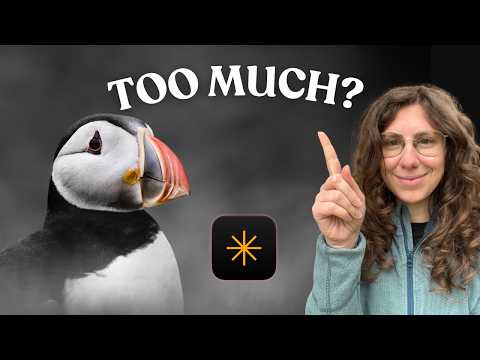
  88. 5:470:39Adjusting HSL and subject-aware vignettingThe creator uses the Color tool to target specific HSL values for a bird's bill and applies a vignette using a subject-placement indicator.Luminar Neo · intermediate · Professional Photography
  89. 10:270:52Creative color isolation using AI maskingThe creator demonstrates a creative 'fine art' look by using Object Select AI to mask a bird, inverting the mask, and desaturating the entire background while keeping the subject in color.Luminar Neo · intermediate · Professional Photography
  90. 9:430:43Adjusting image levels and filtersThe user demonstrates using histogram sliders and filter nodes to adjust shadows, brightness, and color temperature on the canvas.Imagine.art · intermediate
  91. 0:090:23Remove clothing wrinkles with Photoroom AI IroningThe video demonstrates how to use the 'Ironing' tool within Photoroom's AI tools menu to automatically smooth fabric wrinkles on a product photo.PhotoRoom · beginner · Ecommerce & Product Photography
  92. 2:102:15Setting up a custom AI Look in Evoto AIThe user demonstrates how to create and name a new AI Look in Evoto AI, selecting categories like fashion or beauty and importing a Lightroom catalog to provide training data.Evoto · intermediate · Professional Photography
  93. 9:450:30Syncing AI color adjustments across multiple imagesThe video shows how to use the 'Sync' feature in Evoto AI to apply the trained AI color adjustments from one base image to an entire set of photos.Evoto · intermediate · Professional Photography
  94. 12:231:02Using AI Color Consistency for multi-image matchingThe demonstrator shows how to use the 'Match Color Consistency' tool in Evoto AI to ensure exposure and color are uniform across a large volume of images after applying an AI Look.Evoto · intermediate · Professional Photography
  95. 2:390:09Adjust vector colors and raster settingsShows how to adjust individual colors for vector generations and tweak saturation or contrast for raster images within the Recraft interface.Recraft · intermediate · Graphic Design & Vector Art
  96. 1:560:56Editing images with AI in MixboardThe video shows how to select an image on the board to access AI editing tools, including options to duplicate, remove, or regenerate elements using the move and text tools.Gemini · beginner
  97. 1:300:40Edit and annotate screenshots in Snagit EditorThe demo shows how to use Snagit Editor tools to add callouts, move objects with the Selection tool, edit text within an image, and remove sections using the Cut Out tool.SSnagit
  98. 2:340:23Change skin tone with RightHair AIThe video shows how to use the 'Skin Color Change' feature by uploading an image and selecting a target skin tone to generate a new version.RightHair · beginner
  99. 3:001:10Exploring FlexClip AI image toolsThe video walks through the AI image tools dashboard, showing features like background removal, object removal, face swap, and the image expander with example prompts.FlexClip · beginner · Social Media & Content Creation
  100. 1:510:35Body reshaping and liquefy toolsThe demonstration shows the pucker and bloat tools in AirBrush Studio being used to adjust body proportions and facial features like jawlines and cheekbones.Airbrush Studio · beginner · Social Media & Content Creation