Canva: Tutorials, Prompts, Use cases
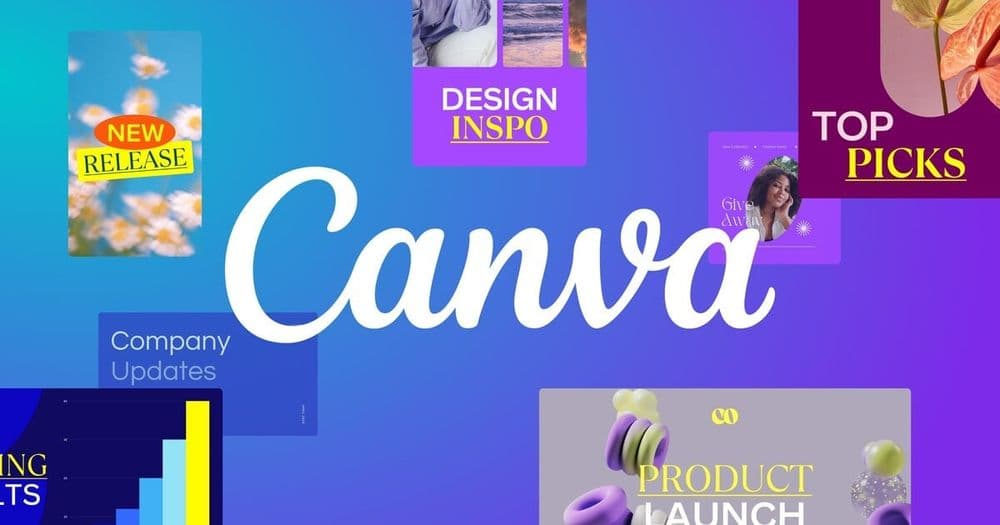
A comprehensive online design platform for creating professional visual content easily.
Canva provides a drag-and-drop interface that allows users to design everything from social media graphics to presentations and videos. It offers an extensive library of templates, stock photography, and fonts to streamline the creative process for non-designers and professionals alike.
Features
- Drag-and-drop editor
- Professional template library
- Stock photo and video assets
- Brand kit management
- Real-time collaboration tools
- Social media scheduling
- AI-powered design assistants
- PDF editor and converter
Canva Tutorials

 Jason Gandy

 The Pennywise Owl

 7figureboss Academy
 AI Guerrilla
 MR.AI.JO.
 Brenda Cadman, Canva Verified Expert
 Ecommerce By Setu
 Answer Mode
Canva Prompts
Canva Alternatives

A node-based visual workflow engine for professional AI image and video generation.

AI-powered photo editor for creative desktop, tablet, and mobile editing.

An independent research lab exploring new mediums of thought through AI imagery.

The most controllable AI image generation and design tool for creators.

Generative AI platform for high-quality creative asset production and image generation.

Professional AI design platform for photorealistic images and editable vector graphics.

All-in-one AI-powered photo and video creation and editing platform.

An all-in-one AI photo editing workflow for professional photographers.
All-in-one AI creative suite for images, videos, and audio generation.

AI-powered concepting board to explore, expand, and refine creative ideas.

The world’s most advanced image editing and graphic design software.
Agent-native image generation and editing using code-based intermediate representations.
An AI-first design platform for professional branding and creative assets.

AI-powered node-based platform for professional design and creative workflows.

A powerful creative AI suite for real-time image, video, and 3D generation.

Free, unlimited AI image generation for creators and world-builders.

Create stunning AI-generated art using multiple state-of-the-art algorithms and models.
AI-powered culling, editing, and retouching for professional photographers.

AI-powered face swapping for photos, videos, and GIFs without watermarks.

AI-powered photo enhancer to upscale, unblur, and restore images to 8K.

The ultimate AI creative studio for high-definition image and video generation.
Next-generation face manipulation and high-fidelity face swapping platform.

One-click AI enhancer for professional-grade photo, video, and document upscaling.

Advanced AI conversational assistant for text generation and problem solving.

AI-powered product photography studio for high-converting e-commerce and fashion imagery.
Browser-based AI suite for instant image and video editing and transformation.

AI-powered storytelling and anime art generation for creative writers and artists.

Advanced AI image generation and editing with streamlined SDXL model support.

An experimental AI tool for image-to-image prompting and visual storytelling.
Convert text to unique, licensed images with AI-powered generation.

AI-powered background removal for transparent PNGs and professional product photos.

All-in-one AI studio for professional photo and video creation and editing.
All-in-one AI image and video generation platform for e-commerce and marketing.

A professional online photo editor that runs directly in your browser.

Create consistent AI-generated photos and videos featuring your own digital identity.

Transform ideas into stunning AI-generated images and photorealistic art in seconds.


Free, unlimited AI image and video generator with state-of-the-art models.

AI fashion model generator transforming flat lays into high-end on-model photos.

All-in-one AI platform for high-resolution image and video enhancement.

Unified multimodel API for high-performance AI at a fraction of the cost.

A fair-code workflow automation platform combining visual building with custom code.

AI-powered photo editor and listing studio for professional e-commerce visuals.

Convert raster images to clean, scalable vector graphics using AI.

All-in-one AI studio for professional video and image creation.

Transform AI-generated skin textures into photorealistic, high-fidelity human skin.

A comprehensive platform for high-quality photos, vectors, and design templates.

AI-powered image enhancement and upscaling for professional quality results.



Generate professional AI images from text prompts using advanced neural architecture.

Access over 100 frontier AI models through a single unified subscription.

The largest library of 3D packaging mockups, dielines, and design templates.

Run and deploy open-source machine learning models with a cloud API.
Generative AI for creative expression and professional content creation.

Professional AI-powered photo and video editing for instant, high-quality enhancements.
The world's first AI design agent for end-to-end brand campaigns.
Instant AI-powered background replacement for professional product photography.

An AI-powered storytelling platform for professional video and image generation.
A creative production studio specializing in culture-defining commercial content.

All-in-one AI platform for high-quality image and video creation and editing.

An all-in-one online creative platform for photo editing and graphic design.
Fast, private, and offline AI image generation for Apple devices.

The central collaboration platform for the global machine learning community.

Real-time image and video optimization with AI-powered digital asset management.

AI-powered visual production agent for eCommerce and catalog scaling at speed.

An all-in-one AI creativity platform for art, video, and character chat.

Create AI images, cinematic videos, and face swaps in seconds.

A unified generative AI canvas for scaling professional creative workflows.

Agent-native image generation and editing with code-based precision and 4K rendering.
AI-powered tool to remove watermarks from images, videos, and PDFs instantly.

AI-powered photo editor and beauty camera for professional-grade selfies.
An all-in-one AI platform for text, image, audio, and video creation.

The all-in-one AI platform and super assistant for enterprise automation.
Cloud-based photo editing and organization for photographers of all skill levels.

Transform low-resolution images into stunning 4K photos with advanced AI restoration.

Turn selfies into 4K professional AI headshots in under an hour.

Create and edit stunning visuals in seconds with AI-powered imaging tools.

An all-in-one creative AI platform for images, video, and music.

Google's advanced text-to-image model for high-fidelity photorealistic creative assets.

Professional AI business headshots without a physical photo shoot.

Advanced AI image upscaler and enhancer for high-resolution creative workflows.

AI-powered graphic design tool for creating professional visuals instantly.

Create studio-quality product visuals and marketing content using advanced AI tools.
Agent-native image generation and editing using code-based intermediate representations.

Cloud-based ComfyUI with zero setup, high-speed GPUs, and scalable APIs.
AI-powered online photo editor for effortless object removal and image enhancement.

A latent text-to-image diffusion model for high-quality, photo-realistic image generation.

AI-powered removal of watermarks, logos, and objects from photos and videos.

AI-powered object and watermark removal for photos and videos across all platforms.

All-in-one AI platform for content, images, video, and audio generation.

AI-powered photorealistic hair transplant previews for clinics and patients.

Advanced AI image generator specializing in accurate typography and graphic design.

Free AI-powered image upscaler providing high-resolution enhancements up to 16K.
Transform AI-generated skin textures into photorealistic, indistinguishable human results.

Studio-quality AI headshots and professional profile pictures in 30 minutes.

AI-powered image and video generation, editing, and restoration studio.


AI-powered image and video upscaling for high-resolution visual enhancement.
All-in-one AI video and image creation platform for professional content.

The AI content engine for startups to rank on Google and LLMs.


Tailor-made generative AI API for fine-tuning and personalized image creation.

Privacy-focused AI background removal and replacement without image uploads.

An intuitive online design tool with AI-powered features and professional templates.

A large-scale unsupervised language model for high-quality text generation.


Custom metal retail fixtures and stock display components for top retailers.

Free online AI face swapping for photos, videos, and GIFs.

AI-powered photo and video editor for portraits and creative visual art.

AI-driven real-time path tracing and production-level visualization ecosystem.
Unified generative AI platform for professional image and video creation.

Transform low-resolution images into stunning 4K quality with AI-powered enhancement.

AI-powered studio for professional avatars, character design, and video generation.

AI-powered toolkit for professional portraits, face swaps, and image enhancement.
Free AI-powered image upscaling up to 16K resolution without sign-up.
AI-powered tool to colorize, restore, and enhance old black and white photos.

AI-powered image upscaling, enhancement, and creative editing tools for high-quality visuals.


Free AI image and video prompt gallery for instant content generation.

AI-powered academic writing assistant for high-scoring, plagiarism-free essays.

AI-powered photo editor for studio-quality portraits and e-commerce product images.
Transform low-quality photos and videos into high-definition masterpieces with AI.

Remove image backgrounds automatically in five seconds with one click.

Advanced AI face swapping for images, videos, and live webcam streams.
A unified enterprise platform for professional AI image and video generation.

AI agent-powered content creation platform with ComfyUI and infinite canvas.

AI-powered fashion models and product image generation for e-commerce growth.

Sharpen, denoise, and upscale images with intelligent AI-powered enhancement tools.

Professional AI headshot generator that turns a single selfie into studio-quality portraits.

Convert raster images into scalable vector graphics online
The industry-standard vector graphics software for creating logos, icons, and illustrations.


The central platform for creative file management, review, and collaboration.

A comprehensive hub for generative AI tools, resources, and educational insights.

All-in-one AI photo editing platform and high-performance API service.
All-in-one AI workspace for content creation, study, and multimodal chat.

Free online AI tool for realistic face swaps in photos and videos.

AI fashion model generator transforming flat lays into professional on-model photos.
A single AI assistant providing access to all top-tier LLMs and agents.

The world's largest community for sharing and discovering generative AI models.

All-in-one AI creative platform for video, image, and music generation.

All-in-one AI platform for creating images, videos, copy, and slides.

A versatile communication platform for gaming, hanging out, and building communities.

The most realistic professional AI headshot generator for corporate branding.


AI-powered face swapping for high-quality photos, videos, and GIFs.

All-in-one AI fashion design, virtual try-on, and photoshoot platform.

The collaborative interface design tool for teams to build products together.
An experimental AI-powered research and productivity tool from Google

Build and share machine learning web interfaces using only Python.

A comprehensive web-based suite for fast, free, and bulk image editing.

Master AI image prompt creation with powerful optimization and generation tools.
Professional open-source vector graphics editor for designers and illustrators.
AI agents and workflows purpose-built for enterprise marketing teams.

AI-powered all-in-one PDF editor for seamless document management and conversion.

Remove unwanted objects, people, and watermarks from photos with AI precision.
A faithful web-based remake of classic MS Paint with modern enhancements.

Discover your family history through DNA testing and genealogical research.
The full-stack React framework for high-performance web applications.

Software-connected automated test and measurement systems for engineering and manufacturing.
All-in-one AI-powered RAW photo editor and organizer without subscription requirements.

Create professional AI-generated product photography in seconds without Photoshop skills.

All-in-one AI photo editor for background removal and image enhancement.

A lightning-fast online graphic design suite and photo editor for marketers.

All-in-one marketing platform for AI-powered design, social media, and email.

Create professional AI headshots and creative profile pictures in seconds.

AI-powered professional headshots for corporate profiles and social media.
Reimagine everyday life through AI-native mobile apps and creative face-swapping.

AI agent-powered content creation platform featuring ComfyUI workflows and infinite canvas.

Create professional high-resolution product mockups directly in your browser.

Enterprise-grade generative AI platform for professional content production at scale.

Free browser-based AI image generation powered by Stable Diffusion models.

The leading open-source headless CMS for JavaScript and TypeScript developers.

Professional AI headshot generator for LinkedIn and corporate teams.
AI-powered image enhancement and upscaling for high-resolution professional visuals.

Professional photo and video editing suite with creative community and business tools.

Canva Use cases
What is Canva?
Canva is an intuitive, web-based graphic design platform designed to make professional visual communication accessible to everyone. While it is widely known for its massive library of templates and stock photography, it has evolved into a powerful AI-driven suite. Our data tracks 24 specific demo clips showing how users leverage these features for everything from high-end marketing to simple social posts.
What People Actually Use Canva For
Based on our catalog of real-world tutorials, Canva’s AI capabilities are the primary focus for modern creators.
- AI Video Generation: This is the most demonstrated feature, with 7 clips dedicated to Text to Video. Users generate cinematic close-ups and drone-style footage directly from short text prompts.
- Photo Manipulation: The AI Object Remover/Eraser (3 clips) and AI Inpainting (2 clips) are frequently used to clean up product shots or replace specific elements within an image without starting over.
- Branded Content: Beyond AI, the core drag-and-drop editor remains a staple for designing newsletters and email blocks, ensuring a cohesive brand look.
- Ecommerce Support: Creators use AI Product Photography and Background Removers to generate commercial-grade mockups and isolated subjects for digital storefronts.
How to Get Started: A Typical Workflow
To begin, most users select a pre-made template to ensure proper dimensions. From the left-hand menu, you can upload your own assets or use the Magic Media tab to generate new ones.
For a typical AI video workflow, you would enter a descriptive prompt—such as a "cinematic close-up of a person in a coffee shop"—and select a style. Once generated, you can use the video editor to add transitions or sync visuals to a music track. If you are working with photos, the common path is to use the Background Remover first to isolate your subject before placing it on a new, AI-generated background.
Tips and Common Mistakes
Tutorial data highlights several ways to improve your output and avoid "glitching":
- Be Specific: Generic prompts leave too much to the AI's interpretation. Define camera angles (e.g., "front view") and use keywords like "hyperrealistic" for higher quality.
- Check Your Credits: Features like video generation often consume specific credits (e.g., 50 per month for Pro users) that are separate from the standard AI system.
- Consistency is Key: If generating characters, include a full description in every prompt, or the character's appearance may shift between scenes.
- Final Review: Always check links in digital designs and wait for images to finish uploading before hitting the preview button.
Canva Alternatives
If you find Canva's layout controls too limiting for advanced vector work, our data shows several popular alternatives. ComfyUI and Leonardo AI are frequently demonstrated for more granular AI image control. For those looking for different aesthetic styles or free credit systems, tools like OpenArt and DZine AI are common choices among creators who find Canva’s results occasionally inconsistent.
Frequently asked questions
How can I practice Canva?
The best way to practice is by starting with a template and customizing it. You can learn to navigate the dashboard, upload your own images, and experiment with the 'Elements' tab to add graphics and shapes. Our demo clips show real-time workflows for these tasks.
How to use Canva as a beginner?
Beginners should start by using the top search bar to find a specific template, like a 'resume' or 'Instagram post.' Use the drag-and-drop editor to move elements and double-click text boxes to edit words. The magenta alignment guides will help you keep your design centered.
Is Canva free?
Yes, Canva offers a robust free tier that includes thousands of templates and basic AI tools. However, many advanced features like the Background Remover and Magic Media video generation are only available with a Canva Pro subscription.
How to use Canva for business?
For business, use the Brand Kit to lock in your logos, colors, and fonts. This ensures consistency across all marketing materials. You can also use the 'Magic Resize' feature to instantly turn one design into multiple formats for different social platforms.
Is Canva legit to earn money?
Many creators use Canva to earn money by selling custom templates or offering design services for social media and branding. Our tutorials include guides on how to build and sell these digital products effectively.
What are some Canva alternatives for AI?
If you need more advanced AI generation, popular alternatives include Midjourney, Leonardo AI, and Adobe Express. For professional vector design, users often look toward Figma or Affinity.
How do I use Canva on my phone?
The Canva app provides a mobile-optimized version of the drag-and-drop editor. You can create, edit, and download designs directly to your device, which is ideal for quick social media updates on the go.