Create stunning photorealistic portraits with AI | Recraft Tutorial
YouTube ↗
Clips
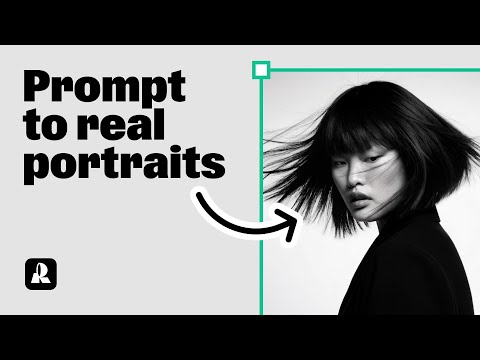 0:190:32Generate a portrait with Hardflash style in RecraftThe user demonstrates how to select the 'Hardflash' curated style in Recraft V3 and enter a detailed prompt to generate a photorealistic portrait.Recraft· AI Realistic Image Generator
- 1:020:28Advanced prompting for specific aesthetics in RecraftThe video shows how to refine a prompt with specific clothing details, expressions, and an East Asian aesthetic to generate a high-quality portrait.Recraft· Text to Image
- 1:300:26Using Natural Light style for expressive portraitsThe user switches to the 'Natural Light' style in Recraft to generate portraits with clear emotions and detailed accessories.Recraft· AI Style Transfer
- 1:560:21Comparing different styles with the same promptThe demonstration shows how to copy a generated image and switch styles (e.g., to Studio or Hardflash) to see how the style choice transforms the same prompt.Recraft· AI Style Transfer
- 2:231:16Creating a custom AI style from a reference imageThe user walks through creating a custom style by uploading a reference image, setting 'style level prompts' for consistent rules, and choosing between Style Essentials or Composition.Recraft· AI Style Transfer
- 3:390:24Applying a saved custom style to new promptsThe tutorial shows how to access a saved custom style from the 'My Styles' tab and apply it to a new prompt to maintain a consistent look.Recraft· AI Style Transfer