Generate product scenes with Mokker AI
 Mokker
Demo summary
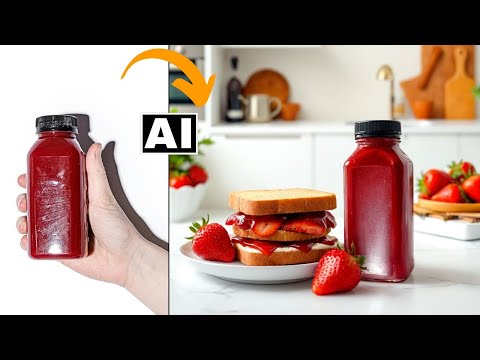
The creator demonstrates uploading a product image to Mokker AI, selecting a 'strawberry' template, adjusting props on the canvas, and generating a professional background using the Iris model.
Step-by-step
- Upload your product photograph to the platform
- Click Skip when the tool attempts to suggest templates to save time
- Search for a template using a keyword related to your product (e.g., 'strawberry')
- Select a template and click Replace Template to load it onto the canvas
- Adjust the size and placement of the product and prop elements on the canvas
- Go to Studio options and set Images Generated to 1
- Select Iris as the AI model for better image quality
- Click Generate Photos and refresh the page if the rendering progress does not appear
Options
- Search templates by category such as Studio or Outdoor
- Add additional props by searching for specific items (e.g., 'banana')
- Add custom lighting styles
- Add custom text to the generation prompt
- Click Recreate Scene to adjust elements and try a new generation
Watch out for
- The initial template recommendation process is slow and often inaccurate
- The rendering process lacks a clear progress indicator, making it look like nothing is happening
- Generating multiple images at once consumes credits quickly
Tips
- Hit Skip during the initial analysis to reach the dashboard faster
- Reverse the process by searching for templates based on product ingredients or keywords rather than browsing categories
- Use the Iris model instead of Baseline for more realistic results
- Manually refresh the page after 10 seconds if the generation isn't reflecting on the dashboard
- Keep the product size slightly smaller on the canvas to ensure a better final composition
Highlights
“to be frank it's not rocket science you will be able to figure it out”
All demos from “Turn Poor Product Shots Into Professional Ones Using FREE AI Tools - Mokker AI & Fooocus AI”
- 0:431:53Remove objects with Photoshop Generative FillThe user demonstrates how to select and remove a hand from a product photo using Photoshop's Generative Fill and the Object Selection tool to isolate the product.Photoshop· AI Object Remover/Eraser
- 2:420:39Generative Fill in Adobe FireflyA brief walkthrough of using the web-based Adobe Firefly interface to upload an image and use the 'Insert' and 'Remove' tools for generative editing.Adobe Firefly· AI Inpainting
- 3:534:04Generate product scenes with Mokker AICurrentThe creator demonstrates uploading a product image to Mokker AI, selecting a 'strawberry' template, adjusting props on the canvas, and generating a professional background using the Iris model.Mokker· AI Product Photography
- 8:483:07Retouch product lighting with Fooocus AI InpaintThe user uses Fooocus AI's 'Improve Detail' inpainting mode and the Segment Anything Model (SAM) to mask a bottle and apply a 'smooth red surface' prompt to fix harsh reflections.Fooocus· AI Inpainting
- 12:391:44Upscale and sharpen images with Fooocus AIThe demonstration shows how to use the upscaling tab in Fooocus AI to increase image resolution and add sharpness to environmental details in a product shot.Fooocus· AI Image Upscaler
- Watch “Turn Poor Product Shots Into Professional Ones Using FREE AI Tools - Mokker AI & Fooocus AI” →


AI Product Photography
 1:016:52Generate jewelry product backgrounds with Mokker AIThe creator demonstrates uploading a ring photo to Mokker AI, selecting jewelry templates, adding props like flowers, and comparing the 'Iris' and 'Baseline' models to generate a professional product scene.Creative Pad Media
- 3:534:04Generate product scenes with Mokker AICurrentThe creator demonstrates uploading a product image to Mokker AI, selecting a 'strawberry' template, adjusting props on the canvas, and generating a professional background using the Iris model.Creative Pad Media
 3:140:28Applying a template in Mokker AIThe user selects a professional background template from the Mokker AI library to automatically replace the canvas background for a product shot.Creative Pad Media
- 4:291:33Generating a product photo with Mokker AIThe demonstrator uploads a PNG of a perfume bottle, places it on a 3D cube mockup, and adjusts the studio settings to generate a single AI-rendered image.Creative Pad Media
- 10:521:26Adding 3D props to a sceneThe user searches for and adds a 3D cube and a leaf prop from the Mokker AI library to customize the product's environment on the canvas.Creative Pad Media
- 13:460:56Switching AI models in Mokker AIThe demonstrator shows how to toggle between the 'Baseline' model and the newer 'Iris 2' model within the generation settings.Creative Pad Media
- 23:070:52Prompt-to-image generation in Mokker AIThe demonstrator pastes a custom prompt from ChatGPT into Mokker AI and uses the Iris 2 model to generate a professional product shot from scratch.Creative Pad Media