Remove objects with Photoshop Generative Fill
 Photoshop
Demo summary
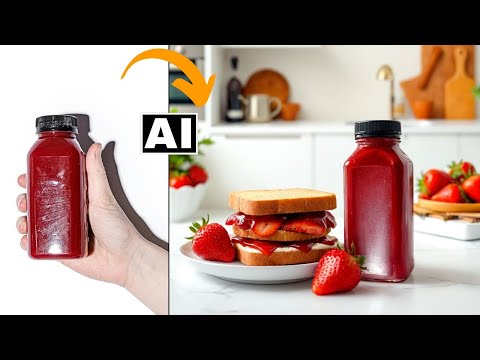
The user demonstrates how to select and remove a hand from a product photo using Photoshop's Generative Fill and the Object Selection tool to isolate the product.
Step-by-step
- Crop the image to focus on the product bottle.
- Use a selection tool to select the hand and fingers, staying close to the edges without cutting into the bottle.
- Hold Shift to add multiple finger selections to the single selection area.
- Type 'remove' into the Generative Fill contextual taskbar and click Generate.
- Review the results and click Generate again if the initial three options are unsatisfactory.
- Create a stamped layer of all visible layers using Ctrl+Alt+Shift+E (Windows) or Command+Option+Shift+E (Mac).
- Use the Object Selection tool to select the bottle on the new layer.
- Apply a layer mask to isolate the bottle and hide the background.
Options
- Use the Remove Tool instead of Generative Fill for object removal.
Watch out for
- Don't select too much of the actual product (the bottle) when selecting the hand to remove.
Tips
- Use Generative Fill over the Remove Tool as it usually does a better job and is easier to use.
- If the AI adds unwanted elements to the background, simply mask out the product to isolate it on a clean layer.
Highlights
“I just find generative fill it just makes it easier and does a better job usually”
All demos from “Turn Poor Product Shots Into Professional Ones Using FREE AI Tools - Mokker AI & Fooocus AI”
- 0:431:53Remove objects with Photoshop Generative FillCurrentThe user demonstrates how to select and remove a hand from a product photo using Photoshop's Generative Fill and the Object Selection tool to isolate the product.Photoshop· AI Object Remover/Eraser
- 2:420:39Generative Fill in Adobe FireflyA brief walkthrough of using the web-based Adobe Firefly interface to upload an image and use the 'Insert' and 'Remove' tools for generative editing.Adobe Firefly· AI Inpainting
- 3:534:04Generate product scenes with Mokker AIThe creator demonstrates uploading a product image to Mokker AI, selecting a 'strawberry' template, adjusting props on the canvas, and generating a professional background using the Iris model.Mokker· AI Product Photography
- 8:483:07Retouch product lighting with Fooocus AI InpaintThe user uses Fooocus AI's 'Improve Detail' inpainting mode and the Segment Anything Model (SAM) to mask a bottle and apply a 'smooth red surface' prompt to fix harsh reflections.Fooocus· AI Inpainting
- 12:391:44Upscale and sharpen images with Fooocus AIThe demonstration shows how to use the upscaling tab in Fooocus AI to increase image resolution and add sharpness to environmental details in a product shot.Fooocus· AI Image Upscaler
- Watch “Turn Poor Product Shots Into Professional Ones Using FREE AI Tools - Mokker AI & Fooocus AI” →


AI Object Remover/Eraser
 0:431:05Remove background people with Photoshop Remove ToolThe demonstrator uses the 'Find Distractions' feature within the Photoshop Remove Tool to automatically detect and delete people from the background of a portrait.PHLEARN
- 2:270:36One-click wire and cable removal in PhotoshopUsing the Remove Tool's 'Wires and Cables' distraction finder, the video shows how to instantly clear complex power lines from an urban photo.PHLEARN
- 3:090:29Manual object removal with Photoshop Remove ToolThe user demonstrates painting over specific small objects (light bulbs and supports) with the Remove Tool to erase them manually.PHLEARN
- 4:151:04Remove objects using Generative Fill and Firefly Image 3The demonstrator uses the Selection Brush to highlight a distracting sign and applies Generative Fill (powered by Adobe Firefly) to generate three different AI variations of the background.PHLEARN
- 5:330:25Painting over subjects with the Remove ToolA final demonstration shows manually painting over a person in a photo using the Remove Tool to perform a quick, non-destructive deletion.PHLEARN
 1:152:23Remove objects with Nana Banana and Flux Kontext ProThe user demonstrates selecting a fence in Photoshop Beta and using the 'remove fence' prompt with both Nana Banana and Flux Kontext Pro to compare their object removal capabilities.photoshopCAFE
- 0:431:53Remove objects with Photoshop Generative FillCurrentThe user demonstrates how to select and remove a hand from a product photo using Photoshop's Generative Fill and the Object Selection tool to isolate the product.Creative Pad Media
 0:260:55Remove simple objects with Photoshop Remove ToolThe creator demonstrates how to remove a trash can from a photo using the Remove Tool with 'remove after each stroke' enabled and Generative AI turned off for speed.PiXimperfect
- 1:280:53Remove complex objects using Generative AI in PhotoshopThe video shows how to remove a photobomber from a portrait by enabling the Generative AI option within the Remove Tool to reconstruct complex backgrounds.PiXimperfect
- 2:570:48Manual stroke selection for object removalThe creator demonstrates unchecking 'remove after each stroke' to carefully paint over a bird before triggering the AI removal with the Enter key.PiXimperfect
- 4:121:07Automatically find and remove people in PhotoshopThe demo shows the 'Find Distractions' feature in Photoshop 2025, which automatically detects and selects background people for one-click removal.PiXimperfect
- 5:240:32Remove wires and cables automaticallyThe creator uses the 'Find Distractions: Wires and Cables' feature to automatically identify and erase power lines from a complex urban photo.PiXimperfect