Applying a template in Mokker AI

 Mokker
Demo summary
The user selects a professional background template from the Mokker AI library to automatically replace the canvas background for a product shot.
Step-by-step
- Navigate to the Templates tab in the sidebar
- Browse the available categories to find a professional background
- Select the desired template image
- Click the option to replace the current template
Options
- Choose from various template categories to match different product styles
Watch out for
- Confirming the new template will replace the existing canvas background
Tips
- Start with a basic, professional-looking image to keep the initial design simple
Highlights
“just to keep things simple you have a lot of templates”
All demos from “This AI Tool Will KILL Product Photography - Mokker AI Full Tutorial”
- 3:140:28Applying a template in Mokker AICurrentThe user selects a professional background template from the Mokker AI library to automatically replace the canvas background for a product shot.Mokker· AI Product Photography
- 4:291:33Generating a product photo with Mokker AIThe demonstrator uploads a PNG of a perfume bottle, places it on a 3D cube mockup, and adjusts the studio settings to generate a single AI-rendered image.Mokker· AI Product Photography
- 10:521:26Adding 3D props to a sceneThe user searches for and adds a 3D cube and a leaf prop from the Mokker AI library to customize the product's environment on the canvas.Mokker· AI Product Photography
- 13:460:56Switching AI models in Mokker AIThe demonstrator shows how to toggle between the 'Baseline' model and the newer 'Iris 2' model within the generation settings.Mokker· AI Product Photography
- 23:070:52Prompt-to-image generation in Mokker AIThe demonstrator pastes a custom prompt from ChatGPT into Mokker AI and uses the Iris 2 model to generate a professional product shot from scratch.Mokker· AI Product Photography
- Watch “This AI Tool Will KILL Product Photography - Mokker AI Full Tutorial” →
AI Product Photography
 1:016:52Generate jewelry product backgrounds with Mokker AIThe creator demonstrates uploading a ring photo to Mokker AI, selecting jewelry templates, adding props like flowers, and comparing the 'Iris' and 'Baseline' models to generate a professional product scene.Creative Pad Media
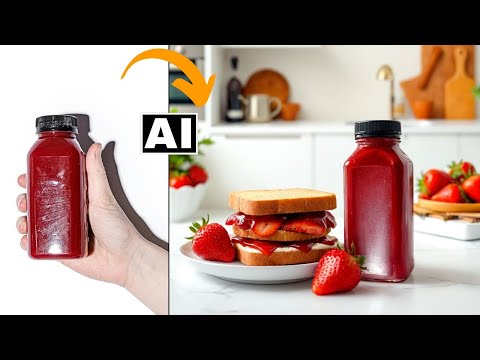 3:534:04Generate product scenes with Mokker AIThe creator demonstrates uploading a product image to Mokker AI, selecting a 'strawberry' template, adjusting props on the canvas, and generating a professional background using the Iris model.Creative Pad Media
- 3:140:28Applying a template in Mokker AICurrentThe user selects a professional background template from the Mokker AI library to automatically replace the canvas background for a product shot.Creative Pad Media
- 4:291:33Generating a product photo with Mokker AIThe demonstrator uploads a PNG of a perfume bottle, places it on a 3D cube mockup, and adjusts the studio settings to generate a single AI-rendered image.Creative Pad Media
- 10:521:26Adding 3D props to a sceneThe user searches for and adds a 3D cube and a leaf prop from the Mokker AI library to customize the product's environment on the canvas.Creative Pad Media
- 13:460:56Switching AI models in Mokker AIThe demonstrator shows how to toggle between the 'Baseline' model and the newer 'Iris 2' model within the generation settings.Creative Pad Media
- 23:070:52Prompt-to-image generation in Mokker AIThe demonstrator pastes a custom prompt from ChatGPT into Mokker AI and uses the Iris 2 model to generate a professional product shot from scratch.Creative Pad Media