Retouch product lighting with Fooocus AI Inpaint
 Fooocus
Demo summary
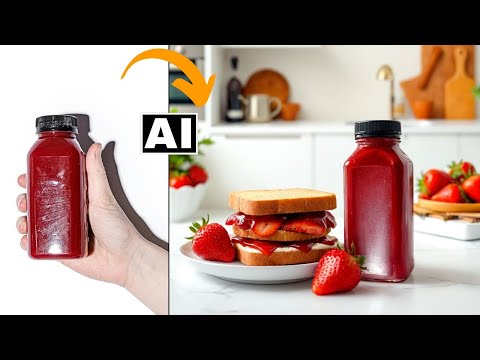
The user uses Fooocus AI's 'Improve Detail' inpainting mode and the Segment Anything Model (SAM) to mask a bottle and apply a 'smooth red surface' prompt to fix harsh reflections.
Step-by-step
- Upload your image to the Input Image section within the Inpaint or Outpaint tab
- Check the box for Enable Advanced masking features
- Enter a description of your object in the SAM model detection field to generate a mask
- Select Improve Detail from the Inpainting Method dropdown menu
- Enter a descriptive prompt in the Inpaint additional prompt field, such as 'plain smooth red surface'
- Open the Advanced tab and set Performance to Quality
- Set the Image Number to 1 and Output Format to JPEG
- Click Generate
Options
- Set Image Number to a higher value to generate different variations
- Use the default Inpaint or Outpaint method for more aggressive changes
Watch out for
- The SAM model may occasionally select additional background objects if they share similar characteristics with your target object
Tips
- Use the 'Improve Detail' method instead of default inpainting when you want the object to remain as it is while only refining surface textures
- Selecting JPEG as the output format can result in faster generations
- Use specific texture prompts like 'plain smooth surface' to reduce harsh reflections and simulate softbox lighting
Highlights
“first of all let's correct the bottle because this is very easy to do it's just going to take a few clicks”
All demos from “Turn Poor Product Shots Into Professional Ones Using FREE AI Tools - Mokker AI & Fooocus AI”
- 0:431:53Remove objects with Photoshop Generative FillThe user demonstrates how to select and remove a hand from a product photo using Photoshop's Generative Fill and the Object Selection tool to isolate the product.Photoshop· AI Object Remover/Eraser
- 2:420:39Generative Fill in Adobe FireflyA brief walkthrough of using the web-based Adobe Firefly interface to upload an image and use the 'Insert' and 'Remove' tools for generative editing.Adobe Firefly· AI Inpainting
- 3:534:04Generate product scenes with Mokker AIThe creator demonstrates uploading a product image to Mokker AI, selecting a 'strawberry' template, adjusting props on the canvas, and generating a professional background using the Iris model.Mokker· AI Product Photography
- 8:483:07Retouch product lighting with Fooocus AI InpaintCurrentThe user uses Fooocus AI's 'Improve Detail' inpainting mode and the Segment Anything Model (SAM) to mask a bottle and apply a 'smooth red surface' prompt to fix harsh reflections.Fooocus· AI Inpainting
- 12:391:44Upscale and sharpen images with Fooocus AIThe demonstration shows how to use the upscaling tab in Fooocus AI to increase image resolution and add sharpness to environmental details in a product shot.Fooocus· AI Image Upscaler
- Watch “Turn Poor Product Shots Into Professional Ones Using FREE AI Tools - Mokker AI & Fooocus AI” →


AI Inpainting
 8:350:37Using Improve Detail and Modify ContentThe creator walks through the 'Improve Detail' and 'Modify Content' modes in Fooocus to increase resolution of background elements and change specific objects like cars.Clear
- 8:483:07Retouch product lighting with Fooocus AI InpaintCurrentThe user uses Fooocus AI's 'Improve Detail' inpainting mode and the Segment Anything Model (SAM) to mask a bottle and apply a 'smooth red surface' prompt to fix harsh reflections.Creative Pad Media