Generate jewelry product backgrounds with Mokker AI

 Mokker
Demo summary
The creator demonstrates uploading a ring photo to Mokker AI, selecting jewelry templates, adding props like flowers, and comparing the 'Iris' and 'Baseline' models to generate a professional product scene.
Step-by-step
- Upload your product image to the Mokker AI interface.
- Skip the initial template suggestions to enter the main design board.
- Set the Studio options to 'one image' to conserve credits.
- Go to the Templates tab and search for your product type, such as 'jewelry'.
- Select a template and click 'Replace template'.
- Resize and rotate your product using the gear icon to fit the template's perspective.
- Optional: Go to the Props section, search for an item like 'flower', and place it on the design board.
- Select either the 'Iris' or 'Baseline' model and click Generate.
Options
- Choose between the 'Iris' (latest) or 'Baseline' AI models.
- Change the color of added props using the color picker.
- Generate a completely custom image using a text prompt.
Watch out for
- There is no undo button in the interface; if you move an object accidentally, you must manually move it back.
- The perspective of the template must match the camera angle of your original photo or the result will look unrealistic.
Tips
- Test both AI models; while Iris is generally superior, the Baseline model often performs better for complex scenes with many props.
- Search for templates using specific keywords like 'jewelry' to find relevant backgrounds quickly.
- Pay close attention to the 'rough sketch' preview to ensure the product placement looks natural before spending credits.
All demos from “Turn Boring Jewelry Shots Into Professional Ones Using FREE AI Tools - Mokker AI & DZine AI Tutorial”
- 1:016:52Generate jewelry product backgrounds with Mokker AICurrentThe creator demonstrates uploading a ring photo to Mokker AI, selecting jewelry templates, adding props like flowers, and comparing the 'Iris' and 'Baseline' models to generate a professional product scene.Mokker· AI Product Photography
- 9:561:48Custom background generation using ChatGPT prompts in Mokker AIThe user shows how to generate a detailed prompt in ChatGPT by combining an inspiration image and a product shot, then pasting that prompt into Mokker AI's blank canvas to create a custom scene.Mokker· AI Background Generator
- 12:244:15Add shine to jewelry using DZine AIThe demonstration shows using the 'Shining Jewelry' image-to-image model in DZine AI to add contrast and glow to a ring while using 'Structure Match' settings to preserve the original shape.DZine AI· AI Image/Photo Enhancer
- 16:427:47Composite AI layers in Photoshop for realistic jewelry editsThe creator walks through aligning the original and shiny AI layers in Photoshop, using layer masks to selectively reveal shine, and applying the 'Luminosity' blending mode to preserve original product colors.Photoshop· AI Product Photography
- 24:330:21Upscale product images with Upscale.mediaA brief demonstration of using the free AI tool Upscale.media to increase the resolution and sharpness of the final edited jewelry image.Upscale.media· AI Image Upscaler
- Watch “Turn Boring Jewelry Shots Into Professional Ones Using FREE AI Tools - Mokker AI & DZine AI Tutorial” →



AI Product Photography
- 1:016:52Generate jewelry product backgrounds with Mokker AICurrentThe creator demonstrates uploading a ring photo to Mokker AI, selecting jewelry templates, adding props like flowers, and comparing the 'Iris' and 'Baseline' models to generate a professional product scene.Creative Pad Media
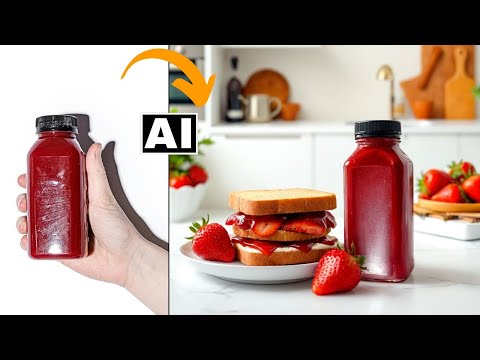 3:534:04Generate product scenes with Mokker AIThe creator demonstrates uploading a product image to Mokker AI, selecting a 'strawberry' template, adjusting props on the canvas, and generating a professional background using the Iris model.Creative Pad Media
 3:140:28Applying a template in Mokker AIThe user selects a professional background template from the Mokker AI library to automatically replace the canvas background for a product shot.Creative Pad Media
- 4:291:33Generating a product photo with Mokker AIThe demonstrator uploads a PNG of a perfume bottle, places it on a 3D cube mockup, and adjusts the studio settings to generate a single AI-rendered image.Creative Pad Media
- 10:521:26Adding 3D props to a sceneThe user searches for and adds a 3D cube and a leaf prop from the Mokker AI library to customize the product's environment on the canvas.Creative Pad Media
- 13:460:56Switching AI models in Mokker AIThe demonstrator shows how to toggle between the 'Baseline' model and the newer 'Iris 2' model within the generation settings.Creative Pad Media
- 23:070:52Prompt-to-image generation in Mokker AIThe demonstrator pastes a custom prompt from ChatGPT into Mokker AI and uses the Iris 2 model to generate a professional product shot from scratch.Creative Pad Media