Generative Fill in Adobe Firefly
 Adobe Firefly
Demo summary
A brief walkthrough of using the web-based Adobe Firefly interface to upload an image and use the 'Insert' and 'Remove' tools for generative editing.
Step-by-step
- Go to firefly.adobe.com and create an account
- Navigate to the Image tab
- Select Generative Fill
- Upload the image you want to edit
- Select either the Insert tool or the Remove tool
- Brush over the area you wish to change
- Enter a text prompt if using the Insert tool and click Generate
Options
- Use the Insert tool with a 'remove' prompt
- Use the dedicated Remove tool directly
Watch out for
- Free accounts are limited to 25 credits per month
Tips
- Try both the Insert tool (with a prompt) and the Remove tool to see which one gives you better results for your specific image
All demos from “Turn Poor Product Shots Into Professional Ones Using FREE AI Tools - Mokker AI & Fooocus AI”
- 0:431:53Remove objects with Photoshop Generative FillThe user demonstrates how to select and remove a hand from a product photo using Photoshop's Generative Fill and the Object Selection tool to isolate the product.Photoshop· AI Object Remover/Eraser
- 2:420:39Generative Fill in Adobe FireflyCurrentA brief walkthrough of using the web-based Adobe Firefly interface to upload an image and use the 'Insert' and 'Remove' tools for generative editing.Adobe Firefly· AI Inpainting
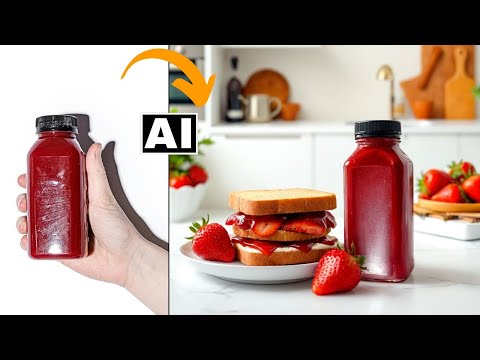
- 3:534:04Generate product scenes with Mokker AIThe creator demonstrates uploading a product image to Mokker AI, selecting a 'strawberry' template, adjusting props on the canvas, and generating a professional background using the Iris model.Mokker· AI Product Photography
- 8:483:07Retouch product lighting with Fooocus AI InpaintThe user uses Fooocus AI's 'Improve Detail' inpainting mode and the Segment Anything Model (SAM) to mask a bottle and apply a 'smooth red surface' prompt to fix harsh reflections.Fooocus· AI Inpainting
- 12:391:44Upscale and sharpen images with Fooocus AIThe demonstration shows how to use the upscaling tab in Fooocus AI to increase image resolution and add sharpness to environmental details in a product shot.Fooocus· AI Image Upscaler
- Watch “Turn Poor Product Shots Into Professional Ones Using FREE AI Tools - Mokker AI & Fooocus AI” →


AI Inpainting
- 2:420:39Generative Fill in Adobe FireflyCurrentA brief walkthrough of using the web-based Adobe Firefly interface to upload an image and use the 'Insert' and 'Remove' tools for generative editing.Creative Pad Media