OpenArt: Animate AI influencer images with Kling 2.5
 OpenArt
Demo summary
The creator demonstrates how to upload a static AI-generated image to OpenArt's video tab and use the Kling 2.5 model to animate the scene with motion and sound effects.
Step-by-step
- Click the video tab icon in your Open Art account.
- Upload the image you want to animate.
- Provide a detailed prompt describing the actions unfolding in the scene.
- Select a video model from the top menu (e.g., Kling 2.5).
- Choose the video duration and quality (720p or 1080p).
- Click Create and wait a few minutes for the generation to complete.
Options
- Select alternative models like VO3, Minimax, Hailuo, or Luma 2.5
- Toggle Auto Sound on to generate sound effects based on the prompt
- Add a negative prompt to exclude distortions or awkward movements
- Choose between 5-second or 10-second durations (model dependent)
Watch out for
- Settings and duration options change depending on which model is selected.
Tips
- Use Open Art to access multiple AI video generators in one place to save on subscription costs.
- Provide a detailed description of the sound you want if using the Auto Sound feature.
- Mix static images and videos in Instagram carousels for better engagement.
- Use a 9:16 portrait ratio if you plan to upload the results as Reels, TikToks, or Shorts.
Highlights
“Wow, I love how it turned out. It looks really good, and I love how it followed what I requested in the prompt.”
All demos from “I Created TRAVEL Videos for my AI Influencer Using AI and Here's How”
- 4:341:12Generate consistent AI influencer images with Whisk AIThe creator demonstrates how to use a specific seed number and base image in Whisk AI to generate a consistent character in a travel setting.Google Whisk· AI Person Generator
- 5:461:35Change locations while keeping character outfits in Whisk AIThe demo shows how to use the edit feature in Whisk AI to swap background locations and poses while maintaining the same clothing for a 'day in the life' travel series.Google Whisk· AI Inpainting
- 7:214:02Place AI influencer in custom scenes and add objectsThe creator shows how to upload a custom scene image and a separate subject image (pastries) into Whisk AI to composite the influencer into a specific environment with specific items.Google Whisk· AI Image Combiner
- 11:233:34Generate AI influencer images using Nano Banana ProThe video walks through using the Nano Banana Pro model inside OpenArt, utilizing the 'Omni Reference' feature to maintain character features from a base image.OpenArt· AI Person Generator
- 15:023:21Animate AI influencer images with Kling 2.5CurrentThe creator demonstrates how to upload a static AI-generated image to OpenArt's video tab and use the Kling 2.5 model to animate the scene with motion and sound effects.OpenArt· Image to Video
- Watch “I Created TRAVEL Videos for my AI Influencer Using AI and Here's How” →

Image to Video
 9:300:40Animate scenes with Kling 2.6The creator demonstrates animating a static image into a 5-second video clip of characters walking using the Kling 2.6 model within the Open Art interface.Youri van Hofwegen
 2:300:40Animate images using Kling 2.6 in OpenArtThe demonstration shows uploading a static image and using the Kling 2.6 model to generate a realistic video of a girl drinking coffee with natural steam and background movement.Affiliation
 3:030:43Image-to-video conversion using Kling 2.6A demonstration of uploading a static photograph of a city street and using the Kling 2.6 model to animate it with rain and motion effects.Thomas Creates
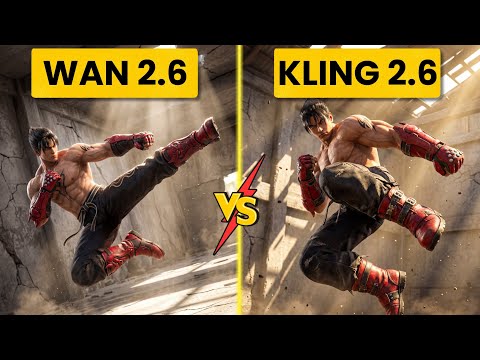 4:400:42Create fight scene from image with Wan 2.6The user uploads a Tekken 8 reference image and uses Wan 2.6 to animate a cinematic fight scene between two characters.Ai Chemy
 5:450:50Image-to-Video workflow in OpenArt to save creditsThe user demonstrates generating a high-quality image of a gold bar first using the 'Image Gen 4' model, then uploading that image to the VEO3 video generator to ensure visual consistency before animating the slice.unknown
 3:450:44Image-to-video with start frame in Veo 3.1The user uploads a starting frame image and a prompt to guide the Veo 3.1 model in generating a consistent 4K video sequence.Youri van Hofwegen
- 4:420:23Image-to-video with start frame in LTX 2.3The LTX 2.3 model is shown processing a starting frame image to generate a high-resolution video with slow-motion effects.Youri van Hofwegen
- 6:430:30Multi-image reference video generation with Veo 3.1The demonstration shows how to use a character sheet and an object reference image simultaneously in Veo 3.1 to maintain visual consistency.Youri van Hofwegen
- 8:090:45Reference image workflow with SeaDance 2.0The SeaDance 2.0 model is shown generating a 720p video using a character sheet, boxing glove reference, and a starting frame.Youri van Hofwegen
 31:141:10Sync motion from one video to anotherThe creator uses Motion Sync to apply the movements of a boxing video to a static cyberpunk character image.Wade McMaster - Creator Impact
 6:020:33Image-to-video generation with Vidu 3.1The user demonstrates how to use a previously generated image as a foundation for video, using the Vidu 3.1 model to animate specific motions.Roboverse
 6:580:43Animate images using Cling 3The creator demonstrates converting a still image into a 5-second video using the Cling 3 model within OpenArt's video interface.Isa does AI