OpenArt: Create fight scene from image with Wan 2.6
 OpenArt
Demo summary
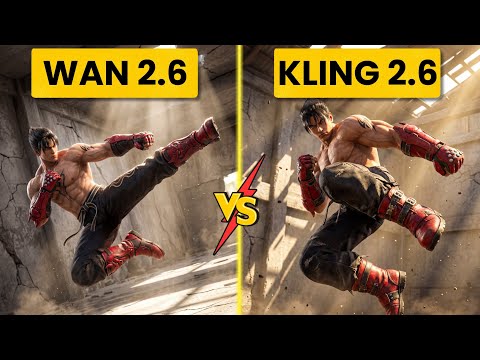
The user uploads a Tekken 8 reference image and uses Wan 2.6 to animate a cinematic fight scene between two characters.
Step-by-step
- Select the Image to Video tool
- Upload a reference image featuring the characters
- Enter a prompt describing the cinematic action and camera movement
- Maintain the default generation settings
- Click to generate the video
Tips
- Include specific camera directions, such as a wide angle, to define how the scene opens
- Specify that the uploaded image should be used as the character basis for better consistency
Highlights
“They're fighting at incredible speed. The punches are almost impossible to [miss]”
All demos from “Multi-Shot AI Videos: Wan 2.6 vs Kling 2.6 (Stress Test)”
- 2:560:52Generate action video from text with Wan 2.6The user demonstrates selecting the Wan 2.6 model in Open Art and entering a prompt for a berserker knight smashing through a gate to generate a video with synchronized audio.OpenArt· Text to Video
- 4:400:42Create fight scene from image with Wan 2.6CurrentThe user uploads a Tekken 8 reference image and uses Wan 2.6 to animate a cinematic fight scene between two characters.OpenArt· Image to Video
- Watch “Multi-Shot AI Videos: Wan 2.6 vs Kling 2.6 (Stress Test)” →
Image to Video
 9:300:40Animate scenes with Kling 2.6The creator demonstrates animating a static image into a 5-second video clip of characters walking using the Kling 2.6 model within the Open Art interface.Youri van Hofwegen
 2:300:40Animate images using Kling 2.6 in OpenArtThe demonstration shows uploading a static image and using the Kling 2.6 model to generate a realistic video of a girl drinking coffee with natural steam and background movement.Affiliation
 3:030:43Image-to-video conversion using Kling 2.6A demonstration of uploading a static photograph of a city street and using the Kling 2.6 model to animate it with rain and motion effects.Thomas Creates
- 4:400:42Create fight scene from image with Wan 2.6CurrentThe user uploads a Tekken 8 reference image and uses Wan 2.6 to animate a cinematic fight scene between two characters.Ai Chemy
 5:450:50Image-to-Video workflow in OpenArt to save creditsThe user demonstrates generating a high-quality image of a gold bar first using the 'Image Gen 4' model, then uploading that image to the VEO3 video generator to ensure visual consistency before animating the slice.unknown
 3:450:44Image-to-video with start frame in Veo 3.1The user uploads a starting frame image and a prompt to guide the Veo 3.1 model in generating a consistent 4K video sequence.Youri van Hofwegen
- 4:420:23Image-to-video with start frame in LTX 2.3The LTX 2.3 model is shown processing a starting frame image to generate a high-resolution video with slow-motion effects.Youri van Hofwegen
- 6:430:30Multi-image reference video generation with Veo 3.1The demonstration shows how to use a character sheet and an object reference image simultaneously in Veo 3.1 to maintain visual consistency.Youri van Hofwegen
- 8:090:45Reference image workflow with SeaDance 2.0The SeaDance 2.0 model is shown generating a 720p video using a character sheet, boxing glove reference, and a starting frame.Youri van Hofwegen
 31:141:10Sync motion from one video to anotherThe creator uses Motion Sync to apply the movements of a boxing video to a static cyberpunk character image.Wade McMaster - Creator Impact
 6:020:33Image-to-video generation with Vidu 3.1The user demonstrates how to use a previously generated image as a foundation for video, using the Vidu 3.1 model to animate specific motions.Roboverse
 6:580:43Animate images using Cling 3The creator demonstrates converting a still image into a 5-second video using the Cling 3 model within OpenArt's video interface.Isa does AI