OpenArt: Animate images using Cling 3

 OpenArt
Demo summary
The creator demonstrates converting a still image into a 5-second video using the Cling 3 model within OpenArt's video interface.
Step-by-step
- Select the Image to Video tool
- Upload your starting image
- Select the Cling 3 video model
- Paste in your prompt
- Set the duration to 5 seconds
- Set the resolution to 1080p
- Click Create
Options
- Add an image for the end frame for additional control
Tips
- Ensure you have selected the correct video model before generating
Highlights
“The movement is smooth, the lighting stays consistent, and it looks like it was filmed with an actual camera.”
All demos from “STOP Wasting Credits & Master OpenArt in 10 Min”
- 2:180:24Generate realistic images with Nano Banana 2The creator demonstrates how to generate a high-resolution 4K image using the Nano Banana 2 model on OpenArt with a specific cinematic prompt.OpenArt· Text to Image
- 3:210:19Upscale images with skin enhancementA demonstration of OpenArt's 'Precise' upscaling tool and skin enhancement feature to sharpen facial details in a generated portrait.OpenArt· AI Image Upscaler
- 3:540:29Image-to-image generation with multiple referencesThe user shows how to use two reference images (pose and outfit) to guide OpenArt in generating a new image that combines specific elements.OpenArt· Image to Image
- 4:520:36Create a consistent AI characterThe video shows the process of creating and saving a consistent character in OpenArt using a text description and the Nano Banana Pro model.OpenArt· AI Person Generator
- 5:310:43Consistent objects and backgroundsA walkthrough of saving specific objects and backgrounds to a library and then combining them with a saved character to generate a consistent scene.OpenArt· AI Image Combiner
- 6:580:43Animate images using Cling 3CurrentThe creator demonstrates converting a still image into a 5-second video using the Cling 3 model within OpenArt's video interface.OpenArt· Image to Video
- Watch “STOP Wasting Credits & Master OpenArt in 10 Min” →
Image to Video
 9:300:40Animate scenes with Kling 2.6The creator demonstrates animating a static image into a 5-second video clip of characters walking using the Kling 2.6 model within the Open Art interface.Youri van Hofwegen
 2:300:40Animate images using Kling 2.6 in OpenArtThe demonstration shows uploading a static image and using the Kling 2.6 model to generate a realistic video of a girl drinking coffee with natural steam and background movement.Affiliation
 3:030:43Image-to-video conversion using Kling 2.6A demonstration of uploading a static photograph of a city street and using the Kling 2.6 model to animate it with rain and motion effects.Thomas Creates
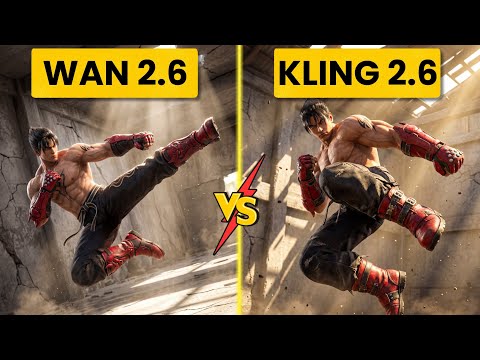 4:400:42Create fight scene from image with Wan 2.6The user uploads a Tekken 8 reference image and uses Wan 2.6 to animate a cinematic fight scene between two characters.Ai Chemy
 5:450:50Image-to-Video workflow in OpenArt to save creditsThe user demonstrates generating a high-quality image of a gold bar first using the 'Image Gen 4' model, then uploading that image to the VEO3 video generator to ensure visual consistency before animating the slice.unknown
 3:450:44Image-to-video with start frame in Veo 3.1The user uploads a starting frame image and a prompt to guide the Veo 3.1 model in generating a consistent 4K video sequence.Youri van Hofwegen
- 4:420:23Image-to-video with start frame in LTX 2.3The LTX 2.3 model is shown processing a starting frame image to generate a high-resolution video with slow-motion effects.Youri van Hofwegen
- 6:430:30Multi-image reference video generation with Veo 3.1The demonstration shows how to use a character sheet and an object reference image simultaneously in Veo 3.1 to maintain visual consistency.Youri van Hofwegen
- 8:090:45Reference image workflow with SeaDance 2.0The SeaDance 2.0 model is shown generating a 720p video using a character sheet, boxing glove reference, and a starting frame.Youri van Hofwegen
 31:141:10Sync motion from one video to anotherThe creator uses Motion Sync to apply the movements of a boxing video to a static cyberpunk character image.Wade McMaster - Creator Impact
 6:020:33Image-to-video generation with Vidu 3.1The user demonstrates how to use a previously generated image as a foundation for video, using the Vidu 3.1 model to animate specific motions.Roboverse
- 6:580:43Animate images using Cling 3CurrentThe creator demonstrates converting a still image into a 5-second video using the Cling 3 model within OpenArt's video interface.Isa does AI