OpenArt: Image-to-video conversion using Kling 2.6

 OpenArt
Demo summary
A demonstration of uploading a static photograph of a city street and using the Kling 2.6 model to animate it with rain and motion effects.
Step-by-step
- Click on Image to Video from the left side menu
- Select Kling 2.6 from the model dropdown
- Upload a photograph
- Enter a descriptive prompt for the motion and environmental effects
- Set the duration between 5 and 10 seconds
- Click Create
Options
- Adjust video duration between 5 and 10 seconds
Tips
- Use Kling for stylized, artistic, or vibrant content
- Use VO3 for ultra-realistic videos with natural motion and cinematic lighting
Highlights
“this came out looking incredible. The motion is smooth. The environmental details like rain and reflections are convincing”
All demos from “What is Openart? 2026 Review (The Good, Bad & Ugly)”
- 1:191:38Text-to-video generation with Google VEO 3.1The creator demonstrates how to select the Google VEO 3.1 model within OpenArt, use the 'autoenhance' prompt feature, and generate a cinematic video of an astronaut.OpenArt· Text to Video
- 3:030:43Image-to-video conversion using Kling 2.6CurrentA demonstration of uploading a static photograph of a city street and using the Kling 2.6 model to animate it with rain and motion effects.OpenArt· Image to Video
- 4:020:27Upscaling video to 4KThe video shows the 'video upscale' workflow where a generated clip is enhanced to 4K resolution with frame interpolation for smoother motion.OpenArt· AI Video Upscaler
- 4:321:13Photorealistic image generation with Nano Banana ProThe user selects the Nano Banana Pro model and uses a prompt for a woman in a coffee shop to generate a high-quality, photorealistic image.OpenArt· AI Realistic Image Generator
- 6:020:26Adding objects to images with InpaintA walkthrough of the Inpaint tool where the user masks an area of an image and prompts the AI to add a flower into the scene.OpenArt· AI Inpainting
- 6:280:22Removing objects with Magic EraseThe creator demonstrates highlighting an unwanted exit sign in an image and using the 'Magic Erase' tool to remove it seamlessly.OpenArt· AI Object Remover/Eraser
- 7:241:53Creating consistent AI charactersA step-by-step demo of training a character named 'Alex' using Nano Banana Pro and then generating new scenes while maintaining facial and physical consistency.OpenArt· AI Avatar Generator
- Watch “What is Openart? 2026 Review (The Good, Bad & Ugly)” →
Image to Video
 9:300:40Animate scenes with Kling 2.6The creator demonstrates animating a static image into a 5-second video clip of characters walking using the Kling 2.6 model within the Open Art interface.Youri van Hofwegen
 2:300:40Animate images using Kling 2.6 in OpenArtThe demonstration shows uploading a static image and using the Kling 2.6 model to generate a realistic video of a girl drinking coffee with natural steam and background movement.Affiliation
- 3:030:43Image-to-video conversion using Kling 2.6CurrentA demonstration of uploading a static photograph of a city street and using the Kling 2.6 model to animate it with rain and motion effects.Thomas Creates
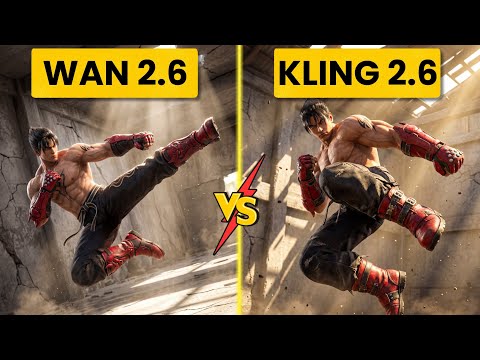 4:400:42Create fight scene from image with Wan 2.6The user uploads a Tekken 8 reference image and uses Wan 2.6 to animate a cinematic fight scene between two characters.Ai Chemy
 5:450:50Image-to-Video workflow in OpenArt to save creditsThe user demonstrates generating a high-quality image of a gold bar first using the 'Image Gen 4' model, then uploading that image to the VEO3 video generator to ensure visual consistency before animating the slice.unknown
 3:450:44Image-to-video with start frame in Veo 3.1The user uploads a starting frame image and a prompt to guide the Veo 3.1 model in generating a consistent 4K video sequence.Youri van Hofwegen
- 4:420:23Image-to-video with start frame in LTX 2.3The LTX 2.3 model is shown processing a starting frame image to generate a high-resolution video with slow-motion effects.Youri van Hofwegen
- 6:430:30Multi-image reference video generation with Veo 3.1The demonstration shows how to use a character sheet and an object reference image simultaneously in Veo 3.1 to maintain visual consistency.Youri van Hofwegen
- 8:090:45Reference image workflow with SeaDance 2.0The SeaDance 2.0 model is shown generating a 720p video using a character sheet, boxing glove reference, and a starting frame.Youri van Hofwegen
 31:141:10Sync motion from one video to anotherThe creator uses Motion Sync to apply the movements of a boxing video to a static cyberpunk character image.Wade McMaster - Creator Impact
 6:020:33Image-to-video generation with Vidu 3.1The user demonstrates how to use a previously generated image as a foundation for video, using the Vidu 3.1 model to animate specific motions.Roboverse
 6:580:43Animate images using Cling 3The creator demonstrates converting a still image into a 5-second video using the Cling 3 model within OpenArt's video interface.Isa does AI