Animate characters with Runway Act-One

 Runway
Demo summary
The video demonstrates the Act-One tool, showing how a character image can follow the facial expressions and movements of a source video.
Step-by-step
- Switch to the Act-One tool
- Upload your source video (recorded or pre-recorded) to the top section
- Upload your character image as a reference at the bottom
Options
- Use a recorded video as the source
- Use an uploaded video as the source
Highlights
“generating a very professional result in no time!”
All demos from “Runway AI - Tutorial for Beginners in 13 MINUTES ! [ FULL GUIDE ]”
- 0:511:32Generate video with Runway Gen-3 Alpha TurboThe user demonstrates how to generate a video from an image or video reference using the Gen-3 Alpha Turbo model, including prompt settings and extending video length.Runway· AI Video Generator
- 5:091:33Text-to-video generation with Runway Gen-2A walkthrough of using the Gen-2 model to generate 4-second videos from text prompts, including the use of free previews and style presets.Runway· Text to Video
- 6:420:45Using Motion Brush in Gen-2The demo shows how to use the Motion Brush tool to select specific areas of a reference image and apply directional motion to them.Runway· AI Animation Generator
- 7:521:32Video-to-Video manipulation with Runway Gen-1The user demonstrates uploading a video to the Gen-1 interface to modify its style and content using presets and text prompts.Runway· Video to Video
- 10:050:26Animate characters with Runway Act-OneCurrentThe video demonstrates the Act-One tool, showing how a character image can follow the facial expressions and movements of a source video.Runway· Video to Video
- 10:330:33Lip Sync Video with Generative AudioA demonstration of the Lip Sync tool where an animated character is synced to a dialogue track or typed text.Runway· AI Lip Sync Generator
- 11:100:53Expand images with Infinite ImageThe user shows how to use the Infinite Image tool to outpaint and expand the borders of an existing image using AI frames and prompts.Runway· AI Outpainting
- Watch “Runway AI - Tutorial for Beginners in 13 MINUTES ! [ FULL GUIDE ]” →
Video to Video
 12:411:00Transform video scenes with Runway Gen-3 AlphaThe user demonstrates uploading a video of himself riding a bike into Runway and using text prompts to transform the environment into a blizzard and a heavy downpour.Kevin Stratvert
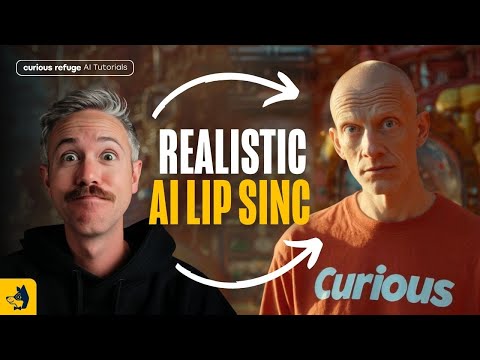 15:111:55Transfer performance with Runway Act-OneThe tutorial shows how to use Runway Act-One (referred to as Act Two) by uploading a 'driving video' of a person speaking and a target character video to transfer the facial performance and lip-sync.Curious Refuge
 9:080:39Stylize video into watercolor paintingThe video shows the stylization tool converting a standard video clip into a watercolor art style using a text prompt.Emma's Productivity Lab
 9:570:45Change camera angles using Runway AlephThe creator demonstrates the model's ability to generate a completely different camera angle of a subject from a single original video shot.Joris Hermans
 6:350:57Edit video with Runway AlephThe demonstrator uses the Aleph tool to modify a generated video by replacing a horse with a 'fire horse' using simple text instructions.Skills Factory
 38:592:37Character animation with Runway Act OneA demonstration of Runway's Act One tool, where a driving video of the presenter is used to animate a static image of Nicolas Cage, matching facial expressions and lip movements.The FAIK Files
- 7:521:32Video-to-Video manipulation with Runway Gen-1The user demonstrates uploading a video to the Gen-1 interface to modify its style and content using presets and text prompts.Skills Factory
- 10:050:26Animate characters with Runway Act-OneCurrentThe video demonstrates the Act-One tool, showing how a character image can follow the facial expressions and movements of a source video.Skills Factory
 5:410:12Apply character styles with Runway ReStyleThe demonstration shows how a video of a human actor's performance is transformed into a stylized AI character using Runway ReStyle.The Wall Street Journal