Generate video with Runway Gen-3 Alpha Turbo

 Runway
Demo summary
The user demonstrates how to generate a video from an image or video reference using the Gen-3 Alpha Turbo model, including prompt settings and extending video length.
Step-by-step
- Head to Generative Session and select Gen-3 Alpha Turbo from the model options
- Upload a reference image or video in the Prompt section
- Describe the subject, background, motion, and environment in the text box
- Set the aspect ratio to landscape or portrait in Settings
- Adjust the video length up to 10 seconds
- Click Generate to create the video
- Use the Extend button to add 8 seconds to the video length if desired
Options
- Use prompt templates from the Examples section
- Crop reference images or videos after uploading
- Adjust the Structure transformation level when using a reference video
- Download the final video in .mp4 or .gif format
Watch out for
- Resolution is limited to a 720p maximum
- Initial generation is limited to a maximum of 10 seconds
- Frame rate is fixed at 24 frames per second
Tips
- Select Gen-3 Alpha Turbo for the fastest video generation
- Provide additional descriptions when extending the video length to guide the new content
All demos from “Runway AI - Tutorial for Beginners in 13 MINUTES ! [ FULL GUIDE ]”
- 0:511:32Generate video with Runway Gen-3 Alpha TurboCurrentThe user demonstrates how to generate a video from an image or video reference using the Gen-3 Alpha Turbo model, including prompt settings and extending video length.Runway· AI Video Generator
- 5:091:33Text-to-video generation with Runway Gen-2A walkthrough of using the Gen-2 model to generate 4-second videos from text prompts, including the use of free previews and style presets.Runway· Text to Video
- 6:420:45Using Motion Brush in Gen-2The demo shows how to use the Motion Brush tool to select specific areas of a reference image and apply directional motion to them.Runway· AI Animation Generator
- 7:521:32Video-to-Video manipulation with Runway Gen-1The user demonstrates uploading a video to the Gen-1 interface to modify its style and content using presets and text prompts.Runway· Video to Video
- 10:050:26Animate characters with Runway Act-OneThe video demonstrates the Act-One tool, showing how a character image can follow the facial expressions and movements of a source video.Runway· Video to Video
- 10:330:33Lip Sync Video with Generative AudioA demonstration of the Lip Sync tool where an animated character is synced to a dialogue track or typed text.Runway· AI Lip Sync Generator
- 11:100:53Expand images with Infinite ImageThe user shows how to use the Infinite Image tool to outpaint and expand the borders of an existing image using AI frames and prompts.Runway· AI Outpainting
- Watch “Runway AI - Tutorial for Beginners in 13 MINUTES ! [ FULL GUIDE ]” →
AI Video Generator
- 0:511:32Generate video with Runway Gen-3 Alpha TurboCurrentThe user demonstrates how to generate a video from an image or video reference using the Gen-3 Alpha Turbo model, including prompt settings and extending video length.Skills Factory
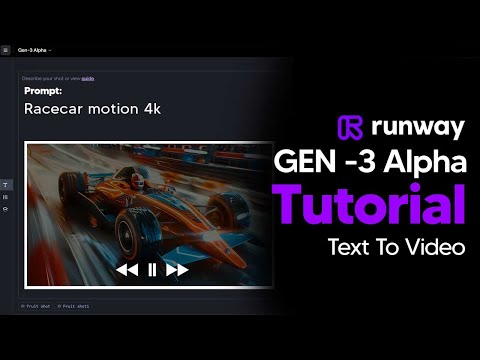 4:291:08Reuse settings and manage seeds in Runway Gen-3The video shows how to use the 'Reuse Settings' button and how to copy/paste a specific seed from a generated clip into the settings tab to maintain visual consistency in Runway.TheAIGRID