RipX: Analyzing individual notes and chords
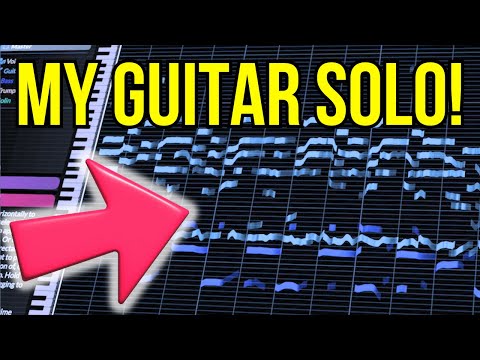
 RipX
RipX
Demo summary
The user clicks on individual 'tape' ribbons in the RipX DAW interface to hear specific notes and shows how the software identifies pitch names and underlying chords.
Step-by-step
- Solo the desired track to isolate the audio group.
- Click on an individual 'ribbon of tape' to hear a specific note.
- Identify the pitch name by looking at the labels on the left-hand side of the interface.
- Observe the chord names displayed at the bottom, which are automatically calculated based on the active notes.
- Listen to the automatically generated metronome click to verify the timing.
Watch out for
- The AI is not perfect and may group multiple instruments (like layered guitars and mandolin) into a single track if they occupy the same tonal space.
Tips
- Use the individual pitch selection to work out complex harmonies that are difficult to hear in the full mix.
- Note that the software may display enharmonic equivalents (e.g., G sharp vs A flat) depending on the context.
Highlights
“if you're trying to work out a complex part and you can't quite hear what note it is... you can still click on the individual pitch and see what it is. The future is now people.”
All demos from “AI figured out my guitar solo // RipX DAW Demo”
- 2:571:11Importing audio and stem separation in RipX DAWThe user demonstrates dragging an audio file into RipX DAW and selecting instrument separation options to extract individual tracks like voice, guitar, and bass.RipX· AI Vocal Remover & Stem Splitter
- 4:082:21Analyzing individual notes and chordsCurrentThe user clicks on individual 'tape' ribbons in the RipX DAW interface to hear specific notes and shows how the software identifies pitch names and underlying chords.RipX· AI Vocal Remover & Stem Splitter
- 7:191:35Correcting pitch and deleting notesUsing the 'Flatten Pitch' effect and manual dragging, the user demonstrates how to fix sharp notes and delete unwanted overtones directly in the RipX DAW timeline.RipX· AI Audio Editor
- 9:391:36Editing vocal phrasing with the split toolThe user demonstrates using the split/cutter tool to isolate a specific word in a vocal track and shorten its duration to change the phrasing.RipX· AI Audio Editor
- 11:310:36Manipulating guitar fillsThe user solos a guitar track and drags individual notes to different pitches to effectively 'replay' the instrument and create a new melody line.RipX· AI Melody & MIDI Generator
- 19:350:48Exporting MIDI from RipX DAWThe user demonstrates the process of exporting a MIDI file from RipX DAW using the 'Filter Notes' and 'MIDI Detailed' settings to attempt an import into MuseScore.RipX· AI Melody & MIDI Generator
- Watch “AI figured out my guitar solo // RipX DAW Demo” →
AI Vocal Remover & Stem Splitter
 2:330:58Importing and analyzing audio in RipX DAW ProThe user demonstrates dragging an audio file into RipX DAW Pro and initiating the AI 'ripping' process to separate a 2-mix track into stems like voice, piano, and drums.Ryuichiro Yamaki
- 3:341:50Visualizing and soloing stems on the piano rollThe user shows how audio is converted into pitch-based notes on a piano roll and solos individual stems like vocals and kick drums to check separation quality.Ryuichiro Yamaki
- 6:013:08Comparing stem separation across different tracksThe user cycles through multiple songs in RipX DAW Pro, soloing various layers including bass, percussion, and synths to demonstrate how the AI handles different production styles.Ryuichiro Yamaki
- 10:510:19Exporting separated stems from RipX DAW ProThe user demonstrates the process of exporting the analyzed audio as separate layer files for use in other DAWs.Ryuichiro Yamaki
 1:010:51Importing and ripping a file in RipXThe user clicks the folder icon to open a file and selects specific instrument separation options before initiating the AI 'rip' process.Song Design
- 1:523:58Isolating vocals and viewing guitar chordsThe demonstrator shows how to solo the voice layer, adjust track volumes, and use the zoom function to view automatically generated chord diagrams and individual notes in RipX.Song Design
- 6:084:04Analyzing basslines and using the metronomeThe user imports a second track to isolate the bassline, demonstrates selecting specific notes to loop for practice, and enables the built-in metronome for playing along.Song Design
 3:181:20Advanced ripping and layer editing in RipX DAW ProThe narrator demonstrates importing a file into RipX, selecting 'separate instruments' options, and exploring the resulting editable layers and export specifications.HOFA
 1:051:54Stem separation and MIDI editing in RipX DAWThe user demonstrates how RipX DAW separates a song into layers like voice, piano, and percussion, and shows how to change instruments or move notes within the separated tracks.michael nervOus ((🎧))
- 5:100:33Exporting stem wave files in RipX DAWThe user shows the process of importing a file into RipX DAW and selecting the option to save stems as individual wave files.michael nervOus ((🎧))
 3:331:33Auditioning stem separation in RipX DAW ProThe user solos various stems including vocals, piano, guitars, and strings to demonstrate the artifacts and poor separation quality in RipX DAW Pro V8.0.DJ/PRODUCER K-DEF
 4:151:19Isolating and muting vocals from a mixed trackThe user demonstrates soloing a vocal channel to show stem separation quality and then muting the vocals to hear the remaining instrumental track in RipX DAW Pro.Home Studio Simplified