Exporting MIDI from RipX DAW
 RipX
RipX
Demo summary
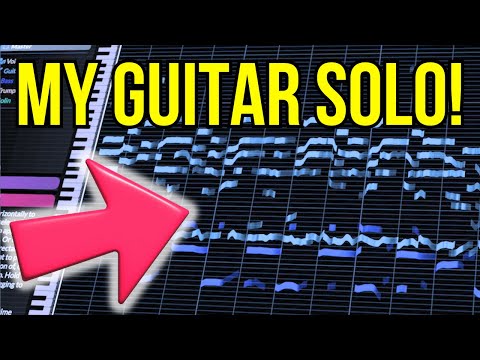
The user demonstrates the process of exporting a MIDI file from RipX DAW using the 'Filter Notes' and 'MIDI Detailed' settings to attempt an import into MuseScore.
Step-by-step
- Open the Export menu in RipX
- Enable the Filter Notes option
- Select MIDI Detailed as the export format
- Export and overwrite the existing file
- Open the resulting file in MuseScore
Options
- Disable Filter Notes
- Select MIDI Simple instead of MIDI Detailed
Highlights
“kind of neat but not very useful”
All demos from “AI figured out my guitar solo // RipX DAW Demo”
- 2:571:11Importing audio and stem separation in RipX DAWThe user demonstrates dragging an audio file into RipX DAW and selecting instrument separation options to extract individual tracks like voice, guitar, and bass.RipX· AI Vocal Remover & Stem Splitter
- 4:082:21Analyzing individual notes and chordsThe user clicks on individual 'tape' ribbons in the RipX DAW interface to hear specific notes and shows how the software identifies pitch names and underlying chords.RipX· AI Vocal Remover & Stem Splitter
- 7:191:35Correcting pitch and deleting notesUsing the 'Flatten Pitch' effect and manual dragging, the user demonstrates how to fix sharp notes and delete unwanted overtones directly in the RipX DAW timeline.RipX· AI Audio Editor
- 9:391:36Editing vocal phrasing with the split toolThe user demonstrates using the split/cutter tool to isolate a specific word in a vocal track and shorten its duration to change the phrasing.RipX· AI Audio Editor
- 11:310:36Manipulating guitar fillsThe user solos a guitar track and drags individual notes to different pitches to effectively 'replay' the instrument and create a new melody line.RipX· AI Melody & MIDI Generator
- 19:350:48Exporting MIDI from RipX DAWCurrentThe user demonstrates the process of exporting a MIDI file from RipX DAW using the 'Filter Notes' and 'MIDI Detailed' settings to attempt an import into MuseScore.RipX· AI Melody & MIDI Generator
- Watch “AI figured out my guitar solo // RipX DAW Demo” →
AI Melody & MIDI Generator
 5:341:55Changing scale and chords in RipX DAW ProThe user opens the 'Scale to Chords' menu, selects a progression, and uses the 'Detect' function to automatically shift notes to a new key and scale.DJ/PRODUCER K-DEF
 11:310:30Exporting and importing MIDI dataThe user exports a string part as a MIDI file from RipX DAW Pro and imports it into Digital Performer to show how the analyzed pitch data can be reused.Ryuichiro Yamaki
- 11:310:36Manipulating guitar fillsThe user solos a guitar track and drags individual notes to different pitches to effectively 'replay' the instrument and create a new melody line.Hayes Griffin
- 19:350:48Exporting MIDI from RipX DAWCurrentThe user demonstrates the process of exporting a MIDI file from RipX DAW using the 'Filter Notes' and 'MIDI Detailed' settings to attempt an import into MuseScore.Hayes Griffin
 5:410:37Exporting audio to MIDIThe user demonstrates the export process in RipX, rendering stems as MIDI files and importing them into Ableton Live.Official AHEE