OpenArt: Animate a brand logo using a starting frame

 OpenArt
Demo summary
The video shows how to upload a generated image of an infinity logo as a starting frame and use a motion prompt to animate people moving within that specific shape while maintaining visual consistency.
Step-by-step
- Navigate to the image section and enter a detailed prompt for your brand logo
- Click Generate to create the base image
- Switch to the video section
- Import the generated image as your starting frame
- Select version 3.1
- Increase the resolution and set video motion to normal
- Enter a motion prompt describing the specific movement of elements within the logo shape
- Click Generate to animate the video
Tips
- Use a drone-captured or 'directly above' perspective for clear logo shapes
- Include specific lighting details like 'neon blues' or 'luminous reflections' to enhance the cinematic quality
- Describe synchronized movements in the motion prompt to maintain the logo's structural integrity
Highlights
“it gives us a really, really nice looking result”
All demos from “Google Veo 3.1 is INSANE - Full Tutorial”
- 2:001:18Text-to-video generation with Google Veo 3.1The user demonstrates how to input a detailed text prompt into OpenArt to generate a cinematic video of a sea captain using Google Veo 3.1, comparing it to the previous 3.0 version.OpenArt· Text to Video
- 3:481:24Create video from multiple image referencesThe creator uses OpenArt's image generator to create three distinct assets (a woman, a statue, and a park) and then uses the 'elements' feature in Veo 3.1 to combine them into a single coherent video scene.OpenArt· Image to Video
- 5:531:42Animate a brand logo using a starting frameCurrentThe video shows how to upload a generated image of an infinity logo as a starting frame and use a motion prompt to animate people moving within that specific shape while maintaining visual consistency.OpenArt· Image to Video
- 7:532:03Product ad creation with start and end framesThe user demonstrates a professional product workflow by setting a starting frame of headphones on a stand and an end frame with a black background, allowing Veo 3.1 to generate a smooth transition between the two.OpenArt· AI Commercial Generator
- 10:001:18Seamless video chaining for unlimited lengthThe tutorial shows how to swap the end frame of a previous generation to be the start frame of a new one, creating a seamless multi-shot sequence of a product flying into space.OpenArt· AI Video Extender
- Watch “Google Veo 3.1 is INSANE - Full Tutorial” →
Image to Video
 9:300:40Animate scenes with Kling 2.6The creator demonstrates animating a static image into a 5-second video clip of characters walking using the Kling 2.6 model within the Open Art interface.Youri van Hofwegen
 2:300:40Animate images using Kling 2.6 in OpenArtThe demonstration shows uploading a static image and using the Kling 2.6 model to generate a realistic video of a girl drinking coffee with natural steam and background movement.Affiliation
 5:450:50Image-to-Video workflow in OpenArt to save creditsThe user demonstrates generating a high-quality image of a gold bar first using the 'Image Gen 4' model, then uploading that image to the VEO3 video generator to ensure visual consistency before animating the slice.unknown
 3:030:43Image-to-video conversion using Kling 2.6A demonstration of uploading a static photograph of a city street and using the Kling 2.6 model to animate it with rain and motion effects.Thomas Creates
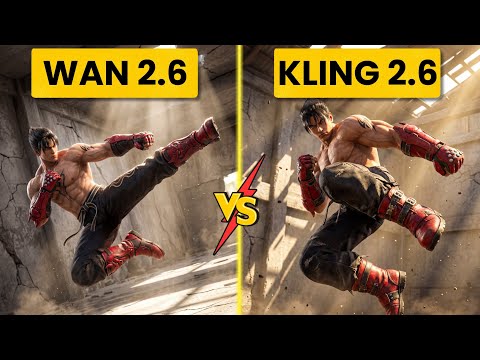 4:400:42Create fight scene from image with Wan 2.6The user uploads a Tekken 8 reference image and uses Wan 2.6 to animate a cinematic fight scene between two characters.Ai Chemy
 3:450:44Image-to-video with start frame in Veo 3.1The user uploads a starting frame image and a prompt to guide the Veo 3.1 model in generating a consistent 4K video sequence.Youri van Hofwegen
- 4:420:23Image-to-video with start frame in LTX 2.3The LTX 2.3 model is shown processing a starting frame image to generate a high-resolution video with slow-motion effects.Youri van Hofwegen
- 6:430:30Multi-image reference video generation with Veo 3.1The demonstration shows how to use a character sheet and an object reference image simultaneously in Veo 3.1 to maintain visual consistency.Youri van Hofwegen
- 8:090:45Reference image workflow with SeaDance 2.0The SeaDance 2.0 model is shown generating a 720p video using a character sheet, boxing glove reference, and a starting frame.Youri van Hofwegen
 31:141:10Sync motion from one video to anotherThe creator uses Motion Sync to apply the movements of a boxing video to a static cyberpunk character image.Wade McMaster - Creator Impact
 6:020:33Image-to-video generation with Vidu 3.1The user demonstrates how to use a previously generated image as a foundation for video, using the Vidu 3.1 model to animate specific motions.Roboverse
 6:580:43Animate images using Cling 3The creator demonstrates converting a still image into a 5-second video using the Cling 3 model within OpenArt's video interface.Isa does AI