Imagine.art: Generate images with Imagine Art 1.5 and Flux 1.1
 Imagine.art
Demo summary
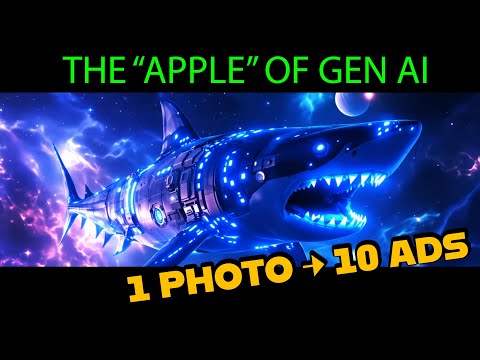
The user demonstrates generating a sci-fi shark image using the in-house Imagine Art 1.5 model and then switches to Flux 1.1 Ultra to compare the high-quality outputs.
Step-by-step
- Enter a prompt like 'Shark in sci-fi style' into the text box
- Select the Imagine Art 1.5 model from the model selection menu
- Switch the model to Flux 1.1 Ultra to compare results
- Change the orientation to 16:9
- Click to generate the image
Options
- Use the in-house Imagine Art 1.5 model for realism and lighting
- Use Flux 1.1 Ultra for high-quality alternative outputs
- Adjust aspect ratios (e.g., 16:9)
Tips
- Use Imagine Art 1.5 if you need commercial-grade outputs optimized for skin and materials
Highlights
“These images look sick. I should probably make this one my thumbnail for this video.”
All demos from “Most Premium Generative AI Tool? ImagineArt Review”
- 2:000:51Generate images with Imagine Art 1.5 and Flux 1.1CurrentThe user demonstrates generating a sci-fi shark image using the in-house Imagine Art 1.5 model and then switches to Flux 1.1 Ultra to compare the high-quality outputs.Imagine.art· Text to Image
- 3:030:29Animate images with Kling 2.6 ProThe creator uses the Kling 2.6 Pro model within ImagineArt to animate a previously generated image, utilizing the preview mode to test motion before final generation.Imagine.art· Image to Video
- 3:470:32Create product mockups using ImagineArt AppsThe user demonstrates the 'Apps' section by uploading a 2D logo and using presets to generate realistic product shots in various environments like space and cityscapes.Imagine.art· AI Product Photography
- 5:230:30Upscale and animate imagesThe video shows the built-in enhancement tools to upscale a static image and convert it into a video using the platform's animation models.Imagine.art· Image to Video
- 5:570:52Text-to-video generation with Kling 2.6 ProThe user generates a sci-fi video from a text prompt using the Kling 2.6 Pro model, demonstrating the inclusion of AI-generated sound.Imagine.art· Text to Video
- 6:490:47Image editing and compositionThe creator demonstrates the edit tool by uploading a logo and a portrait, combining them into a new composition, and then animating the result.Imagine.art· AI Image Combiner
- 7:362:24Automate product photography with ImagineFlowA detailed walkthrough of the ImagineFlow visual workflow builder, showing how a single headphone photo is processed through nodes to generate five different marketing campaign styles automatically.Imagine.art· AI Product Photography
- Watch “Most Premium Generative AI Tool? ImagineArt Review” →
Text to Image
- 2:000:51Generate images with Imagine Art 1.5 and Flux 1.1CurrentThe user demonstrates generating a sci-fi shark image using the in-house Imagine Art 1.5 model and then switches to Flux 1.1 Ultra to compare the high-quality outputs.Shark Numbers
 4:237:44Generate AI images with Imagine Art PhotogenThe creator demonstrates how to use the Photogen studio to generate images from text prompts, including selecting models like Flux, adjusting aspect ratios, and setting styles.Blog With Ben
- 14:222:06Using Imagine Bot for prompt engineeringThe video shows how to use the Imagine Bot to expand a simple idea into a detailed prompt and then generate high-quality images of an enchanted elf and a frog eye.Blog With Ben