Imagine.art: Using Imagine Bot for prompt engineering

 Imagine.art
Demo summary
The video shows how to use the Imagine Bot to expand a simple idea into a detailed prompt and then generate high-quality images of an enchanted elf and a frog eye.
Step-by-step
- Click the robot icon next to the prompt field to open the Imagine bot chat box
- Type a few words describing your image idea or select a suggested prompt
- Wait for the bot to draft a detailed prompt
- Copy the new prompt by clicking the copy icon
- Paste the prompt into the main text field
- Open the model settings and select a model like 'flux Dev'
- Adjust the aspect ratio if desired
- Click the generate button
Options
- Click the generate button directly within the chat box to use the prompt immediately
- Copy the prompt to the main field to manually reconfigure models and styles
- Select pre-written ideas like 'enchanting elf with floral crown' to start the bot
Tips
- Use the Imagine bot to expand simple ideas into much more detailed prompts
- Experiment with different models like flux Dev to achieve different color profiles and quality
- Adjust the aspect ratio to 1:1 for close-up subjects like a frog eye
Highlights
“this frog eye looks something like from National Geographic I love it”
All demos from “AI Art Like Never Before! Create AI Images & Videos with Imagine Art”
- 4:237:44Generate AI images with Imagine Art PhotogenThe creator demonstrates how to use the Photogen studio to generate images from text prompts, including selecting models like Flux, adjusting aspect ratios, and setting styles.Imagine.art· Text to Image
- 14:222:06Using Imagine Bot for prompt engineeringCurrentThe video shows how to use the Imagine Bot to expand a simple idea into a detailed prompt and then generate high-quality images of an enchanted elf and a frog eye.Imagine.art· Text to Image
- 16:411:46Editing AI images with the Imagine Art EditorA demonstration of the built-in image editor, showing how to apply filters, effects, and shapes directly to generated artwork without leaving the platform.Imagine.art· AI Photo Editor
- 18:481:18Apply cartoon styles to existing promptsThe creator shows how to take an existing prompt and change the aesthetic by applying a cartoon style and illustration model to transform a realistic image.Imagine.art· AI Style Transfer
- 20:193:41Image Guidance: Restructure and RestyleThis clip demonstrates using a reference logo to guide the structure of a metropolitan scene and using a zebra print image to restyle a leather handbag.Imagine.art· AI Style Transfer
- 24:194:37Animate static images into AI videoThe video walks through the Video Craft studio, demonstrating how to animate a static image of a llama using the Kling 1.6 SD model and camera motion effects.Imagine.art· Image to Video
- Watch “AI Art Like Never Before! Create AI Images & Videos with Imagine Art” →
Text to Image
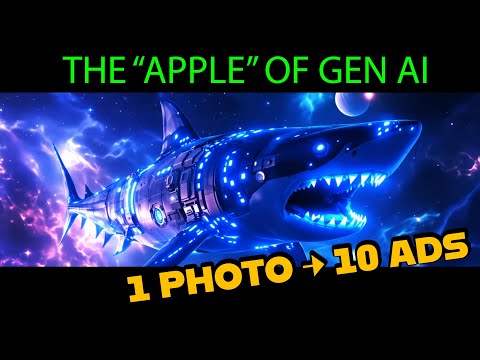 2:000:51Generate images with Imagine Art 1.5 and Flux 1.1The user demonstrates generating a sci-fi shark image using the in-house Imagine Art 1.5 model and then switches to Flux 1.1 Ultra to compare the high-quality outputs.Shark Numbers
- 4:237:44Generate AI images with Imagine Art PhotogenThe creator demonstrates how to use the Photogen studio to generate images from text prompts, including selecting models like Flux, adjusting aspect ratios, and setting styles.Blog With Ben
- 14:222:06Using Imagine Bot for prompt engineeringCurrentThe video shows how to use the Imagine Bot to expand a simple idea into a detailed prompt and then generate high-quality images of an enchanted elf and a frog eye.Blog With Ben