Imagine.art: Generate AI images with Imagine Art Photogen

 Imagine.art
Demo summary
The creator demonstrates how to use the Photogen studio to generate images from text prompts, including selecting models like Flux, adjusting aspect ratios, and setting styles.
Step-by-step
- Click on Photogen under the Studio section in the sidebar
- Select the Text to Image tool from the list of generation tools
- Choose an AI model from the model library (e.g., Flux)
- Select an aspect ratio such as 1:1, 16:9, or 2:3
- Enter a description in the text prompt field at the bottom
- Click the Generate button to create the artwork
Options
- Use the Quick Prompt Generator for fast results with less control
- Click the dice icon to generate a random prompt
- Use the Imagine Bot chat icon to expand a few words into an in-depth prompt
- Select specialized models for specific styles like anime, vector art, or pixel art
Watch out for
- Access to specific image generation tools varies depending on your subscription level
- Images are not saved long-term in the studio; they may be deleted if you refresh the page or end the session
Tips
- Experiment with the various other tools in the studio to open the door to more creativity
- Download images to your device immediately if you want to save them
- Use the Imagine Bot if you are experiencing prompt writer's block
Highlights
“this is where you'll essentially guide the AI towards your Creative Vision and fine-tune the output”
All demos from “AI Art Like Never Before! Create AI Images & Videos with Imagine Art”
- 4:237:44Generate AI images with Imagine Art PhotogenCurrentThe creator demonstrates how to use the Photogen studio to generate images from text prompts, including selecting models like Flux, adjusting aspect ratios, and setting styles.Imagine.art· Text to Image
- 14:222:06Using Imagine Bot for prompt engineeringThe video shows how to use the Imagine Bot to expand a simple idea into a detailed prompt and then generate high-quality images of an enchanted elf and a frog eye.Imagine.art· Text to Image
- 16:411:46Editing AI images with the Imagine Art EditorA demonstration of the built-in image editor, showing how to apply filters, effects, and shapes directly to generated artwork without leaving the platform.Imagine.art· AI Photo Editor
- 18:481:18Apply cartoon styles to existing promptsThe creator shows how to take an existing prompt and change the aesthetic by applying a cartoon style and illustration model to transform a realistic image.Imagine.art· AI Style Transfer
- 20:193:41Image Guidance: Restructure and RestyleThis clip demonstrates using a reference logo to guide the structure of a metropolitan scene and using a zebra print image to restyle a leather handbag.Imagine.art· AI Style Transfer
- 24:194:37Animate static images into AI videoThe video walks through the Video Craft studio, demonstrating how to animate a static image of a llama using the Kling 1.6 SD model and camera motion effects.Imagine.art· Image to Video
- Watch “AI Art Like Never Before! Create AI Images & Videos with Imagine Art” →
Text to Image
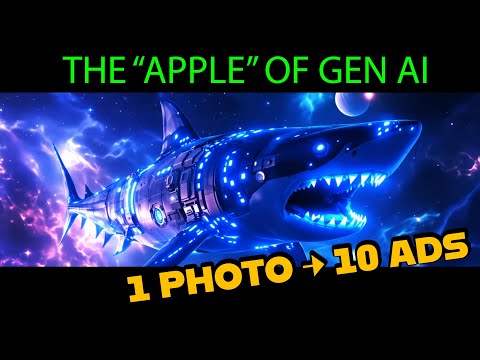 2:000:51Generate images with Imagine Art 1.5 and Flux 1.1The user demonstrates generating a sci-fi shark image using the in-house Imagine Art 1.5 model and then switches to Flux 1.1 Ultra to compare the high-quality outputs.Shark Numbers
- 4:237:44Generate AI images with Imagine Art PhotogenCurrentThe creator demonstrates how to use the Photogen studio to generate images from text prompts, including selecting models like Flux, adjusting aspect ratios, and setting styles.Blog With Ben
- 14:222:06Using Imagine Bot for prompt engineeringThe video shows how to use the Imagine Bot to expand a simple idea into a detailed prompt and then generate high-quality images of an enchanted elf and a frog eye.Blog With Ben