Animate images using Kling AI on OpenArt

 OpenArt
Demo summary
The user shows how to use the 'image to motion' feature on OpenArt, selecting the Kling 3.0 model and pasting motion prompts to create cinematic video clips from static images.
Step-by-step
- Select your first image shot
- Click the Image to Motion button
- Select the Kling 3.0 model from the dropdown
- Paste the video prompt into the text field
- Click Generate
- Repeat the process for every image in your sequence
Options
- Use Kling 2.6 instead of 3.0 to save credits or scale up
Tips
- Use Kling 3.0 for the highest retention and best generation quality
- Use video prompts generated by ChatGPT for the motion descriptions
Highlights
“Look at how smooth that is. The environment feels alive, the shot is cinematic, and nothing is melting into the background. It is perfect.”
All demos from “How I Make Viral 'AI Fruit Love Island' Videos (3M followers in 2 weeks)”
- 1:300:48Generate AI fruit characters with OpenArtThe creator demonstrates how to paste prompts from ChatGPT into OpenArt, select the 'Nano Banana 2' model, and set the aspect ratio to 9:16 to generate high-end 3D animated fruit characters.OpenArt· Text to Image
- 2:260:41Animate images using Kling AI on OpenArtCurrentThe user shows how to use the 'image to motion' feature on OpenArt, selecting the Kling 3.0 model and pasting motion prompts to create cinematic video clips from static images.OpenArt· Image to Video
- 3:210:55Edit and color grade viral shorts in CapCutThe creator walks through dragging clips onto the CapCut timeline, removing dead air for aggressive pacing, and applying specific saturation and vignette settings to make the colors pop.CapCut· AI Video Editor
- Watch “How I Make Viral 'AI Fruit Love Island' Videos (3M followers in 2 weeks)” →

Image to Video
 9:300:40Animate scenes with Kling 2.6The creator demonstrates animating a static image into a 5-second video clip of characters walking using the Kling 2.6 model within the Open Art interface.Youri van Hofwegen
 2:300:40Animate images using Kling 2.6 in OpenArtThe demonstration shows uploading a static image and using the Kling 2.6 model to generate a realistic video of a girl drinking coffee with natural steam and background movement.Affiliation
 5:450:50Image-to-Video workflow in OpenArt to save creditsThe user demonstrates generating a high-quality image of a gold bar first using the 'Image Gen 4' model, then uploading that image to the VEO3 video generator to ensure visual consistency before animating the slice.unknown
 3:030:43Image-to-video conversion using Kling 2.6A demonstration of uploading a static photograph of a city street and using the Kling 2.6 model to animate it with rain and motion effects.Thomas Creates
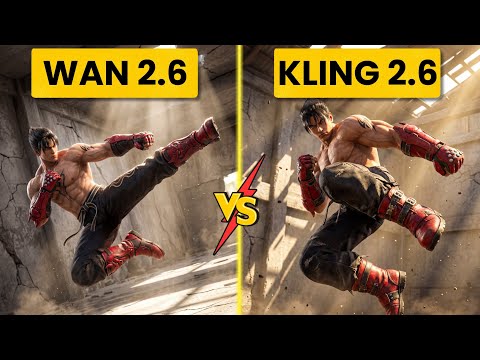 4:400:42Create fight scene from image with Wan 2.6The user uploads a Tekken 8 reference image and uses Wan 2.6 to animate a cinematic fight scene between two characters.Ai Chemy
 3:450:44Image-to-video with start frame in Veo 3.1The user uploads a starting frame image and a prompt to guide the Veo 3.1 model in generating a consistent 4K video sequence.Youri van Hofwegen
- 4:420:23Image-to-video with start frame in LTX 2.3The LTX 2.3 model is shown processing a starting frame image to generate a high-resolution video with slow-motion effects.Youri van Hofwegen
- 6:430:30Multi-image reference video generation with Veo 3.1The demonstration shows how to use a character sheet and an object reference image simultaneously in Veo 3.1 to maintain visual consistency.Youri van Hofwegen
- 8:090:45Reference image workflow with SeaDance 2.0The SeaDance 2.0 model is shown generating a 720p video using a character sheet, boxing glove reference, and a starting frame.Youri van Hofwegen
 31:141:10Sync motion from one video to anotherThe creator uses Motion Sync to apply the movements of a boxing video to a static cyberpunk character image.Wade McMaster - Creator Impact
 6:020:33Image-to-video generation with Vidu 3.1The user demonstrates how to use a previously generated image as a foundation for video, using the Vidu 3.1 model to animate specific motions.Roboverse
 6:580:43Animate images using Cling 3The creator demonstrates converting a still image into a 5-second video using the Cling 3 model within OpenArt's video interface.Isa does AI