Animate a photo into a talking video with VEED Fabric 1.0

 Veed
Veed
Demo summary
The user demonstrates uploading a personal photo and an audio file to VEED, selecting the Fabric 1.0 model to generate a realistic talking avatar video.
Step-by-step
- Go to Create and select New Project
- Click on the Generate button
- Select the Veed Fabric 1.0 model
- Click on Add a character
- Upload your own image to use as the avatar
- Upload or record an audio file to provide the speech
- Click Generate and wait 1-2 minutes for the video to process
Options
- Choose from templated AI characters instead of uploading a photo
- Use Google V3 or OpenAI Sora models
- Record audio directly via laptop microphone or phone
- Use an AI voice by typing text and selecting a language/accent
Watch out for
- You must add an audio file or text-to-speech because the animated image needs something to say
Tips
- Upload a personal image to turn yourself into an AI avatar
- Use Veed Fabric 1.0 for faster generation compared to alternative AI video software
Highlights
“This is the future now. You don't even need to film yourself. You can just upload one image and have it talk for you.”
All demos from “I Turned My Photos Into Talking Videos in 60 Seconds (VEED Fabric 1.0)”
- 1:211:48Animate a photo into a talking video with VEED Fabric 1.0CurrentThe user demonstrates uploading a personal photo and an audio file to VEED, selecting the Fabric 1.0 model to generate a realistic talking avatar video.Veed· AI Avatar Video Generator
- 3:090:23Edit AI video using transcript-based editing in VEEDThe video shows how to trim silence and remove specific words from the generated AI video by highlighting text in the VEED script editor.Veed· AI Video Editor
- 3:510:31Animate complex photos with VEED Fabric 1.0A demonstration of animating a photo of a person holding a cat, showing how the AI handles realistic movement of both the subject and the animal.Veed· Image to Video
- 4:220:17Apply video effects and background music in VEEDThe user shows how to add a fade-in animation, adjust color settings like brightness and contrast, and add background music within the VEED editor.Veed· AI Video Editor
- 4:590:19Convert photo to 3D cartoon with Nano BananaA brief walkthrough of using Nano Banana to transform a standard photo into a 3D cartoon character using a text prompt.Veed· AI Style Transfer
- 5:330:14Apply AI Eye Contact correction in VEEDThe user demonstrates the 'eye contact' toggle in VEED to redirect a character's gaze from a laptop screen toward the camera.Veed· AI Video Editor
- Watch “I Turned My Photos Into Talking Videos in 60 Seconds (VEED Fabric 1.0)” →
AI Avatar Video Generator
 1:042:54Create a talking AI avatar with VEEDThe user selects a preset character (Oliver), inputs a script, chooses a voice model (Alex Wright), and generates a talking head video clip.AI Guy
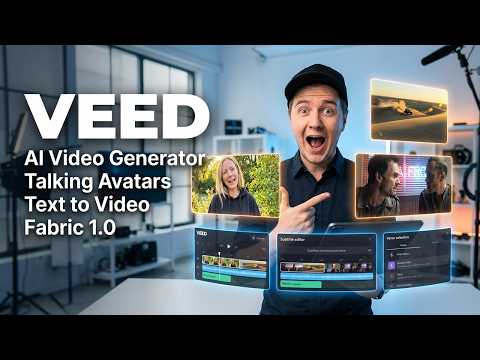 0:340:55Create a talking AI avatar with VEEDThe user selects a character named Wiki, inputs text, chooses a voice, and generates a video with realistic lip-syncing and mouth movement using VEED's AI avatar feature.Eigi and AI
- 1:390:23Animate an avatar with custom audio in VEEDThe demonstration shows uploading a custom audio clip to VEED to drive the lip-sync and animation of an AI avatar character.Eigi and AI
 13:051:32Using AI Avatars in Veed.ioThe user explores the AI Playground in Veed.io to access the AI avatar feature and attempts to generate a video using a text prompt within the video editor.Agrollo Reviews
- 1:211:48Animate a photo into a talking video with VEED Fabric 1.0CurrentThe user demonstrates uploading a personal photo and an audio file to VEED, selecting the Fabric 1.0 model to generate a realistic talking avatar video.Mike Dee
 1:560:45Create a talking AI avatar with VEED FabricThe video demonstrates the step-by-step process in VEED to generate an AI avatar by uploading a photo or selecting a preset, then adding a script via text-to-speech or voice recording.VEED STUDIO
 1:161:32Generate AI avatar video from text with VEED.ioThe user demonstrates entering a text prompt for a YouTube short about Earth facts and selecting an AI avatar (Maya) and caption style (RZ) within the VEED.io interface.Greg Preece