Generate AI avatar video from text with VEED.io

 Veed
Veed
Demo summary
The user demonstrates entering a text prompt for a YouTube short about Earth facts and selecting an AI avatar (Maya) and caption style (RZ) within the VEED.io interface.
Step-by-step
- Click on the AI text to video option
- Enter a text prompt describing the video topic in the text box
- Click Generate video
- Select the video orientation
- Scroll through and select an AI avatar from the available options
- Choose a caption style
- Click Continue in the top right corner
Options
- Change video orientation (Portrait, Landscape, etc.)
- Select different AI avatars (e.g., Maya)
- Choose between various caption styles (e.g., RZ)
Tips
- Check the preview on the right to see how your selected settings will look in the final video
All demos from “VEED.io AI Video Generation Tutorial - Avatars & AI Videos!”
- 1:161:32Generate AI avatar video from text with VEED.ioCurrentThe user demonstrates entering a text prompt for a YouTube short about Earth facts and selecting an AI avatar (Maya) and caption style (RZ) within the VEED.io interface.Veed· AI Avatar Video Generator
- 3:090:40Edit AI-generated scripts in VEED.ioThe demo shows how to modify the AI-generated script by typing directly into the text box or using the 'rewrite' feature to change the tone and target audience.Veed· AI Video Editor
- 5:361:15Replace stock footage in VEED.io timelineThe user shows how to select a specific video clip on the timeline and use the 'replace video' search tool to swap it with more relevant stock footage.Veed· AI Video Editor
- 7:431:14Generate custom AI video clips with VEED.ioThe demonstration shows using the 'generative' AI text-to-video tool to create a specific visual (Earth exploding) by entering a prompt and selecting a realistic style.Veed· Text to Video
- 10:101:31AI Dubbing and Subtitle Translation in VEED.ioThe user demonstrates translating an English video into Polish using the 'dub video' feature while preserving the original voice, followed by generating Polish subtitles.Veed· AI Video Dubbing
- Watch “VEED.io AI Video Generation Tutorial - Avatars & AI Videos!” →
AI Avatar Video Generator
 1:042:54Create a talking AI avatar with VEEDThe user selects a preset character (Oliver), inputs a script, chooses a voice model (Alex Wright), and generates a talking head video clip.AI Guy
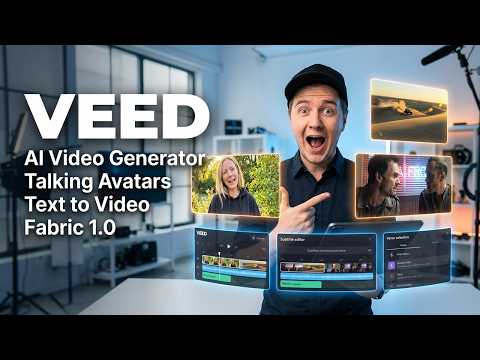 0:340:55Create a talking AI avatar with VEEDThe user selects a character named Wiki, inputs text, chooses a voice, and generates a video with realistic lip-syncing and mouth movement using VEED's AI avatar feature.Eigi and AI
- 1:390:23Animate an avatar with custom audio in VEEDThe demonstration shows uploading a custom audio clip to VEED to drive the lip-sync and animation of an AI avatar character.Eigi and AI
 13:051:32Using AI Avatars in Veed.ioThe user explores the AI Playground in Veed.io to access the AI avatar feature and attempts to generate a video using a text prompt within the video editor.Agrollo Reviews
 1:211:48Animate a photo into a talking video with VEED Fabric 1.0The user demonstrates uploading a personal photo and an audio file to VEED, selecting the Fabric 1.0 model to generate a realistic talking avatar video.Mike Dee
 1:560:45Create a talking AI avatar with VEED FabricThe video demonstrates the step-by-step process in VEED to generate an AI avatar by uploading a photo or selecting a preset, then adding a script via text-to-speech or voice recording.VEED STUDIO
- 1:161:32Generate AI avatar video from text with VEED.ioCurrentThe user demonstrates entering a text prompt for a YouTube short about Earth facts and selecting an AI avatar (Maya) and caption style (RZ) within the VEED.io interface.Greg Preece