Create a talking AI avatar with VEED

 Veed
Veed
Demo summary
The user selects a preset character (Oliver), inputs a script, chooses a voice model (Alex Wright), and generates a talking head video clip.
Step-by-step
- Click on AI Avatar to open the menu
- Select an avatar from the preset characters or upload your own image
- Type your script into the text box
- Select a voice model from the toggle menu
- Click Play to preview the audio
- Click Generate to create the video clip
- Click Add to place the generated video onto the timeline
Options
- Upload an image of yourself to clone your appearance
- Generate a custom avatar from a text prompt
- Filter voices by gender or language (e.g., French)
- Clone your own voice by uploading an audio demo or recording directly in the app
- Regenerate the video if you are unsatisfied with the initial result
Tips
- Use AI avatars for ads, TikTok, or YouTube channels to avoid being on camera
- Try the 'Alex Wright' voice model as it is one of the higher quality options
- Full screen the generated clip to inspect the quality before adding it to your timeline
Highlights
“to keep it rather simple, I'm going to go with an existing preset”
All demos from “VEED The ULTIMATE AI Video Generator - Full Tutorial”
- 1:042:54Create a talking AI avatar with VEEDCurrentThe user selects a preset character (Oliver), inputs a script, chooses a voice model (Alex Wright), and generates a talking head video clip.Veed· AI Avatar Video Generator
- 4:160:36Edit video by deleting script textVEED's 'edit with script' feature is shown, where the user selects specific words in the transcript to automatically delete the corresponding video segments.Veed· AI Video Editor
- 6:040:26Add AI transitions between clipsThe user demonstrates adding a 'rotate and pull out' transition between two generated AI avatar clips in the timeline.Veed· AI Video Editor
- 7:051:35Generate AI images in VEED AI PlaygroundThe user uses the Google Nano Banana Pro model within VEED to generate high-quality images of an entrepreneur from a text prompt.Veed· Text to Image
- 9:481:19Convert AI images to videoThe user demonstrates the 'make video' feature by animating a previously generated static image using the Clean 3 Pro model.Veed· Image to Video
- Watch “VEED The ULTIMATE AI Video Generator - Full Tutorial” →
AI Avatar Video Generator
- 1:042:54Create a talking AI avatar with VEEDCurrentThe user selects a preset character (Oliver), inputs a script, chooses a voice model (Alex Wright), and generates a talking head video clip.AI Guy
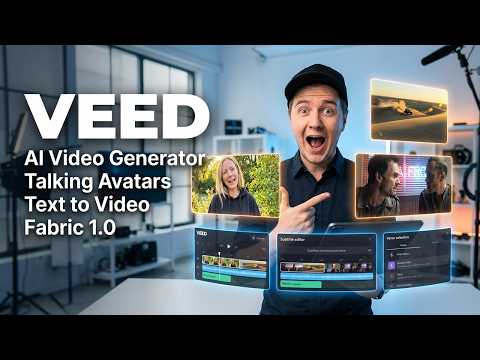 0:340:55Create a talking AI avatar with VEEDThe user selects a character named Wiki, inputs text, chooses a voice, and generates a video with realistic lip-syncing and mouth movement using VEED's AI avatar feature.Eigi and AI
- 1:390:23Animate an avatar with custom audio in VEEDThe demonstration shows uploading a custom audio clip to VEED to drive the lip-sync and animation of an AI avatar character.Eigi and AI
 13:051:32Using AI Avatars in Veed.ioThe user explores the AI Playground in Veed.io to access the AI avatar feature and attempts to generate a video using a text prompt within the video editor.Agrollo Reviews
 1:211:48Animate a photo into a talking video with VEED Fabric 1.0The user demonstrates uploading a personal photo and an audio file to VEED, selecting the Fabric 1.0 model to generate a realistic talking avatar video.Mike Dee
 1:560:45Create a talking AI avatar with VEED FabricThe video demonstrates the step-by-step process in VEED to generate an AI avatar by uploading a photo or selecting a preset, then adding a script via text-to-speech or voice recording.VEED STUDIO
 1:161:32Generate AI avatar video from text with VEED.ioThe user demonstrates entering a text prompt for a YouTube short about Earth facts and selecting an AI avatar (Maya) and caption style (RZ) within the VEED.io interface.Greg Preece