Video-to-video style transfer with GoEnhance AI

 GoEnhance AI
Demo summary
The creator demonstrates how to transform a skateboarding video into a vibrant anime style using GoEnhance AI's video-to-video feature.
Step-by-step
- Upload a short video clip
- Select the 'Classic Anime' style
- Adjust the quality settings to high
- Set the duration for a 5-second clip
- Click Generate
Watch out for
- The free plan limits you to short clips, typically 3 seconds
Highlights
“A couple minutes later, boom, the whole vibe changed.”
All demos from “I Tested GoEnhance AI: The All-in-One Tool for Video, Images, and More”
- 0:510:43Video-to-video style transfer with GoEnhance AICurrentThe creator demonstrates how to transform a skateboarding video into a vibrant anime style using GoEnhance AI's video-to-video feature.GoEnhance AI· Video to Video
- 1:470:41AI image generation using Flux on GoEnhance AIThe video shows the process of generating a digital art image of an astronaut in a neon city using the Flux model within the GoEnhance interface.GoEnhance AI· Text to Image
- 2:360:17One-click face swap in videoA demonstration of the face swap tool where a famous actor's headshot is seamlessly applied to a goofy video clip.GoEnhance AI· AI Face Swap Video
- 3:140:16Animate static photos into dancing charactersThe video demonstrates the character animation feature by uploading a photo and applying a dancing motion preset.GoEnhance AI· Image to Video
- Watch “I Tested GoEnhance AI: The All-in-One Tool for Video, Images, and More” →
Video to Video
 1:370:56Convert talking head video to anime with GoEnhance AIThe user demonstrates uploading a talking head video to GoEnhance AI, selecting an anime style, and generating a stylized animated version that preserves motion and facial consistency.TryThisAI
- 2:350:23Apply cinematic animation to action footageGoEnhance AI is used to transform a video with camera motion and walking into a cinematic animated style, showing how the tool handles background separation and movement.TryThisAI
- 0:510:43Video-to-video style transfer with GoEnhance AICurrentThe creator demonstrates how to transform a skateboarding video into a vibrant anime style using GoEnhance AI's video-to-video feature.AI With TechZnap
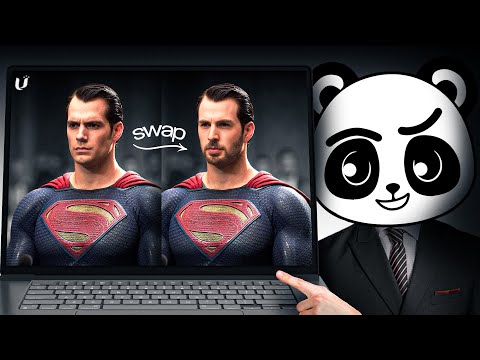 1:011:35Video-to-Video stylization with GoEnhance AIThe user demonstrates uploading a base video and applying different styles like 'Disney vintage anime' to transform the footage while maintaining motion.Artificial Quotient
- 5:170:47Video Animation from reference motionThe demonstration shows attempting to animate a character using a reference image and a motion video, though the results show current limitations in hand and facial accuracy.Artificial Quotient
 4:360:54Video-to-video stylization in GoEnhanceThe creator walks through the GoEnhance interface for video-to-video conversion, showing how to upload footage, select styles like Pixar or Pixel Art, and adjust render settings.Matt Szaton
 2:130:21Transform dancing video to anime styleA demonstration of converting a dancing video into an anime style using GoEnhance AI with adjusted frame rate settings for smoother motion.Planet Ai
- 4:080:14Apply specific clothing to characters in AI videoThe user demonstrates how to use a reference image of a jacket and a character image to generate a video where the character is wearing that specific item.Planet Ai