GoEnhance AI: Apply cinematic animation to action footage

 GoEnhance AI
Demo summary
GoEnhance AI is used to transform a video with camera motion and walking into a cinematic animated style, showing how the tool handles background separation and movement.
Step-by-step
- Click the upload arrow to import your action footage
- Select a cinematic animation style from the options
- Click the generate arrow to process the video
Options
- Choose different animation styles ranging from dramatic to cinematic
Tips
- Use this tool for creating YouTube Shorts, TikToks, or Reels
- Upload clips with camera motion and walking to test tracking capabilities
Highlights
“The movement still tracks well. Background elements get stylized consistently. The subject separation is clean.”
All demos from “Convert Video to Animation & AI Dance (Free in 2026) | GoEnhance AI”
- 1:370:56Convert talking head video to anime with GoEnhance AIThe user demonstrates uploading a talking head video to GoEnhance AI, selecting an anime style, and generating a stylized animated version that preserves motion and facial consistency.GoEnhance AI· Video to Video
- 2:350:23Apply cinematic animation to action footageCurrentGoEnhance AI is used to transform a video with camera motion and walking into a cinematic animated style, showing how the tool handles background separation and movement.GoEnhance AI· Video to Video
- 3:110:30Generate AI dance from a portrait photoThe user demonstrates the AI Dance feature by uploading a portrait image and applying a dance template to create a video with fluid, coordinated body movements.GoEnhance AI· Image to Video
- 3:410:24Animate a character image with AI DanceA second test of the AI Dance tool shows the process of uploading a character image and generating a viral-style dance clip using GoEnhance AI's templates.GoEnhance AI· Image to Video
- Watch “Convert Video to Animation & AI Dance (Free in 2026) | GoEnhance AI” →
Video to Video
- 1:370:56Convert talking head video to anime with GoEnhance AIThe user demonstrates uploading a talking head video to GoEnhance AI, selecting an anime style, and generating a stylized animated version that preserves motion and facial consistency.TryThisAI
- 2:350:23Apply cinematic animation to action footageCurrentGoEnhance AI is used to transform a video with camera motion and walking into a cinematic animated style, showing how the tool handles background separation and movement.TryThisAI
 0:510:43Video-to-video style transfer with GoEnhance AIThe creator demonstrates how to transform a skateboarding video into a vibrant anime style using GoEnhance AI's video-to-video feature.AI With TechZnap
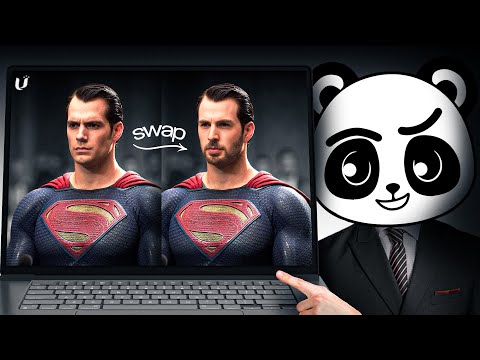 1:011:35Video-to-Video stylization with GoEnhance AIThe user demonstrates uploading a base video and applying different styles like 'Disney vintage anime' to transform the footage while maintaining motion.Artificial Quotient
- 5:170:47Video Animation from reference motionThe demonstration shows attempting to animate a character using a reference image and a motion video, though the results show current limitations in hand and facial accuracy.Artificial Quotient
 4:360:54Video-to-video stylization in GoEnhanceThe creator walks through the GoEnhance interface for video-to-video conversion, showing how to upload footage, select styles like Pixar or Pixel Art, and adjust render settings.Matt Szaton
 2:130:21Transform dancing video to anime styleA demonstration of converting a dancing video into an anime style using GoEnhance AI with adjusted frame rate settings for smoother motion.Planet Ai
- 4:080:14Apply specific clothing to characters in AI videoThe user demonstrates how to use a reference image of a jacket and a character image to generate a video where the character is wearing that specific item.Planet Ai