Create fire visual effects with Runway and DaVinci Resolve

 Runway
Demo summary
The creator demonstrates how to use Runway's Gen-3/4 model to generate a fire effect on a hand via text prompt and then composite it using DaVinci Resolve.
Step-by-step
- Record a video of the action you want to apply effects to.
- Open Runway and select Tool from the sidebar, then Video from the top bar.
- Drag and drop your recorded video into the interface.
- Type a descriptive prompt for the effect and ensure Gen 4 is selected.
- Hit Generate and download the resulting video.
- Import both the original and generated clips into a video editor like DaVinci Resolve.
- Place the original footage on track one and the fire footage on track two.
- Align the audio snap points of both clips.
- Trim the beginning of the fire clip to start one or two frames after the snap occurs.
Options
- Use any video editing platform of your choice instead of DaVinci Resolve
Watch out for
- You must manually align the audio snap points between the original and generated footage for the effect to work.
Tips
- Include 'He is not hurt' in the prompt to ensure the AI generates a clean fire effect on the person.
- Start the effect clip one or two frames after the physical action (like a snap) for a more natural transition.
All demos from “Top 5 AI Filmmaking Tools 2026”
- 1:471:43Create fire visual effects with Runway and DaVinci ResolveCurrentThe creator demonstrates how to use Runway's Gen-3/4 model to generate a fire effect on a hand via text prompt and then composite it using DaVinci Resolve.Runway· Text to Video
- 5:441:10Generate custom music with Suno AIA walkthrough of Suno AI's simple and custom modes, showing how to generate a song about surfing and a custom rap track for real estate using specific lyrics and style prompts.Suno· AI Song Generator
- 9:160:27Image editing with Nano Banana Pro on Higsfield AIShows how to upload a photo and use text prompts to place a subject on a jet ski and change the jet ski's color using the Nano Banana Pro model.Higsfield· AI Inpainting
- 10:361:04Cinematic image-to-video generation in Higsfield Cinema StudioThe user selects specific camera bodies, lenses, and focal lengths to generate a cinematic image and then converts it to video with a zoom-in camera movement.Higsfield· Image to Video
- 14:170:44Subject masking with DaVinci Resolve Magic MaskA step-by-step walkthrough of using the Magic Mask tool in the Fusion page to automatically isolate a subject from the background.DaVinci Resolve· AI Video Editor
- 15:010:20Isolate music tracks with AI Music RemixerDemonstrates how to use the AI Music Remixer in DaVinci Resolve to mute vocals from a music track.DaVinci Resolve· AI Vocal Remover & Stem Splitter
- 15:210:48Remove background noise with AI Voice IsolationShows how to toggle and adjust the AI Voice Isolation slider in DaVinci Resolve to remove the sound of a loud drill from a vocal recording.DaVinci Resolve· AI Audio Enhancer & Noise Reduction
- Watch “Top 5 AI Filmmaking Tools 2026” →


Text to Video
- 1:471:43Create fire visual effects with Runway and DaVinci ResolveCurrentThe creator demonstrates how to use Runway's Gen-3/4 model to generate a fire effect on a hand via text prompt and then composite it using DaVinci Resolve.Content Creators
 0:281:14Generate video from text with Runway Gen 4.5The user demonstrates how to select the Gen 4.5 model in the Runway dashboard, paste a detailed prompt, and generate a 10-second video.Skills Factory
- 3:250:14Simulate realistic physics with Runway Gen 4.5The demo shows Runway Gen 4.5 rendering realistic fluid and gravity physics through a prompt of a falling volcanic rock and lava.Skills Factory
 2:350:14Create cinematic AI video with Runway Gen-2The user demonstrates entering a detailed text prompt into Runway Gen-2 to generate high-fidelity, realistic video clips.RecCloud
 1:040:39Text-to-video generation in Runway Gen-3 AlphaThe user demonstrates the Runway interface, selecting the Gen-3 Alpha model and entering a prompt for an FPV jungle waterfall shot.Futurepedia
 0:250:37Generate video from text with Runway Gen-3 AlphaThe video demonstrates selecting the Gen-3 Alpha model in the Runway interface, entering a descriptive prompt of a woman on a beach, and choosing between 5 and 10-second generation lengths.Runway
 5:091:33Text-to-video generation with Runway Gen-2A walkthrough of using the Gen-2 model to generate 4-second videos from text prompts, including the use of free previews and style presets.Skills Factory
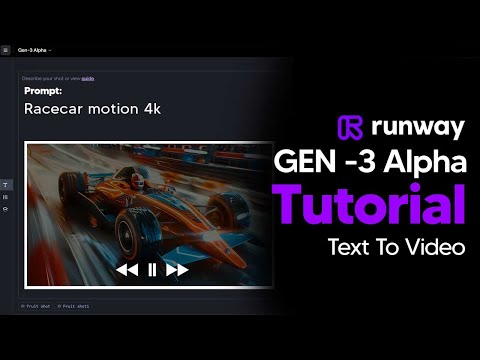 2:110:45Generate AI video with simple and detailed prompts in RunwayThe user demonstrates entering a simple prompt ('Fruit sitting on a table in the jungle') versus a highly detailed descriptive prompt into Runway Gen-3 Alpha to generate 5-second video clips.TheAIGRID
 0:150:44Generate video from text with Runway Gen-3 AlphaThe user demonstrates how to enter a text prompt, adjust camera settings and aspect ratios, and generate a 4-second video using Runway Gen-3 Alpha.AI Tech Pro