LTX Studio: Image-to-video generation from the timeline
 LTX Studio
Demo summary
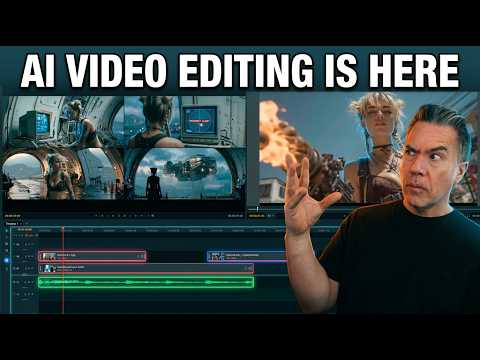
A still image is imported into the LTX Desktop timeline and converted into a video clip using the integrated image-to-video settings and camera motion controls.
Step-by-step
- Import a still image into the timeline
- Right-click on the image
- Select Image to Video
- Enter a prompt
- Adjust camera motion control and other settings
- Generate the video clip
Options
- Adjust camera motion control
- Configure various generation settings
All demos from “LTX Just dropped a FREE AI Video Editor and it is WILD!”
- 5:590:46Generating video in LTX Desktop Gen SpaceThe user demonstrates the 'Gen Space' in LTX Desktop, showing how to set video duration, resolution, and use the built-in upscaler with the LTX 2.3 model.LTX Studio· AI Animation Generator
- 6:591:41Editing timeline and properties in LTX DesktopThe demonstration covers the non-linear editor interface, including clip trimming, color correction properties, adjustment layers, and auto-letterboxing features.LTX Studio· AI Video Editor
- 8:581:04Non-destructive shot regeneration on the timelineThe user shows how to right-click a clip on the timeline to 'Regenerate Shot' and toggle between different AI-generated versions of the same prompt non-destructively.LTX Studio· AI Video Editor
- 10:020:25Image-to-video generation from the timelineCurrentA still image is imported into the LTX Desktop timeline and converted into a video clip using the integrated image-to-video settings and camera motion controls.LTX Studio· Image to Video
- 10:361:08Bridging clips with AI 'Fill with Video'The user demonstrates the 'Fill with Video' feature which uses a Gemini API key to generate a transitional bridge between two existing clips on the timeline.LTX Studio· AI Video Editor
- 12:330:28Fixing video artifacts with Retake ShotThe demonstration shows using the 'Retake' feature in the Gen Space to fix a specific visual glitch (a character's neck spinning) by regenerating a specific section of the clip.LTX Studio· AI Video Editor
- Watch “LTX Just dropped a FREE AI Video Editor and it is WILD!” →
Image to Video
 20:312:59Converting still images to video with LTX 2.3The presenter uses the LTX 2.3 video model to animate a still image of headphones, applying a 'dolly in' camera preset and a text prompt for motion.LTX_io
- 10:020:25Image-to-video generation from the timelineCurrentA still image is imported into the LTX Desktop timeline and converted into a video clip using the integrated image-to-video settings and camera motion controls.Theoretically Media
 4:150:31Image-to-video conversion in LTX StudioThe creator shows the process of uploading a static image to LTX Studio and applying a text prompt to animate it into a video clip.Brain Project
 1:350:35Generate images and motion in LTX StudioThe user demonstrates how to generate a still image from a prompt and then use the 'generate motion' feature to turn a static car image into a realistic video clip.AI Guy
 6:180:18Convert image to video with LTX StudioThe video shows the 'image to video' feature in LTX Studio, transforming a static image of a cat into a dynamic video with realistic water ripples.MindForge AI
 4:460:18Adding motion to storyboard imagesThe creator demonstrates the 'generate motion' feature and the motion editor to convert static storyboard images into animated video clips.Jon Kent