Generate images and motion in LTX Studio

 LTX Studio
Demo summary
The user demonstrates how to generate a still image from a prompt and then use the 'generate motion' feature to turn a static car image into a realistic video clip.
Step-by-step
- Navigate to the Generate Images feature
- Paste a prompt to generate a still image
- Select the generated image and download it
- Go to the Generate Motion section
- Upload the generated image
- Click on Generate to create the video clip
Tips
- Use this feature to create specific pieces of B-roll for your video projects
Highlights
“just look at the quality. Looks very realistic if you ask”
All demos from “LTX Studio 101: Ultimate Guide to Creating Stunning Videos”
- 1:350:35Generate images and motion in LTX StudioCurrentThe user demonstrates how to generate a still image from a prompt and then use the 'generate motion' feature to turn a static car image into a realistic video clip.LTX Studio· Image to Video
- 2:332:00Creating a new video concept with AIThe creator starts a new project in LTX Studio, selecting 'develop concept with AI' and configuring genre, tone, and voiceover settings based on a prompt generated in ChatGPT.LTX Studio· Script To Video AI Generator
- 5:221:16Customizing video style and character ageThe demo shows how to switch between cinematic, anime, and 3D styles in real-time and how to edit a character's age to change their appearance in LTX Studio.LTX Studio· AI Video Editor
- 6:540:46Training a custom AI actorThe user uploads five personal photos to LTX Studio to train a custom actor model, which is then available to be used consistently across video scenes.LTX Studio· AI Movie Generator
- 9:081:19Editing storyboard shots and frame animationThe video demonstrates how to recreate specific shots in the storyboard and use the frame animation tool to generate a specific ending for a clip using a text prompt.LTX Studio· AI Storyboard Generator
- 10:281:18Camera control and video upscalingThe creator demonstrates applying a 'zoom in' camera movement to a shot and using the 'upscale' feature to remove visual imperfections from the generated video.LTX Studio· AI Video Upscaler
- 12:050:34Using Generative Fill to change backgroundsThe user demonstrates the 'generative fill' tool by masking a character and typing a prompt to replace a hallway background with a dark street corner.LTX Studio· AI Background Generator
- 12:481:20Adding sound effects and exporting the final videoThe demo shows how to apply automatic sound effects to specific scenes, generate final motion for all clips, and export the completed storyboard as an MP4.LTX Studio· AI Video Editor
- Watch “LTX Studio 101: Ultimate Guide to Creating Stunning Videos” →
Image to Video
 20:312:59Converting still images to video with LTX 2.3The presenter uses the LTX 2.3 video model to animate a still image of headphones, applying a 'dolly in' camera preset and a text prompt for motion.LTX_io
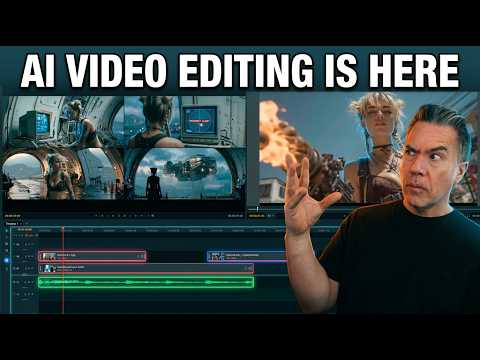 10:020:25Image-to-video generation from the timelineA still image is imported into the LTX Desktop timeline and converted into a video clip using the integrated image-to-video settings and camera motion controls.Theoretically Media
 4:150:31Image-to-video conversion in LTX StudioThe creator shows the process of uploading a static image to LTX Studio and applying a text prompt to animate it into a video clip.Brain Project
- 1:350:35Generate images and motion in LTX StudioCurrentThe user demonstrates how to generate a still image from a prompt and then use the 'generate motion' feature to turn a static car image into a realistic video clip.AI Guy
 6:180:18Convert image to video with LTX StudioThe video shows the 'image to video' feature in LTX Studio, transforming a static image of a cat into a dynamic video with realistic water ripples.MindForge AI
 4:460:18Adding motion to storyboard imagesThe creator demonstrates the 'generate motion' feature and the motion editor to convert static storyboard images into animated video clips.Jon Kent