LTX Studio: Editing timeline and properties in LTX Desktop
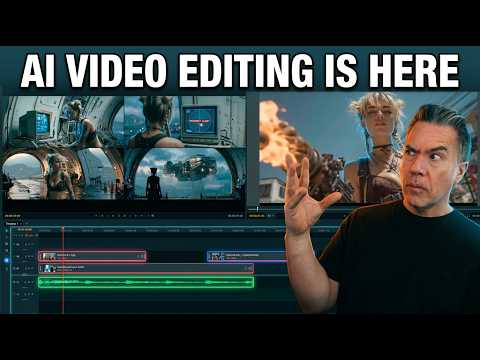
 LTX Studio
Demo summary
The demonstration covers the non-linear editor interface, including clip trimming, color correction properties, adjustment layers, and auto-letterboxing features.
Step-by-step
- Set in and out points for a clip
- Send the clip to the timeline
- Double-click on a clip to access properties and color correction
- Add an adjustment layer to the timeline
- Select the Auto Letterbox option to apply aspect ratio bars
- Click on a clip to apply transitions like dissolve or fade
- Unlink audio from video to move clips independently
- Bump two clips together to automatically create a transition
Options
- Use ripple cut or standard cut tools
- Choose from various aspect ratios within the auto letterbox menu
- Apply basic color correction settings
Watch out for
- The editor is not a full-featured replacement for professional suites like DaVinci Resolve or Premiere
- Adjustment layers do not support all standard professional functions
Tips
- Think of this as a fairly basic video editor that includes a few extra bells and whistles
Highlights
“it actually is pretty packed. There was more in here than I had suspected there would be.”
All demos from “LTX Just dropped a FREE AI Video Editor and it is WILD!”
- 5:590:46Generating video in LTX Desktop Gen SpaceThe user demonstrates the 'Gen Space' in LTX Desktop, showing how to set video duration, resolution, and use the built-in upscaler with the LTX 2.3 model.LTX Studio· AI Animation Generator
- 6:591:41Editing timeline and properties in LTX DesktopCurrentThe demonstration covers the non-linear editor interface, including clip trimming, color correction properties, adjustment layers, and auto-letterboxing features.LTX Studio· AI Video Editor
- 8:581:04Non-destructive shot regeneration on the timelineThe user shows how to right-click a clip on the timeline to 'Regenerate Shot' and toggle between different AI-generated versions of the same prompt non-destructively.LTX Studio· AI Video Editor
- 10:020:25Image-to-video generation from the timelineA still image is imported into the LTX Desktop timeline and converted into a video clip using the integrated image-to-video settings and camera motion controls.LTX Studio· Image to Video
- 10:361:08Bridging clips with AI 'Fill with Video'The user demonstrates the 'Fill with Video' feature which uses a Gemini API key to generate a transitional bridge between two existing clips on the timeline.LTX Studio· AI Video Editor
- 12:330:28Fixing video artifacts with Retake ShotThe demonstration shows using the 'Retake' feature in the Gen Space to fix a specific visual glitch (a character's neck spinning) by regenerating a specific section of the clip.LTX Studio· AI Video Editor
- Watch “LTX Just dropped a FREE AI Video Editor and it is WILD!” →
AI Video Editor
- 6:591:41Editing timeline and properties in LTX DesktopCurrentThe demonstration covers the non-linear editor interface, including clip trimming, color correction properties, adjustment layers, and auto-letterboxing features.Theoretically Media
- 8:581:04Non-destructive shot regeneration on the timelineThe user shows how to right-click a clip on the timeline to 'Regenerate Shot' and toggle between different AI-generated versions of the same prompt non-destructively.Theoretically Media
- 10:361:08Bridging clips with AI 'Fill with Video'The user demonstrates the 'Fill with Video' feature which uses a Gemini API key to generate a transitional bridge between two existing clips on the timeline.Theoretically Media
- 12:330:28Fixing video artifacts with Retake ShotThe demonstration shows using the 'Retake' feature in the Gen Space to fix a specific visual glitch (a character's neck spinning) by regenerating a specific section of the clip.Theoretically Media
 28:152:29Editing video on the LTX Studio timelineThe walkthrough shows the built-in video editor where clips are trimmed, split, and synced to a music track directly within the platform.LTX_io
 5:221:16Customizing video style and character ageThe demo shows how to switch between cinematic, anime, and 3D styles in real-time and how to edit a character's age to change their appearance in LTX Studio.AI Guy
- 12:481:20Adding sound effects and exporting the final videoThe demo shows how to apply automatic sound effects to specific scenes, generate final motion for all clips, and export the completed storyboard as an MP4.AI Guy