LTX Studio: Converting still images to video with LTX 2.3

 LTX Studio
Demo summary
The presenter uses the LTX 2.3 video model to animate a still image of headphones, applying a 'dolly in' camera preset and a text prompt for motion.
Step-by-step
- Select a still image from your favorites and click Create Video.
- Select the LTX 2.3 model from the model dropdown.
- Choose a camera movement from the motion presets, such as Dolly In.
- Toggle the audio option on or off based on your preference.
- Enter a text prompt describing the desired motion.
- Click Generate to create the video clip.
- Select the generated clip to replace the still image in your project.
Options
- Use start and end frames for motion control
- Select from a dozen different camera presets including 360s
- Generate clips up to 20 seconds long
- Adjust the frames per second (FPS) settings
- Generate multiple results simultaneously
Tips
- Use the LTX 2.3 model if you need high efficiency and rapid iteration.
- Combine camera presets with text prompting to achieve specific cinematic results.
- Take advantage of the model's native 4K capabilities for higher quality output.
Highlights
“You're seeing and iterate here really really rapidly.”
All demos from “Create an Ad Using LTX Studio (Full Walkthrough)”
- 15:001:24Applying style references to image generationsThe demo shows how to use an existing image as a reference and apply different artistic styles like 'collage', 'origami', and 'wool' to transform the product's appearance.LTX Studio· AI Style Transfer
- 19:101:16Building a storyboard from generated assetsThe user demonstrates how to organize generated images into a sequence within the LTX Studio storyboard to plan the narrative flow of an advertisement.LTX Studio· AI Storyboard Generator
- 20:312:59Converting still images to video with LTX 2.3CurrentThe presenter uses the LTX 2.3 video model to animate a still image of headphones, applying a 'dolly in' camera preset and a text prompt for motion.LTX Studio· Image to Video
- 28:152:29Editing video on the LTX Studio timelineThe walkthrough shows the built-in video editor where clips are trimmed, split, and synced to a music track directly within the platform.LTX Studio· AI Video Editor
- Watch “Create an Ad Using LTX Studio (Full Walkthrough)” →
Image to Video
- 20:312:59Converting still images to video with LTX 2.3CurrentThe presenter uses the LTX 2.3 video model to animate a still image of headphones, applying a 'dolly in' camera preset and a text prompt for motion.LTX_io
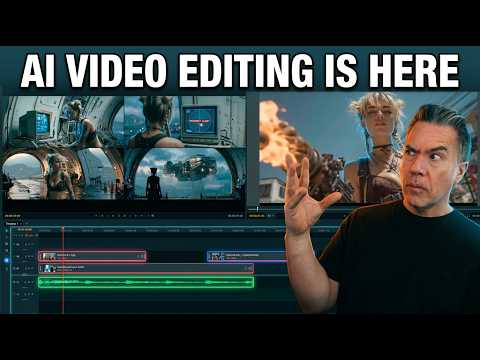 10:020:25Image-to-video generation from the timelineA still image is imported into the LTX Desktop timeline and converted into a video clip using the integrated image-to-video settings and camera motion controls.Theoretically Media
 4:150:31Image-to-video conversion in LTX StudioThe creator shows the process of uploading a static image to LTX Studio and applying a text prompt to animate it into a video clip.Brain Project
 1:350:35Generate images and motion in LTX StudioThe user demonstrates how to generate a still image from a prompt and then use the 'generate motion' feature to turn a static car image into a realistic video clip.AI Guy
 6:180:18Convert image to video with LTX StudioThe video shows the 'image to video' feature in LTX Studio, transforming a static image of a cat into a dynamic video with realistic water ripples.MindForge AI
 4:460:18Adding motion to storyboard imagesThe creator demonstrates the 'generate motion' feature and the motion editor to convert static storyboard images into animated video clips.Jon Kent