OpenArt: Animate AI influencer with Kling V1.5 (V3)

 OpenArt
Demo summary
The user demonstrates converting a still image into a realistic video of the character waving and drinking from a cup using the V3 (Kling) model.
Step-by-step
- Click the Image to Video button in the top right corner of the image
- Select the V3 model from the left-side menu
- Enter a detailed prompt describing the desired movement and lighting
- Toggle the audio setting to off
- Select 1080p for the resolution
- Set the video mode to Normal
- Click Create
Options
- Use other popular models instead of V3
- Keep audio enabled for the generation
Tips
- Use the V3 model for high realism and smooth movement
- Write detailed prompts so the AI knows exactly what to create
- Select Normal video mode for better quality and smoother clips, even if it takes longer to generate
- Turn off audio if you plan to add background music later for social media posts
Highlights
“It's the kind of clip you could post straight to an Instagram story”
All demos from “How to Make Better AI Influencers than 99% of People | Full Course”
- 1:512:29Generate a base AI character with OpenArtThe user demonstrates how to select the 'OpenArt Photo Realistic' model and input a detailed prompt to generate the initial high-quality image of an AI influencer.OpenArt· AI Realistic Image Generator
- 5:310:51Generate consistent character angles with Flux Context MaxThe creator shows how to use the Flux Context Max model and image guidance to generate multiple consistent angles of the same character for training purposes.OpenArt· AI Person Generator
- 6:301:08Train a custom AI character modelThe video walks through uploading multiple character images to the 'Characters' section in OpenArt to train a dedicated, consistent AI model named 'Brooke'.OpenArt· AI Avatar Generator
- 8:481:25Generate character in new environmentsThe user demonstrates placing the trained character into a new setting (a winter cottage) while adjusting prompt adherence and character weight settings.OpenArt· AI Avatar Generator
- 10:170:46Object removal with Magic EraseA demonstration of the OpenArt built-in editor using 'Magic Erase' to seamlessly remove a bowl from the background of a generated image.OpenArt· AI Object Remover/Eraser
- 11:030:30Modify facial expressions with Face EditorThe creator uses the Face Editor tool to change a character's expression to a wink and adjust the mouth opening intensity using sliders.OpenArt· AI Photo Editor
- 11:330:30Add objects to images using InpaintThe user demonstrates the Inpaint tool by selecting an area of the background and prompting the AI to add a Christmas tree.OpenArt· AI Inpainting
- 12:102:03Control character posture with 3D Pose EditorA detailed walkthrough of the 3D Pose Editor where the user manipulates a mannequin's limbs to set a specific pose for the AI influencer in a coffee shop.OpenArt· AI Person Generator
- 14:271:32Place character in a real-world photoThe creator demonstrates the 'place character in image' feature to insert the AI influencer into an uploaded photo of a luxury retail store.OpenArt· AI Image Combiner
- 16:311:23Animate AI influencer with Kling V1.5 (V3)CurrentThe user demonstrates converting a still image into a realistic video of the character waving and drinking from a cup using the V3 (Kling) model.OpenArt· Image to Video
- 17:561:02Generate AI video with Hailuo (Seance)A demonstration of the Seance model (Hailuo) to create a video of the AI character eating a pastry in a shop.OpenArt· Text to Video
- 18:580:44Create AI video with Luma (Wong)The creator shows the 'Wong' model (Luma) being used to animate the character holding shopping bags with a satisfied smile.OpenArt· AI Animation Generator
- Watch “How to Make Better AI Influencers than 99% of People | Full Course” →
Image to Video
 9:300:40Animate scenes with Kling 2.6The creator demonstrates animating a static image into a 5-second video clip of characters walking using the Kling 2.6 model within the Open Art interface.Youri van Hofwegen
 2:300:40Animate images using Kling 2.6 in OpenArtThe demonstration shows uploading a static image and using the Kling 2.6 model to generate a realistic video of a girl drinking coffee with natural steam and background movement.Affiliation
 3:030:43Image-to-video conversion using Kling 2.6A demonstration of uploading a static photograph of a city street and using the Kling 2.6 model to animate it with rain and motion effects.Thomas Creates
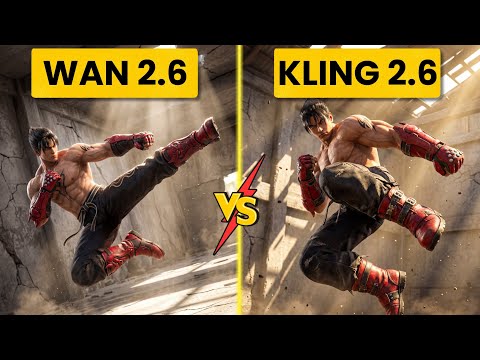 4:400:42Create fight scene from image with Wan 2.6The user uploads a Tekken 8 reference image and uses Wan 2.6 to animate a cinematic fight scene between two characters.Ai Chemy
 5:450:50Image-to-Video workflow in OpenArt to save creditsThe user demonstrates generating a high-quality image of a gold bar first using the 'Image Gen 4' model, then uploading that image to the VEO3 video generator to ensure visual consistency before animating the slice.unknown
 3:450:44Image-to-video with start frame in Veo 3.1The user uploads a starting frame image and a prompt to guide the Veo 3.1 model in generating a consistent 4K video sequence.Youri van Hofwegen
- 4:420:23Image-to-video with start frame in LTX 2.3The LTX 2.3 model is shown processing a starting frame image to generate a high-resolution video with slow-motion effects.Youri van Hofwegen
- 6:430:30Multi-image reference video generation with Veo 3.1The demonstration shows how to use a character sheet and an object reference image simultaneously in Veo 3.1 to maintain visual consistency.Youri van Hofwegen
- 8:090:45Reference image workflow with SeaDance 2.0The SeaDance 2.0 model is shown generating a 720p video using a character sheet, boxing glove reference, and a starting frame.Youri van Hofwegen
 31:141:10Sync motion from one video to anotherThe creator uses Motion Sync to apply the movements of a boxing video to a static cyberpunk character image.Wade McMaster - Creator Impact
 6:020:33Image-to-video generation with Vidu 3.1The user demonstrates how to use a previously generated image as a foundation for video, using the Vidu 3.1 model to animate specific motions.Roboverse
 6:580:43Animate images using Cling 3The creator demonstrates converting a still image into a 5-second video using the Cling 3 model within OpenArt's video interface.Isa does AI