Generate AI video from text with Google V3 in OpenArt

 OpenArt
Demo summary
The user selects the Google V3 model within OpenArt, applies the 'autoenhance' prompt feature, and generates a cinematic video of a person walking in the rain.
Step-by-step
- Click the video icon on the left-hand side
- Select the Text to Video tool
- Choose Google V3 from the available models
- Adjust settings for version, audio, resolution, aspect ratio, and duration
- Type your prompt into the text field
- Enable the autoenhance feature
- Click Create
Options
- Use Kling for realistic visuals
- Use Veo for prompt-based videos
- Use Seed Dance for stylized visuals with a lower cost approach
- Select Image to Video, Lip-sync, or Video upscaling instead of Text to Video
Tips
- Keep autoenhance turned on to save time and credits while improving generation consistency
- Use OpenArt to access multiple models in one platform without extra subscriptions
Highlights
“removes the need to overthink the entire prompt process”
All demos from “OpenArt AI Review 2026: Watch This Before You Buy! (Honest Pros & Cons)”
- 0:511:27Generate AI video from text with Google V3 in OpenArtCurrentThe user selects the Google V3 model within OpenArt, applies the 'autoenhance' prompt feature, and generates a cinematic video of a person walking in the rain.OpenArt· Text to Video
- 2:300:40Animate images using Kling 2.6 in OpenArtThe demonstration shows uploading a static image and using the Kling 2.6 model to generate a realistic video of a girl drinking coffee with natural steam and background movement.OpenArt· Image to Video
- 3:310:15Upscale video to 4K in OpenArtThe user demonstrates the built-in video upscaling tool to enhance a generated clip to 4K resolution at 120 frames per second.OpenArt· AI Video Upscaler
- 3:551:02Text-to-image generation with Nano Banana ProThe user generates a realistic photograph of a man fishing from a pier using the Nano Banana Pro model and the autoenhance prompt feature.OpenArt· Text to Image
- 5:060:45AI Inpainting to replace objects in OpenArtUsing the editing workspace, the user paints over a boat in an image and uses a text prompt to replace it with a small wooden kayak.OpenArt· AI Inpainting
- 5:510:12Remove objects from images in OpenArtThe user demonstrates the 'remove' feature by highlighting birds in an image and having the AI erase them seamlessly.OpenArt· AI Object Remover/Eraser
- 6:331:13Create a consistent AI character in OpenArtThe user builds a character named Amelia from a text prompt, generating a consistent reference set including front, closeup, and full-body views.OpenArt· AI Person Generator
- 7:580:31Generate new scenes with a saved AI characterThe user selects the previously created 'Amelia' character and generates a new image of her at a cafe, maintaining facial and hair consistency.OpenArt· AI Person Generator
- Watch “OpenArt AI Review 2026: Watch This Before You Buy! (Honest Pros & Cons)” →
Text to Video
 1:390:49Generate motion-heavy video with SeaDance 2.0The user demonstrates selecting SeaDance 2.0 in OpenArt and entering a prompt for a breakdancer in the rain to test fluid movement generation.Affiliation
- 2:490:11Compare motion generation with Kling 3.0The creator switches the model to Kling 3.0 using the same prompt to demonstrate how it handles complex physical movements.Affiliation
 20:392:03Generate video from text with Kling 3A demonstration of creating a cinematic space video from a text prompt using the Kling 3 model within OpenArt's video suite.Wade McMaster - Creator Impact
- 0:511:27Generate AI video from text with Google V3 in OpenArtCurrentThe user selects the Google V3 model within OpenArt, applies the 'autoenhance' prompt feature, and generates a cinematic video of a person walking in the rain.Affiliation
 3:180:45Generate ASMR video from text with OpenArt and VEO3The creator navigates to OpenArt, selects the video creation tool, chooses the VEO3 model, and inputs a detailed prompt to generate a video of a yellow mango being sliced with synchronized audio.unknown
 0:500:50Generate realistic video with Sora 2The creator demonstrates using Sora 2 within the OpenArt interface to generate a high-resolution, 12-second video from a complex text prompt.Youri van Hofwegen
- 2:150:16Create vlog-style content with Sora 2A demonstration of Sora 2 generating a realistic 'vlog style' video of a winter day in New York City, showcasing environmental interpretation.Youri van Hofwegen
- 4:270:18Text-to-video generation with Kling 2.6The video shows the selection of the Kling 2.6 model in OpenArt to generate a video with saturated colors and integrated audio.Youri van Hofwegen
- 5:090:23Simulate cockpit environment with Kling 2.6A demonstration of Kling 2.6 generating a stylized video of a pilot in a thunderstorm, focusing on environmental effects and audio sync.Youri van Hofwegen
 1:191:38Text-to-video generation with Google VEO 3.1The creator demonstrates how to select the Google VEO 3.1 model within OpenArt, use the 'autoenhance' prompt feature, and generate a cinematic video of an astronaut.Thomas Creates
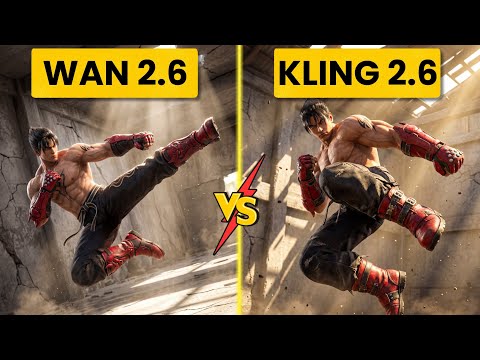 2:560:52Generate action video from text with Wan 2.6The user demonstrates selecting the Wan 2.6 model in Open Art and entering a prompt for a berserker knight smashing through a gate to generate a video with synchronized audio.Ai Chemy
 0:500:42Text-to-video generation with Veo 3.1The creator demonstrates generating an 8-second 4K video of a boxer using a text prompt and the Veo 3.1 model on OpenArt.Youri van Hofwegen