OpenArt: Generate video from text with Kling 3

 OpenArt
Demo summary
A demonstration of creating a cinematic space video from a text prompt using the Kling 3 model within OpenArt's video suite.
Step-by-step
- Select Kling 3 from the model dropdown menu
- Enter a text prompt describing the scene and camera movement
- Toggle Audio on if sound generation is desired
- Select the desired resolution and aspect ratio in the Output settings
- Click Enhance Prompt to automatically expand the description
- Review the enhanced prompt for subject, camera movement, and action
- Click Generate
Options
- Enable Multi-shot to allow the model to produce multiple shots in one video
- Switch to Kling 3 Omni or SeaDance to add visual references
- Adjust video duration up to 15 seconds
- Choose between 16:9, 9:16, or 1:1 aspect ratios
- Select 4K resolution when using Kling models
Watch out for
- Multi-select video is unavailable because it consumes a high amount of credits
- Standard Kling 3 does not support visual references; you must use Kling 3 Omni for that feature
Tips
- Always double-check the enhanced prompt to ensure it includes the specific subject and action you want
- The best performing models are typically located at the top of the selection list
Highlights
“that video turned out pretty good”
All demos from “How to use OpenArt AI: TUTORIAL for Beginners!”
- 2:420:53Generate images with Nano Banana 2The creator demonstrates how to generate a cyberpunk Buddhist temple image by entering a text prompt and selecting the Nano Banana 2 model in OpenArt.OpenArt· Text to Image
- 7:061:43Compare multiple AI models simultaneouslyThe video shows how to use the 'select multiple' feature to compare outputs from GPT Image 2, Nano Banana 2, Recraft, and Kling 3 Omni using the same prompt.OpenArt· AI Image Generator
- 9:280:48Create image variations and style swapsThe user demonstrates transforming a reference image into an anime style and changing lighting to sunset using the Image Variations tool.OpenArt· Image to Image
- 12:121:07Upscale images and enhance skin detailThe tutorial shows how to use the Image Upscaler to increase resolution to 4K while adding realistic skin textures to a portrait.OpenArt· AI Image Upscaler
- 15:260:59Perform AI Face SwapsThe video demonstrates swapping a user's face onto an existing photo using the Face Swap tool with options for face-only or full-head replacement.OpenArt· AI Face Swap Generator
- 17:202:31Edit images with AI brushes and notesThe user demonstrates the Area Edit and Note tools to add sunglasses and change objects in an image by drawing and typing instructions directly on the canvas.OpenArt· AI Inpainting
- 20:392:03Generate video from text with Kling 3CurrentA demonstration of creating a cinematic space video from a text prompt using the Kling 3 model within OpenArt's video suite.OpenArt· Text to Video
- 23:271:55Animate between start and end framesThe creator shows how to define the first and last frames of a video to control the exact motion path of growing vines on a car.OpenArt· AI Animation Generator
- 25:261:42Create consistent videos with Smart ShotThe video demonstrates the Smart Shot tool, which generates a storyboard and character sheet before rendering a consistent AI video.OpenArt· AI Movie Generator
- 27:310:24Edit video content with text commandsThe user shows how to change a car's color and modify the sky in an existing video using plain English instructions in the Edit Video tool.OpenArt· AI Video Editor
- 28:460:40Replace video backgroundsThe tutorial demonstrates removing a character from their original setting and placing them on a golden hour beach using the Replace Background tool.OpenArt· AI Video Editor
- 31:141:10Sync motion from one video to anotherThe creator uses Motion Sync to apply the movements of a boxing video to a static cyberpunk character image.OpenArt· Image to Video
- 32:241:04AI Lip Sync for images and videoThe video shows how to upload an audio file and sync a character's mouth movements to the speech using the Lip Sync tool.OpenArt· AI Lip Sync Generator
- 33:290:47Replace characters in existing footageThe user demonstrates swapping a person in a video with a custom 'Red Monk' character while maintaining the original background and movement.OpenArt· Video to Video
- 39:331:16Create AI music tracksThe video shows how to generate lo-fi and cinematic music by describing the desired vibe and adjusting intensity settings.OpenArt· AI Music Generator
- 45:571:49Build consistent AI charactersThe tutorial walks through the 'Build your character' workflow, selecting ethnicity, age, and clothing to create a persistent character named Oscar.OpenArt· AI Person Generator
- 54:094:53Create full AI stories and explainer videosThe video demonstrates the Story tool, which generates a script, storyboard, voiceover, and final edited video with captions automatically.OpenArt· Script To Video AI Generator
- Watch “How to use OpenArt AI: TUTORIAL for Beginners!” →
Text to Video
 1:390:49Generate motion-heavy video with SeaDance 2.0The user demonstrates selecting SeaDance 2.0 in OpenArt and entering a prompt for a breakdancer in the rain to test fluid movement generation.Affiliation
- 2:490:11Compare motion generation with Kling 3.0The creator switches the model to Kling 3.0 using the same prompt to demonstrate how it handles complex physical movements.Affiliation
- 20:392:03Generate video from text with Kling 3CurrentA demonstration of creating a cinematic space video from a text prompt using the Kling 3 model within OpenArt's video suite.Wade McMaster - Creator Impact
 0:511:27Generate AI video from text with Google V3 in OpenArtThe user selects the Google V3 model within OpenArt, applies the 'autoenhance' prompt feature, and generates a cinematic video of a person walking in the rain.Affiliation
 3:180:45Generate ASMR video from text with OpenArt and VEO3The creator navigates to OpenArt, selects the video creation tool, chooses the VEO3 model, and inputs a detailed prompt to generate a video of a yellow mango being sliced with synchronized audio.unknown
 0:500:50Generate realistic video with Sora 2The creator demonstrates using Sora 2 within the OpenArt interface to generate a high-resolution, 12-second video from a complex text prompt.Youri van Hofwegen
- 2:150:16Create vlog-style content with Sora 2A demonstration of Sora 2 generating a realistic 'vlog style' video of a winter day in New York City, showcasing environmental interpretation.Youri van Hofwegen
- 4:270:18Text-to-video generation with Kling 2.6The video shows the selection of the Kling 2.6 model in OpenArt to generate a video with saturated colors and integrated audio.Youri van Hofwegen
- 5:090:23Simulate cockpit environment with Kling 2.6A demonstration of Kling 2.6 generating a stylized video of a pilot in a thunderstorm, focusing on environmental effects and audio sync.Youri van Hofwegen
 1:191:38Text-to-video generation with Google VEO 3.1The creator demonstrates how to select the Google VEO 3.1 model within OpenArt, use the 'autoenhance' prompt feature, and generate a cinematic video of an astronaut.Thomas Creates
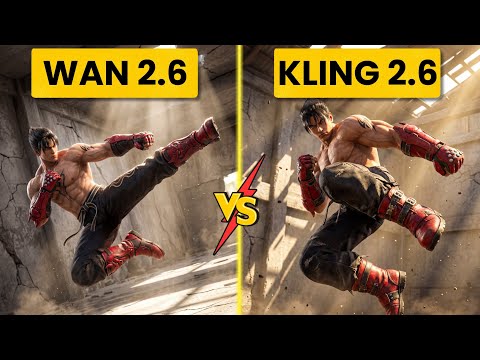 2:560:52Generate action video from text with Wan 2.6The user demonstrates selecting the Wan 2.6 model in Open Art and entering a prompt for a berserker knight smashing through a gate to generate a video with synchronized audio.Ai Chemy
 0:500:42Text-to-video generation with Veo 3.1The creator demonstrates generating an 8-second 4K video of a boxer using a text prompt and the Veo 3.1 model on OpenArt.Youri van Hofwegen