Create a consistent AI character in OpenArt

 OpenArt
Demo summary
The user builds a character named Amelia from a text prompt, generating a consistent reference set including front, closeup, and full-body views.
Step-by-step
- Click on the character icon to open the character creation tool
- Enter a detailed text prompt describing the character's features and style
- Select a model from the dropdown menu
- Choose a style, such as photo realistic
- Click Generate to produce four initial options
- Select your preferred image and click Build my character
- Review the generated views (front, closeup, full body, back) and click Looks good
- Enter a name and background story for the character
- Click Save character
Options
- Upload a clear front-facing image as a reference instead of using a prompt
- Add additional reference images to help with generation
- Regenerate the initial four options if none are suitable
- Regenerate individual views (e.g., full body) for better results before saving
Tips
- Use a detailed prompt including lighting, background, and camera angle for better results
- Use a clear front-facing image if you are starting from a reference photo
Highlights
“I really like how this one turned out, so I'll keep it as is”
All demos from “OpenArt AI Review 2026: Watch This Before You Buy! (Honest Pros & Cons)”
- 0:511:27Generate AI video from text with Google V3 in OpenArtThe user selects the Google V3 model within OpenArt, applies the 'autoenhance' prompt feature, and generates a cinematic video of a person walking in the rain.OpenArt· Text to Video
- 2:300:40Animate images using Kling 2.6 in OpenArtThe demonstration shows uploading a static image and using the Kling 2.6 model to generate a realistic video of a girl drinking coffee with natural steam and background movement.OpenArt· Image to Video
- 3:310:15Upscale video to 4K in OpenArtThe user demonstrates the built-in video upscaling tool to enhance a generated clip to 4K resolution at 120 frames per second.OpenArt· AI Video Upscaler
- 3:551:02Text-to-image generation with Nano Banana ProThe user generates a realistic photograph of a man fishing from a pier using the Nano Banana Pro model and the autoenhance prompt feature.OpenArt· Text to Image
- 5:060:45AI Inpainting to replace objects in OpenArtUsing the editing workspace, the user paints over a boat in an image and uses a text prompt to replace it with a small wooden kayak.OpenArt· AI Inpainting
- 5:510:12Remove objects from images in OpenArtThe user demonstrates the 'remove' feature by highlighting birds in an image and having the AI erase them seamlessly.OpenArt· AI Object Remover/Eraser
- 6:331:13Create a consistent AI character in OpenArtCurrentThe user builds a character named Amelia from a text prompt, generating a consistent reference set including front, closeup, and full-body views.OpenArt· AI Person Generator
- 7:580:31Generate new scenes with a saved AI characterThe user selects the previously created 'Amelia' character and generates a new image of her at a cafe, maintaining facial and hair consistency.OpenArt· AI Person Generator
- Watch “OpenArt AI Review 2026: Watch This Before You Buy! (Honest Pros & Cons)” →
AI Person Generator
 2:523:02Generate consistent characters in Open ArtUsing the Nano Banana Pro model in Open Art, the narrator demonstrates generating character designs for an alien, a dog sidekick, and a slime monster by pasting detailed prompts and selecting aspect ratios.Youri van Hofwegen
- 6:052:07Create consistent scenes using Omni ReferenceThe narrator shows how to use Open Art's Omni Reference feature to maintain character consistency across different scene generations by referencing previous character and environment images.Youri van Hofwegen
 1:190:46Create a consistent AI character in OpenArtThe creator navigates the OpenArt interface to the character dashboard and explains how to initiate character creation using either image uploads or text descriptions.Isa does AI
- 2:471:10Generate character variations with Nano Banana ProUsing a detailed text prompt for a 'vigilante hero', the creator selects the Nano Banana Pro model in OpenArt to generate and select a base character image.Isa does AI
 45:571:49Build consistent AI charactersThe tutorial walks through the 'Build your character' workflow, selecting ethnicity, age, and clothing to create a persistent character named Oscar.Wade McMaster - Creator Impact
 2:540:32Create consistent characters from description in Open ArtThe narrator demonstrates how to use the 'start with description' feature in Open Art, showing how to input a detailed prompt for a female alchemist to establish a persistent character model.Snowball AI
- 3:400:22Generate consistent characters from one reference imageThe user walks through the 'start with one image' method in Open Art, uploading a single reference photo and naming the character to maintain consistency across future generations.Snowball AI
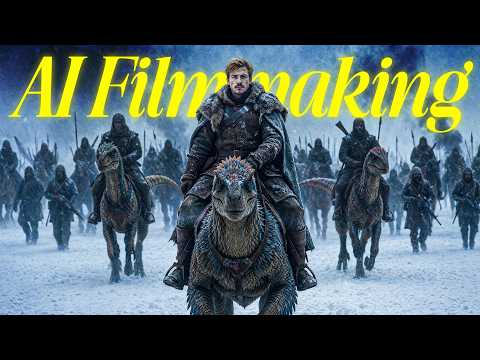 6:011:22Generate consistent character images with GPT Image 2The creator demonstrates how to use three reference images (character sheet, close-up, and detail sheet) in OpenArt's GPT Image 2 to generate high-quality, consistent character portraits.Dan Kieft
- 6:331:13Create a consistent AI character in OpenArtCurrentThe user builds a character named Amelia from a text prompt, generating a consistent reference set including front, closeup, and full-body views.Affiliation
- 7:580:31Generate new scenes with a saved AI characterThe user selects the previously created 'Amelia' character and generates a new image of her at a cafe, maintaining facial and hair consistency.Affiliation
 1:210:42Maintain character consistency with Nano Banana 2The user demonstrates how to generate a scene with specific characters and then use the 'add visual references' feature to upload an image and maintain character consistency in a new prompt.Isa does AI
 2:380:18Fix character consistency with reference imagesThe user shows how to crop a character panel and re-upload it to Open Art as a reference image alongside the original grid to ensure visual consistency across all scenes.Mira AI