Animate images using Kling AI first and last frames
 Kling AI
Demo summary
The user demonstrates using Kling 2.1 to animate a character by uploading a starting frame (with a hat) and an ending frame (without a hat) generated in Gemini.
Step-by-step
- Open the Kling Image to Video tool
- Select the 2.1 model version
- Upload the starting image as the first frame
- Upload the ending image as the last frame
- Click to generate the animation
Options
- Generate without entering a text prompt if the visual motion is obvious
Watch out for
- Ensure the 2.1 model is selected to access the first and last frame feature
Tips
- Use this technique to maintain perfect consistency between shots
- Use the Flash 2.5 model for better image consistency before animating
Highlights
“this is the most powerful frame editing AI video tool available”
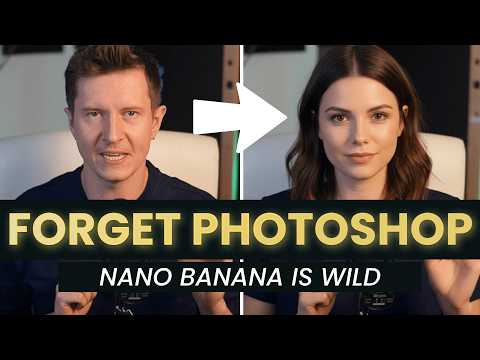
All demos from “50+ INSANE Ways to Use Google Nano Banana! (BEST AI Image)”
- 0:400:59Change image lighting and background in GeminiThe user demonstrates how to upload a personal photo to Gemini 2.5 Flash and use natural language prompts to change the time of day to night with neon lighting while maintaining character consistency.Gemini· AI Relighting
- 1:580:39Preview hairstyles with Gemini 2.5 FlashThe creator shows how to use Gemini to modify a person's hair in an uploaded photo, demonstrating a buzz cut and long blonde hair transformations.Gemini· AI Inpainting
- 3:011:02Create professional LinkedIn headshots using GeminiThe video shows a workflow of uploading a casual selfie and a reference outfit from Pinterest to Gemini to generate a professional headshot with an office background and studio lighting.Gemini· AI Headshot Generator
- 4:430:53Age progression and aesthetic filters in GeminiThe user demonstrates applying a '90s Polaroid aesthetic to a photo and then using the model to age himself to see what he would look like at age 70.Gemini· AI Age Progression
- 8:301:04Restore and recolor old photographs with GeminiThe video shows uploading a 120-year-old black and white photograph to Gemini to restore details and add realistic color.Gemini· AI Photo Restoration
- 10:361:18Animate images using Kling AI first and last framesCurrentThe user demonstrates using Kling 2.1 to animate a character by uploading a starting frame (with a hat) and an ending frame (without a hat) generated in Gemini.Kling AI· Image to Video
- 18:530:57Edit YouTube thumbnails with GeminiThe creator walks through upgrading a low-quality video screenshot into a thumbnail by prompting Gemini to change his expression, add studio lighting, and insert a phone into his hand.Gemini· AI Inpainting
- Watch “50+ INSANE Ways to Use Google Nano Banana! (BEST AI Image)” →

Image to Video
 7:291:18Animate transitions with Kling 2.1The creator demonstrates the image-to-video process using Kling 2.1, setting a start frame of a unicorn and an end frame of a hunter to create a seamless 10-second zooming transition.Dan Kieft
 15:090:34Keyframe transitions with Kling AIThe creator demonstrates uploading a starting illustration and an end photo into Kling AI to generate a seamless transition between two frames.Tao Prompts
 7:551:21Convert images to video with Kling AIThe demonstration shows uploading a static image of an owl and using a text prompt to animate it into a slow-motion flight sequence.Jason Gandy
 2:200:36Animate a reference image with Kling 3.0The narrator demonstrates image-to-video by uploading a reference image of a man and entering a prompt for him to walk towards a dragon using the Kling 3.0 model.Tao Prompts
 7:080:29Animate images with Kling AI and sound effectsThe user demonstrates uploading an image to Kling AI, pasting an animation prompt, and checking the box for built-in sound effects to generate a final ASMR clip.Monetize with AI
 4:030:39Animate scenes with Kling 2.6The video shows the process of using the 'image to video' feature, uploading a panel as a start frame, and applying a camera movement prompt using the Kling 2.6 model.Mira AI
 2:471:07Animate images into ASMR videos with Kling AIThe user demonstrates uploading an image to Kling AI, using the Deep Seek tool to refine the prompt, and generating a video with synchronized AI sound.AI Century
 10:041:33Animate images using Kling and KlingThe video shows how to take a generated image into the video tab, select a model like Kling, and use ChatGPT-generated video prompts to create a 5-10 second cinematic clip.Dan Kieft
 6:580:58Generate video with Kling 3 Omni using referencesThe user demonstrates using Kling 3 Omni's 'Text with reference' and 'multi shot' features, uploading the previously created 3D world images as visual guides for video generation.AI Video School
 3:321:08Generating consistent character angles with Multi-shotUsing a single image reference, the creator shows how to describe multiple camera angles and actions for a character to generate a consistent 12-second multi-scene video.Dan Kieft
- 15:001:06Image-to-video with start and end framesThe creator demonstrates the image-to-video method by setting a specific start frame and using multi-shot prompts to control the motion and narrative flow.Dan Kieft
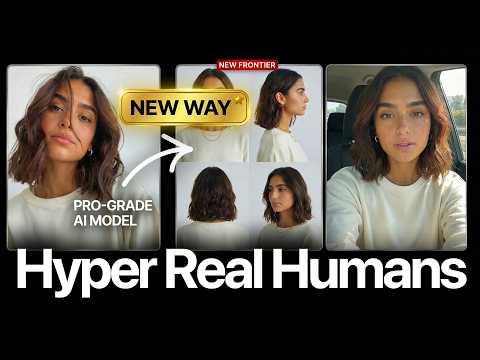 17:020:28Motion transfer with Kling AIThe creator shows how to use Kling Motion Transfer to map the movements from a real 'driving video' of himself onto a static AI influencer image.Sirio