Edit YouTube thumbnails with Gemini
 Gemini
Demo summary
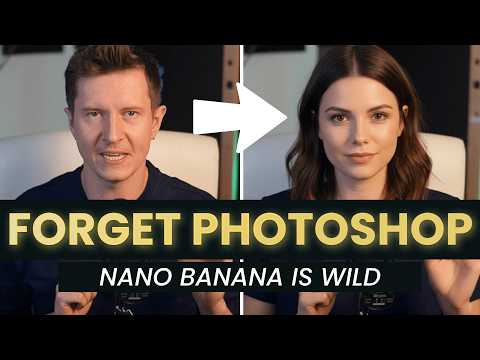
The creator walks through upgrading a low-quality video screenshot into a thumbnail by prompting Gemini to change his expression, add studio lighting, and insert a phone into his hand.
Step-by-step
- Upload a screenshot from a video to the Gemini interface
- Prompt the AI to add studio lighting to the image
- Request a specific change to facial expressions, such as 'smug and confident'
- Prompt the AI to insert an object, like a phone, into the subject's hand
- Instruct the AI to adjust the depth of field by bringing the object forward and blurring the background
Options
- Change specific facial expressions
- Add or remove objects from the scene
- Adjust lighting styles
- Modify focus and background blur
Tips
- Use Gemini to upgrade low-quality video screenshots into high-quality thumbnail assets
- Iterate on the image by asking for specific scene setups or setups that were not in the original shot
Highlights
“this is incredibly powerful for generating your own thumbnails”
All demos from “50+ INSANE Ways to Use Google Nano Banana! (BEST AI Image)”
- 0:400:59Change image lighting and background in GeminiThe user demonstrates how to upload a personal photo to Gemini 2.5 Flash and use natural language prompts to change the time of day to night with neon lighting while maintaining character consistency.Gemini· AI Relighting
- 1:580:39Preview hairstyles with Gemini 2.5 FlashThe creator shows how to use Gemini to modify a person's hair in an uploaded photo, demonstrating a buzz cut and long blonde hair transformations.Gemini· AI Inpainting
- 3:011:02Create professional LinkedIn headshots using GeminiThe video shows a workflow of uploading a casual selfie and a reference outfit from Pinterest to Gemini to generate a professional headshot with an office background and studio lighting.Gemini· AI Headshot Generator
- 4:430:53Age progression and aesthetic filters in GeminiThe user demonstrates applying a '90s Polaroid aesthetic to a photo and then using the model to age himself to see what he would look like at age 70.Gemini· AI Age Progression
- 8:301:04Restore and recolor old photographs with GeminiThe video shows uploading a 120-year-old black and white photograph to Gemini to restore details and add realistic color.Gemini· AI Photo Restoration
- 10:361:18Animate images using Kling AI first and last framesThe user demonstrates using Kling 2.1 to animate a character by uploading a starting frame (with a hat) and an ending frame (without a hat) generated in Gemini.Kling AI· Image to Video
- 18:530:57Edit YouTube thumbnails with GeminiCurrentThe creator walks through upgrading a low-quality video screenshot into a thumbnail by prompting Gemini to change his expression, add studio lighting, and insert a phone into his hand.Gemini· AI Inpainting
- Watch “50+ INSANE Ways to Use Google Nano Banana! (BEST AI Image)” →

AI Inpainting
- 1:580:39Preview hairstyles with Gemini 2.5 FlashThe creator shows how to use Gemini to modify a person's hair in an uploaded photo, demonstrating a buzz cut and long blonde hair transformations.AI Samson
- 18:530:57Edit YouTube thumbnails with GeminiCurrentThe creator walks through upgrading a low-quality video screenshot into a thumbnail by prompting Gemini to change his expression, add studio lighting, and insert a phone into his hand.AI Samson
 2:040:52Iterative image editing with Nano BananaThe video shows how to refine a generated image by changing the text on a sign and adjusting the lighting/weather conditions through follow-up prompts.Kevin Stratvert
 2:490:12Edit an existing AI image with natural languageThe user demonstrates how to modify a generated image by providing a follow-up prompt to make the sunset more dramatic using Nano Banana's editing capabilities.The AI Advantage