Animate images into ASMR videos with Kling AI

 Kling AI
Demo summary
The user demonstrates uploading an image to Kling AI, using the Deep Seek tool to refine the prompt, and generating a video with synchronized AI sound.
Step-by-step
- Navigate to the Video section in Kling AI
- Upload an image to the Image to Video page
- Type a short description of the desired video action
- Click on Deep Seek to rewrite and optimize the prompt
- Click Use Prompt to apply the rewritten text
- Review and manually edit the AI-generated prompt for accuracy
- Click Generate to create the video
- Click the AI Sound button if you need to regenerate the automatic audio
Options
- Use the YouTube format for the video output
- Regenerate audio using the AI Sound button
Watch out for
- Kling AI follows instructions literally, requiring highly clear input
- Deep Seek may add unwanted elements to the prompt (e.g., liquid coming out of an object) that must be manually removed
Tips
- Double-check the AI-generated prompt before clicking generate to ensure it matches your vision
- Take your time to craft prompts carefully for better results
- Use the creator's prompt as a reference for structure
All demos from “How To Make AI ASMR Videos Without Google Veo 3 (Easy Tutorial)”
- 0:401:07Generate ASMR prompts with ChatGPTThe user demonstrates how to use a custom GPT called 'make ASMR images and prompts' to generate detailed image prompts and select aspect ratios for TikTok or YouTube.ChatGPT· Text to Image
- 1:550:39Generate realistic ASMR images in Leonardo AIThe creator shows how to use the 'lucid realism' model in Leonardo AI, configure aspect ratios, and paste prompts from ChatGPT to generate high-quality fruit images.Leonardo AI· AI Realistic Image Generator
- 2:471:07Animate images into ASMR videos with Kling AICurrentThe user demonstrates uploading an image to Kling AI, using the Deep Seek tool to refine the prompt, and generating a video with synchronized AI sound.Kling AI· Image to Video
- Watch “How To Make AI ASMR Videos Without Google Veo 3 (Easy Tutorial)” →


Image to Video
 7:291:18Animate transitions with Kling 2.1The creator demonstrates the image-to-video process using Kling 2.1, setting a start frame of a unicorn and an end frame of a hunter to create a seamless 10-second zooming transition.Dan Kieft
 15:090:34Keyframe transitions with Kling AIThe creator demonstrates uploading a starting illustration and an end photo into Kling AI to generate a seamless transition between two frames.Tao Prompts
 7:551:21Convert images to video with Kling AIThe demonstration shows uploading a static image of an owl and using a text prompt to animate it into a slow-motion flight sequence.Jason Gandy
 2:200:36Animate a reference image with Kling 3.0The narrator demonstrates image-to-video by uploading a reference image of a man and entering a prompt for him to walk towards a dragon using the Kling 3.0 model.Tao Prompts
 7:080:29Animate images with Kling AI and sound effectsThe user demonstrates uploading an image to Kling AI, pasting an animation prompt, and checking the box for built-in sound effects to generate a final ASMR clip.Monetize with AI
 4:030:39Animate scenes with Kling 2.6The video shows the process of using the 'image to video' feature, uploading a panel as a start frame, and applying a camera movement prompt using the Kling 2.6 model.Mira AI
- 2:471:07Animate images into ASMR videos with Kling AICurrentThe user demonstrates uploading an image to Kling AI, using the Deep Seek tool to refine the prompt, and generating a video with synchronized AI sound.AI Century
 10:041:33Animate images using Kling and KlingThe video shows how to take a generated image into the video tab, select a model like Kling, and use ChatGPT-generated video prompts to create a 5-10 second cinematic clip.Dan Kieft
 6:580:58Generate video with Kling 3 Omni using referencesThe user demonstrates using Kling 3 Omni's 'Text with reference' and 'multi shot' features, uploading the previously created 3D world images as visual guides for video generation.AI Video School
 3:321:08Generating consistent character angles with Multi-shotUsing a single image reference, the creator shows how to describe multiple camera angles and actions for a character to generate a consistent 12-second multi-scene video.Dan Kieft
- 15:001:06Image-to-video with start and end framesThe creator demonstrates the image-to-video method by setting a specific start frame and using multi-shot prompts to control the motion and narrative flow.Dan Kieft
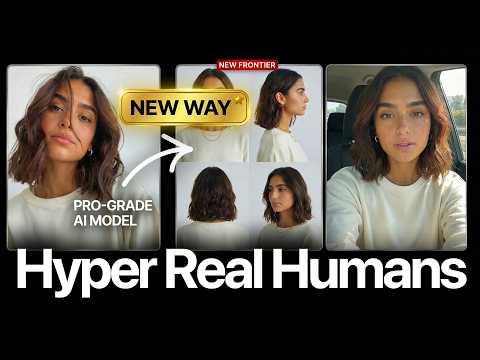 17:020:28Motion transfer with Kling AIThe creator shows how to use Kling Motion Transfer to map the movements from a real 'driving video' of himself onto a static AI influencer image.Sirio