OpenArt: Build consistent AI characters

 OpenArt
Demo summary
The tutorial walks through the 'Build your character' workflow, selecting ethnicity, age, and clothing to create a persistent character named Oscar.
Step-by-step
- Select 'Build your character' from the Create Character menu
- Choose a look vibe, gender, ethnicity, and age range
- Enter a detailed physical description in the text field
- Select the number of images to produce and click Generate
- Refine the character using the 'Edit' pencil or 'More like this' button
- Click 'Set as character' on your preferred image
- Enter a name for the character
- Click 'Create' to finalize the character profile
Options
- Select 'Androgynous' as a gender option
- Apply a voice from the 11 Labs library
- Add a background story to the character profile
- Use 'Emotion Sync' for video creation once the character is ready
Tips
- Produce four images instead of one to give yourself more options to choose from
- You don't need to fill out the background story or voice fields to successfully create the character
Highlights
“this is a great guide for you to help pick someone up”
All demos from “How to use OpenArt AI: TUTORIAL for Beginners!”
- 2:420:53Generate images with Nano Banana 2The creator demonstrates how to generate a cyberpunk Buddhist temple image by entering a text prompt and selecting the Nano Banana 2 model in OpenArt.OpenArt· Text to Image
- 7:061:43Compare multiple AI models simultaneouslyThe video shows how to use the 'select multiple' feature to compare outputs from GPT Image 2, Nano Banana 2, Recraft, and Kling 3 Omni using the same prompt.OpenArt· AI Image Generator
- 9:280:48Create image variations and style swapsThe user demonstrates transforming a reference image into an anime style and changing lighting to sunset using the Image Variations tool.OpenArt· Image to Image
- 12:121:07Upscale images and enhance skin detailThe tutorial shows how to use the Image Upscaler to increase resolution to 4K while adding realistic skin textures to a portrait.OpenArt· AI Image Upscaler
- 15:260:59Perform AI Face SwapsThe video demonstrates swapping a user's face onto an existing photo using the Face Swap tool with options for face-only or full-head replacement.OpenArt· AI Face Swap Generator
- 17:202:31Edit images with AI brushes and notesThe user demonstrates the Area Edit and Note tools to add sunglasses and change objects in an image by drawing and typing instructions directly on the canvas.OpenArt· AI Inpainting
- 20:392:03Generate video from text with Kling 3A demonstration of creating a cinematic space video from a text prompt using the Kling 3 model within OpenArt's video suite.OpenArt· Text to Video
- 23:271:55Animate between start and end framesThe creator shows how to define the first and last frames of a video to control the exact motion path of growing vines on a car.OpenArt· AI Animation Generator
- 25:261:42Create consistent videos with Smart ShotThe video demonstrates the Smart Shot tool, which generates a storyboard and character sheet before rendering a consistent AI video.OpenArt· AI Movie Generator
- 27:310:24Edit video content with text commandsThe user shows how to change a car's color and modify the sky in an existing video using plain English instructions in the Edit Video tool.OpenArt· AI Video Editor
- 28:460:40Replace video backgroundsThe tutorial demonstrates removing a character from their original setting and placing them on a golden hour beach using the Replace Background tool.OpenArt· AI Video Editor
- 31:141:10Sync motion from one video to anotherThe creator uses Motion Sync to apply the movements of a boxing video to a static cyberpunk character image.OpenArt· Image to Video
- 32:241:04AI Lip Sync for images and videoThe video shows how to upload an audio file and sync a character's mouth movements to the speech using the Lip Sync tool.OpenArt· AI Lip Sync Generator
- 33:290:47Replace characters in existing footageThe user demonstrates swapping a person in a video with a custom 'Red Monk' character while maintaining the original background and movement.OpenArt· Video to Video
- 39:331:16Create AI music tracksThe video shows how to generate lo-fi and cinematic music by describing the desired vibe and adjusting intensity settings.OpenArt· AI Music Generator
- 45:571:49Build consistent AI charactersCurrentThe tutorial walks through the 'Build your character' workflow, selecting ethnicity, age, and clothing to create a persistent character named Oscar.OpenArt· AI Person Generator
- 54:094:53Create full AI stories and explainer videosThe video demonstrates the Story tool, which generates a script, storyboard, voiceover, and final edited video with captions automatically.OpenArt· Script To Video AI Generator
- Watch “How to use OpenArt AI: TUTORIAL for Beginners!” →
AI Person Generator
 2:523:02Generate consistent characters in Open ArtUsing the Nano Banana Pro model in Open Art, the narrator demonstrates generating character designs for an alien, a dog sidekick, and a slime monster by pasting detailed prompts and selecting aspect ratios.Youri van Hofwegen
- 6:052:07Create consistent scenes using Omni ReferenceThe narrator shows how to use Open Art's Omni Reference feature to maintain character consistency across different scene generations by referencing previous character and environment images.Youri van Hofwegen
 1:190:46Create a consistent AI character in OpenArtThe creator navigates the OpenArt interface to the character dashboard and explains how to initiate character creation using either image uploads or text descriptions.Isa does AI
- 2:471:10Generate character variations with Nano Banana ProUsing a detailed text prompt for a 'vigilante hero', the creator selects the Nano Banana Pro model in OpenArt to generate and select a base character image.Isa does AI
- 45:571:49Build consistent AI charactersCurrentThe tutorial walks through the 'Build your character' workflow, selecting ethnicity, age, and clothing to create a persistent character named Oscar.Wade McMaster - Creator Impact
 2:540:32Create consistent characters from description in Open ArtThe narrator demonstrates how to use the 'start with description' feature in Open Art, showing how to input a detailed prompt for a female alchemist to establish a persistent character model.Snowball AI
- 3:400:22Generate consistent characters from one reference imageThe user walks through the 'start with one image' method in Open Art, uploading a single reference photo and naming the character to maintain consistency across future generations.Snowball AI
 6:331:13Create a consistent AI character in OpenArtThe user builds a character named Amelia from a text prompt, generating a consistent reference set including front, closeup, and full-body views.Affiliation
- 7:580:31Generate new scenes with a saved AI characterThe user selects the previously created 'Amelia' character and generates a new image of her at a cafe, maintaining facial and hair consistency.Affiliation
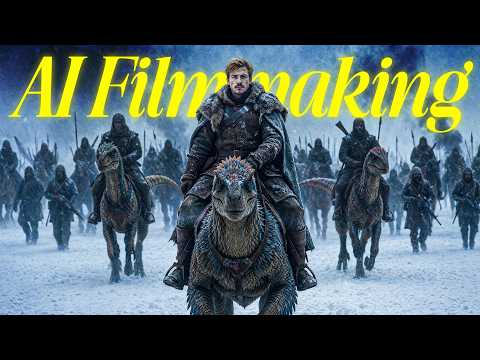 6:011:22Generate consistent character images with GPT Image 2The creator demonstrates how to use three reference images (character sheet, close-up, and detail sheet) in OpenArt's GPT Image 2 to generate high-quality, consistent character portraits.Dan Kieft
 1:210:42Maintain character consistency with Nano Banana 2The user demonstrates how to generate a scene with specific characters and then use the 'add visual references' feature to upload an image and maintain character consistency in a new prompt.Isa does AI
 2:380:18Fix character consistency with reference imagesThe user shows how to crop a character panel and re-upload it to Open Art as a reference image alongside the original grid to ensure visual consistency across all scenes.Mira AI