Editing and exporting stems in Sonauto

 Sonauto
Demo summary
The creator walks through the Sonauto edit menu, demonstrating the 'get stems' feature to separate vocals and instruments, and the process for exporting the final track as a WAV file.
Step-by-step
- Open the Edit menu for a generated song
- Select the Get Stems option
- Wait for the AI to separate the drums, bass, vocals, and instrumental
- Click the three dots on the project
- Select Download
- Choose the WAV format for the export
Options
- Extend the song using Model V3
- Use Replace or Use as Reference (Model V2 only)
Watch out for
- The Replace feature is currently incompatible with Model V3
- Using Model V2 for editing can significantly lower audio quality and change the vocal character
Tips
- Use the Get Stems feature to prepare tracks for future remastering capabilities
- Download files in WAV format for better quality
- Save each individual stem separately to ensure you have them for future use
Highlights
“the most underrated edit option is the get stems over here”
All demos from “Sonauto V3: How to Make Free AI Music (Full Tutorial)”
- 2:401:00Refining lyrics and tags in Sonauto V3The user shows how to switch from simple to advanced mode in Sonauto to copy automatically assigned tags and paste refined lyrics back into the generator.Sonauto· AI Song Generator
- 3:521:12Adjusting style tags and regenerating musicThe demonstration shows the process of selecting specific genre tags like 'New York Drill' and 'Cloud Rap' from the Sonauto UI to alter the song's production style.Sonauto· AI Song Generator
- 5:241:03Editing and exporting stems in SonautoCurrentThe creator walks through the Sonauto edit menu, demonstrating the 'get stems' feature to separate vocals and instruments, and the process for exporting the final track as a WAV file.Sonauto· AI Vocal Remover & Stem Splitter
- Watch “Sonauto V3: How to Make Free AI Music (Full Tutorial)” →
AI Vocal Remover & Stem Splitter
- 5:241:03Editing and exporting stems in SonautoCurrentThe creator walks through the Sonauto edit menu, demonstrating the 'get stems' feature to separate vocals and instruments, and the process for exporting the final track as a WAV file.roninteck
 4:490:33Extracting stems and downloading tracksThe demonstration shows how to download finished tracks and use the 'Get Stems' feature to separate drums, bass, vocals, and instruments.Artificial Quotient
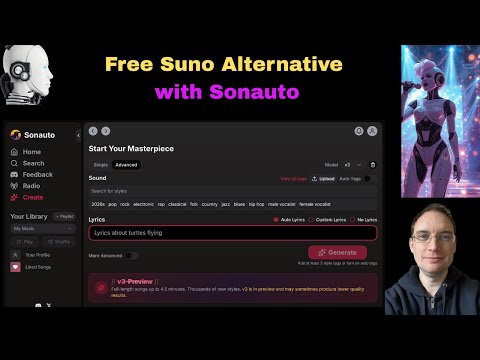 5:120:26Downloading generated stems in SonautoThe user demonstrates the process of downloading individual drum and instrument stems once the AI generation is finalized.Music Tech Info
 38:302:46Extracting stems from generated AI musicThe creator demonstrates the 'get stems' feature in Sonauto, showing how the platform can separate a generated track into individual components like drums, bass, and instrumentals.Busy Works Beats
 7:230:40AI Stem Separation in SonautoThe host demonstrates the stem separation feature, playing back individual tracks for drums, bass, and vocals from a generated song.Bob Doyle Media