Fl Studio: Adjusting sub-bass depth via volume

 Fl Studio
Demo summary
The creator demonstrates bringing the sub-bass forward in the '3D space' by increasing the volume knob to make it audible against other elements.
Step-by-step
- Identify the sub-bass element in the mix
- Locate the volume knob for the sub-bass track
- Increase the volume knob to bring the sound forward in the 3D space
Tips
- Increase the volume specifically to make low-frequency elements audible against other mix elements
All demos from “Give me 14 minutes, and I'll 10x your music production skills”
- 6:530:28Fixing bass and chord frequency conflictsThe user demonstrates shifting a bassline down one octave to separate it from the chord frequencies, instantly improving clarity in the mix.Fl Studio· AI Audio Editor
- 7:240:20Adjusting sub-bass depth via volumeCurrentThe creator demonstrates bringing the sub-bass forward in the '3D space' by increasing the volume knob to make it audible against other elements.Fl Studio· AI Audio Editor
- 12:260:37Boosting kick drum low-end with EQThe creator demonstrates adding a small EQ boost to the kick drum to fill the sub-bass gap created during sidechain ducking.Fl Studio· AI Audio Editor
- Watch “Give me 14 minutes, and I'll 10x your music production skills” →
AI Audio Editor
 3:090:11Adjust hi-hat length with the Out knobThe demonstration shows how to use the 'out' knob in the FL Studio sampler to shorten a hi-hat sample for a tighter sound.Dirkey
- 9:270:33EQing melody for 808 roomThe demonstration shows opening an EQ on the melody track and applying a low cut under 100Hz to prevent frequency clashing with the 808.Dirkey
- 10:092:17Leveling drum tracks in the mixerThe creator walks through the mixer, adjusting faders for the snare, hi-hats, and percussion to achieve a balanced drum mix.Dirkey
 2:000:42Time stretching samples in FL StudioThe creator demonstrates how to use the stretch mode in FL Studio to adjust the BPM of an AI-generated sample to fit a 91-93 BPM West Coast pocket.Busy Works Beats
- 22:500:47Automating high-pass and low-pass filtersThe creator demonstrates setting up a band-pass filter and right-clicking to create automation nodes to clear room for an 808 bass line.Busy Works Beats
- 27:560:39Slicing audio with Fruity SlicerThe creator demonstrates opening a sample in Fruity Slicer and slicing it by the beat to create a quantized stutter effect.Busy Works Beats
 0:090:37Create a volume automation clip in FL StudioThe narrator demonstrates selecting a region in the playlist, right-clicking a volume knob in the channel rack, and creating an automation clip to perform a fade-in.FL Studio
- 1:590:28Editing automation control pointsA walkthrough of UI actions in FL Studio including right-clicking to add/delete points, using shift-click to lock levels, and changing curve types.FL Studio
- 3:200:14Copy and paste automation statesThe user demonstrates copying a curve from one automation clip to another using the Articulator Tools menu.FL Studio
 7:020:32Processing AI vocals in FL StudioThe user demonstrates applying a gate, Soundgoodizer, EQ, reverb, and delay to the AI-generated vocal within FL Studio to finalize the track.Arcade
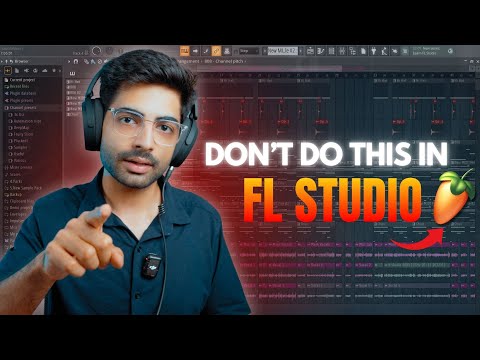 2:030:24EQing a kick drum in FL StudioThe user demonstrates searching for and cutting resonating frequencies on a kick drum sample using an EQ plugin.Basslila
- 11:390:47Sidechain compression with Fruity LimiterA step-by-step walkthrough of sidechaining a bass to a kick using Fruity Limiter, including setting the sidechain input, ratio, and threshold.Basslila