Editing video on the LTX Studio timeline

 LTX Studio
Demo summary
The walkthrough shows the built-in video editor where clips are trimmed, split, and synced to a music track directly within the platform.
Step-by-step
- Open the video editor and import your storyboard to the timeline
- Select a track from the music library or upload your own
- Drag the playhead to the desired timestamp and use the split tool to cut clips
- Delete unwanted segments or gaps on the timeline
- Adjust the start and end points of individual shots to refine the timing
- Navigate to the narration section to add AI-generated voiceovers
Options
- Use tracks from the built-in music library
- Upload your own custom music files
Tips
- Edit your clips to the beat of the music for a more professional feel
- Use the timeline to quickly assemble a first draft of your project
Highlights
“this is like how I would edit like quickly get a first draft”
All demos from “Create an Ad Using LTX Studio (Full Walkthrough)”
- 15:001:24Applying style references to image generationsThe demo shows how to use an existing image as a reference and apply different artistic styles like 'collage', 'origami', and 'wool' to transform the product's appearance.LTX Studio· AI Style Transfer
- 19:101:16Building a storyboard from generated assetsThe user demonstrates how to organize generated images into a sequence within the LTX Studio storyboard to plan the narrative flow of an advertisement.LTX Studio· AI Storyboard Generator
- 20:312:59Converting still images to video with LTX 2.3The presenter uses the LTX 2.3 video model to animate a still image of headphones, applying a 'dolly in' camera preset and a text prompt for motion.LTX Studio· Image to Video
- 28:152:29Editing video on the LTX Studio timelineCurrentThe walkthrough shows the built-in video editor where clips are trimmed, split, and synced to a music track directly within the platform.LTX Studio· AI Video Editor
- Watch “Create an Ad Using LTX Studio (Full Walkthrough)” →
AI Video Editor
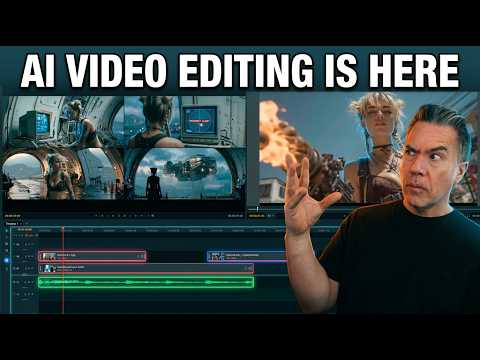 6:591:41Editing timeline and properties in LTX DesktopThe demonstration covers the non-linear editor interface, including clip trimming, color correction properties, adjustment layers, and auto-letterboxing features.Theoretically Media
- 8:581:04Non-destructive shot regeneration on the timelineThe user shows how to right-click a clip on the timeline to 'Regenerate Shot' and toggle between different AI-generated versions of the same prompt non-destructively.Theoretically Media
- 10:361:08Bridging clips with AI 'Fill with Video'The user demonstrates the 'Fill with Video' feature which uses a Gemini API key to generate a transitional bridge between two existing clips on the timeline.Theoretically Media
- 12:330:28Fixing video artifacts with Retake ShotThe demonstration shows using the 'Retake' feature in the Gen Space to fix a specific visual glitch (a character's neck spinning) by regenerating a specific section of the clip.Theoretically Media
- 28:152:29Editing video on the LTX Studio timelineCurrentThe walkthrough shows the built-in video editor where clips are trimmed, split, and synced to a music track directly within the platform.LTX_io
 5:221:16Customizing video style and character ageThe demo shows how to switch between cinematic, anime, and 3D styles in real-time and how to edit a character's age to change their appearance in LTX Studio.AI Guy
- 12:481:20Adding sound effects and exporting the final videoThe demo shows how to apply automatic sound effects to specific scenes, generate final motion for all clips, and export the completed storyboard as an MP4.AI Guy